
Kanban Board
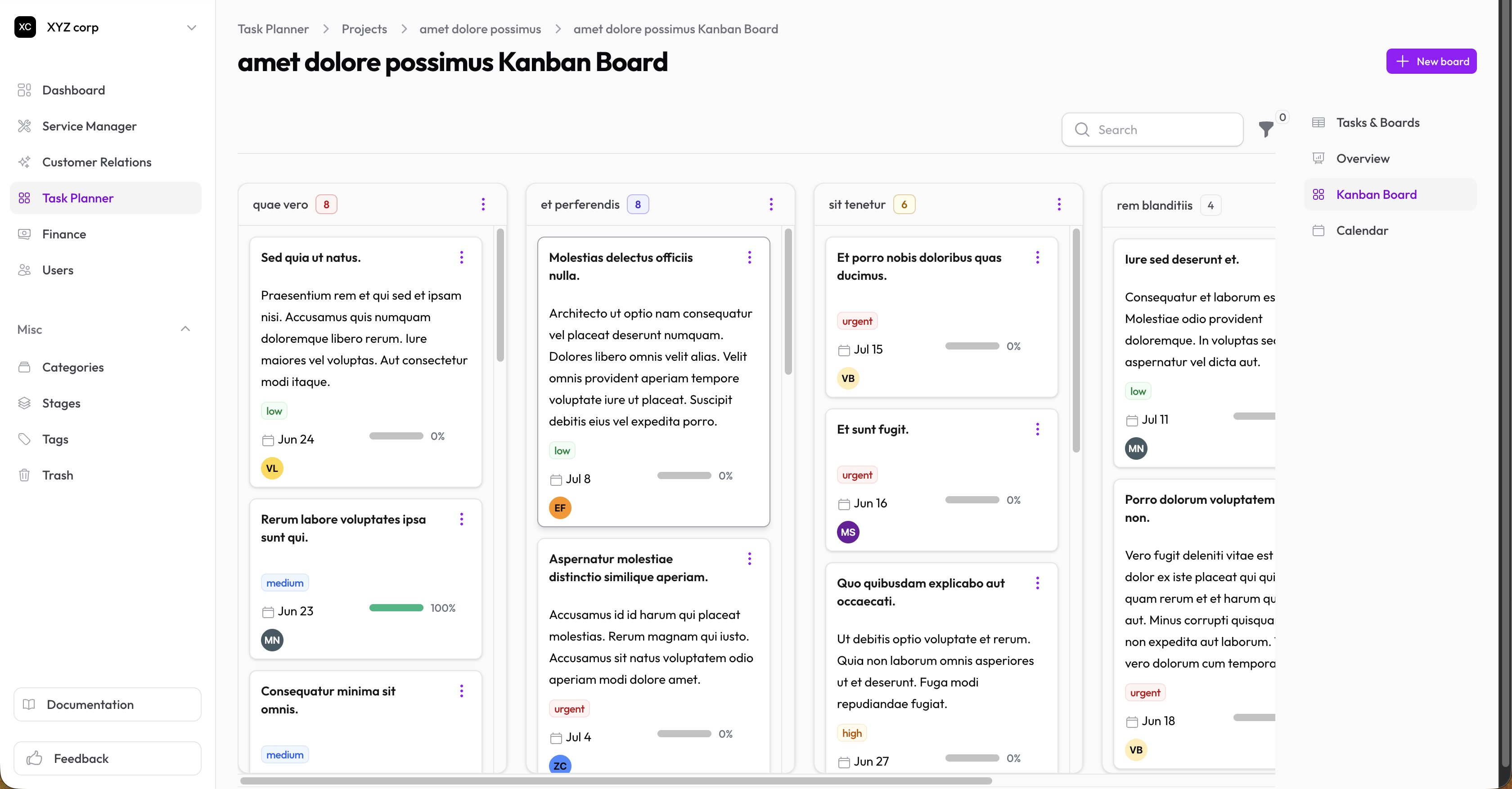
The Kanban board is a visual way to manage tasks within a project. Tasks appear as cards organized into columns — drag them left or right to update their stage.
Opening the Board
- Go to Task Planner → Projects
- Click on a project
- Click the Kanban Board button (or navigate via the sub-navigation)
Board Columns
Columns represent stages of work. Tasks move from left to right as they progress.
A typical board might look like:
| Column | Meaning |
|---|---|
| To Do | Not started yet |
| In Progress | Actively being worked on |
| In Review | Awaiting approval or feedback |
| Done | Completed |
Columns are set up per project — you can customize them to match your workflow.
Working With Cards
Moving a card
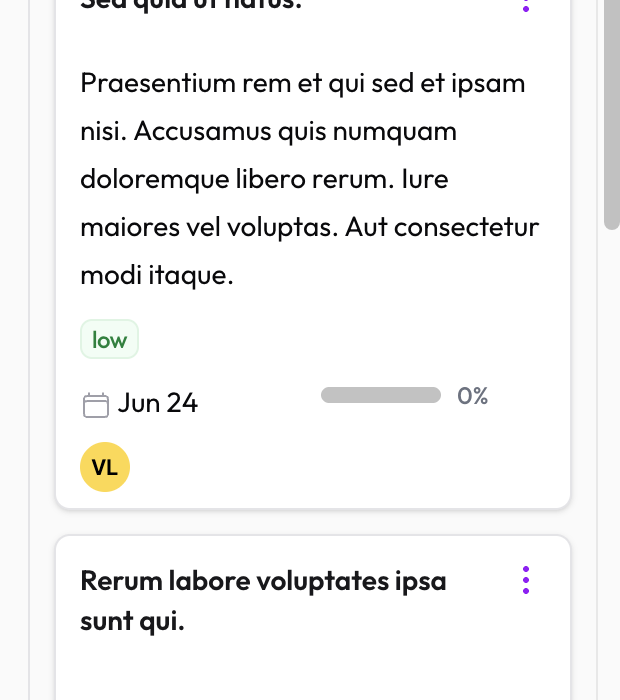
Drag a task card from one column to another. The task's board column updates automatically.
Adding a task
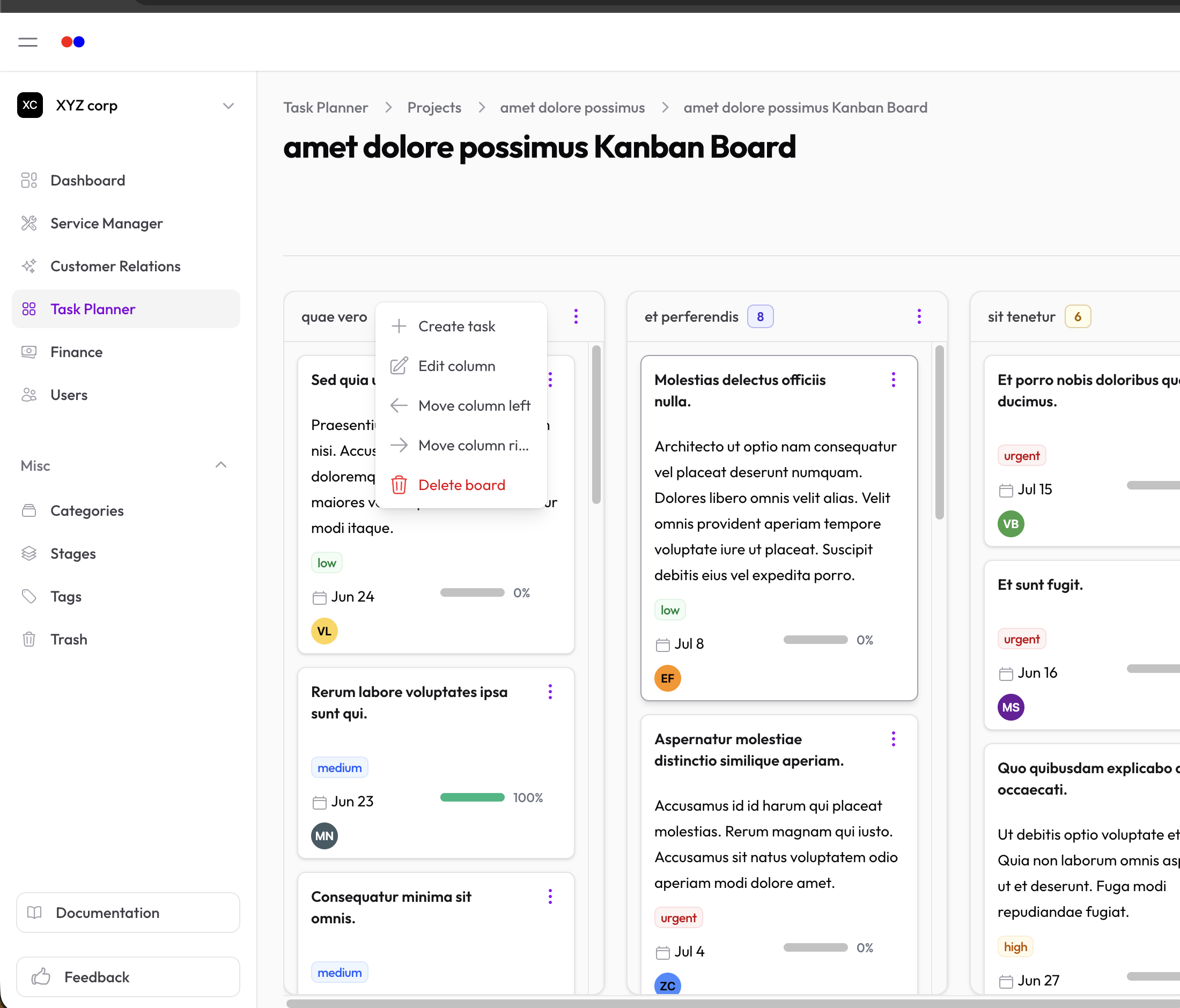
Click the + button at the top of any column to create a new task directly in that column.
Editing a task
Click on any card to open the full task detail view, where you can edit all fields, add sub-tasks, attach files, and more.
Completing a task
Toggle the completed state directly from the task detail, or use the action menu on the card.
Filters
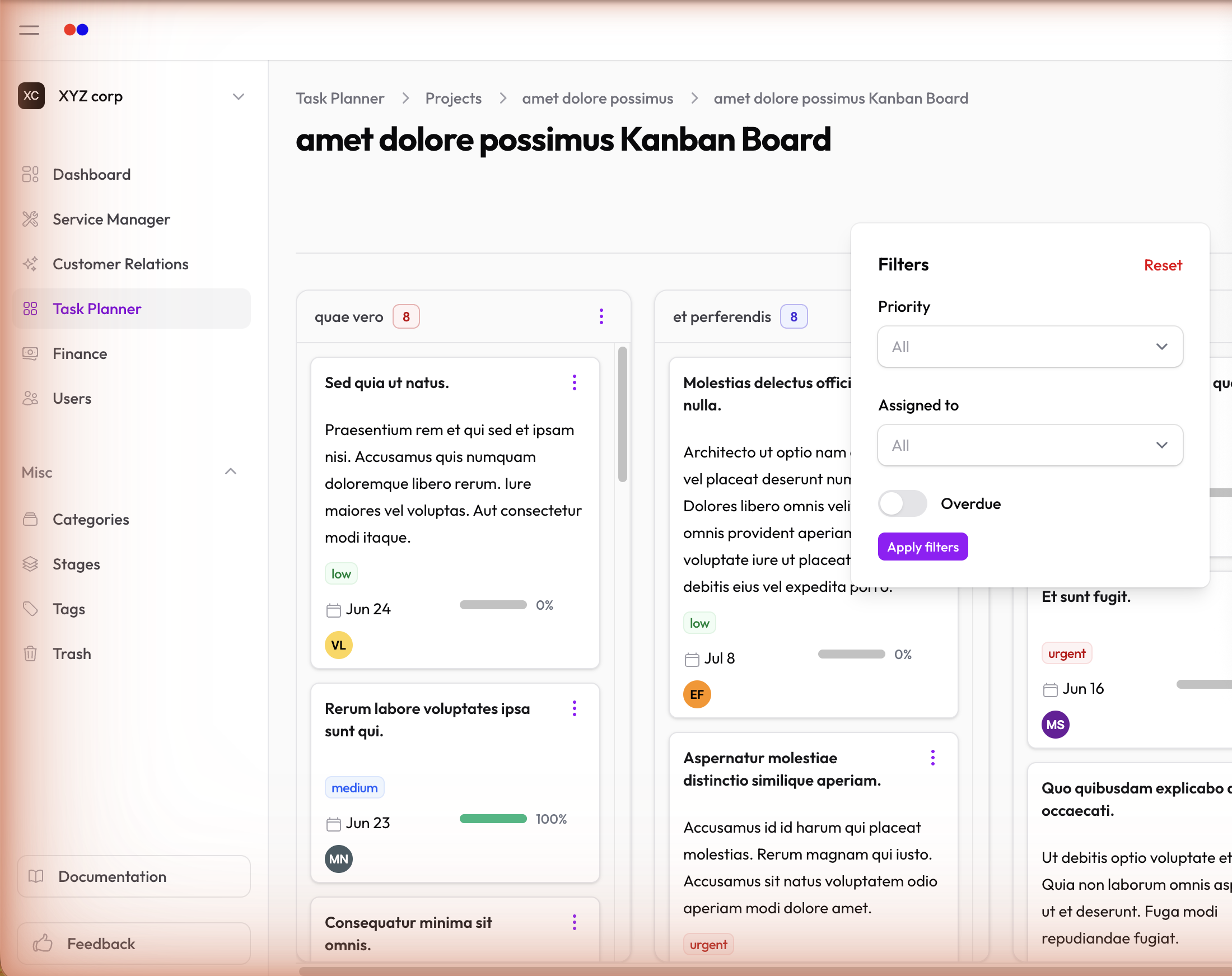
Use the board filters to focus on specific tasks:
- Filter by assignee to see only your tasks
- Filter by priority to surface urgent work
- Filter by tags to focus on a category of work
Relationship to Tasks
The Kanban board and the Tasks list show the same data — they're just different views. A task created on the board appears in the Tasks list, and vice versa.