
Tasks
Tasks are individual work items. Each task can be assigned to team members, given a deadline and priority, and broken down further with sub-tasks.
Creating a Task
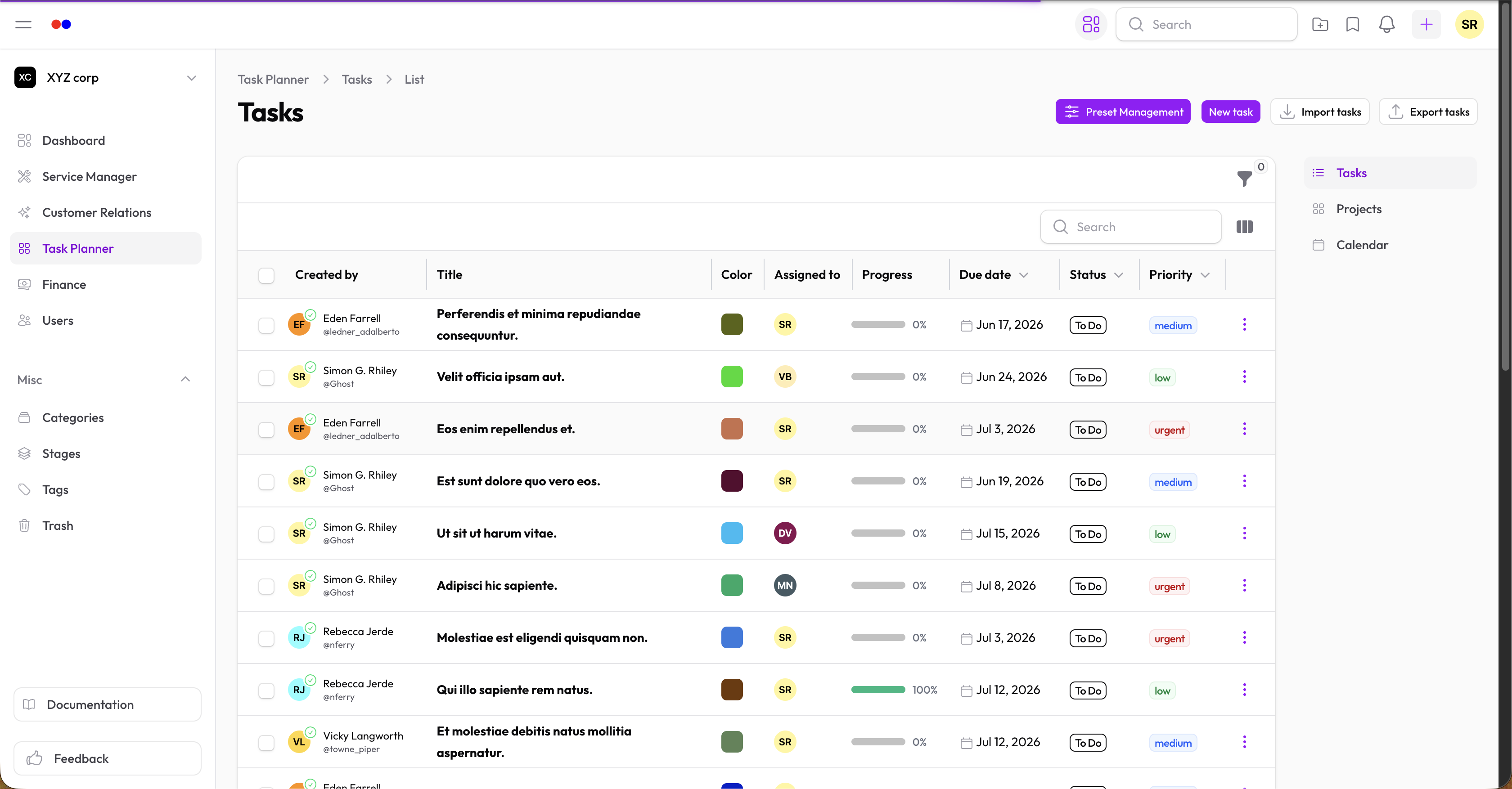
From the Tasks list
- Go to Task Planner → Tasks
- Click New Task
- Fill in the details
From the Kanban board
- Open a project's Kanban board
- Click + in any column
- The task is automatically placed in that column
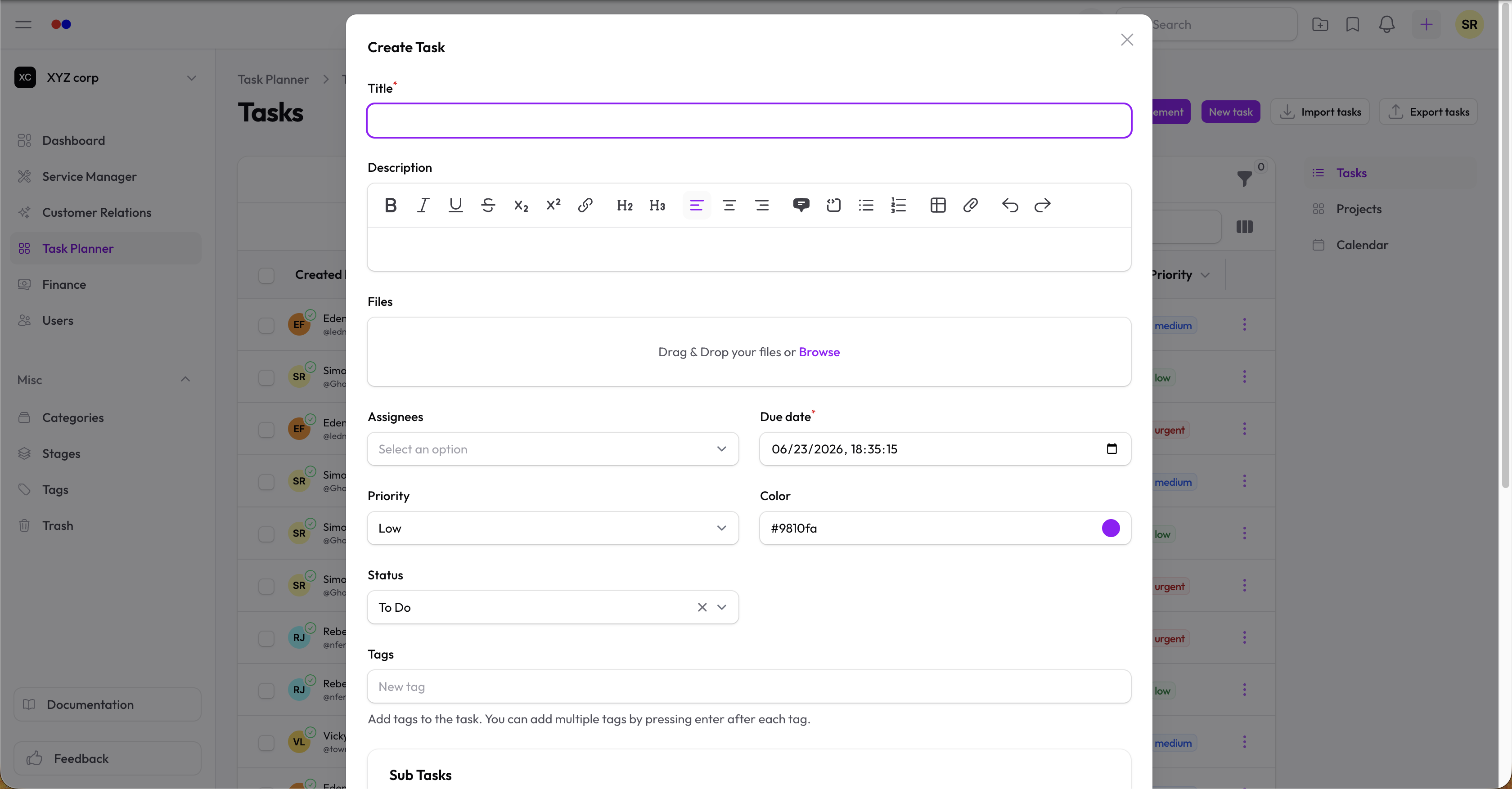
Task Fields
| Field | Description |
|---|---|
| Title | What needs to be done — required |
| Description | Rich text details, context, or instructions |
| Assignees | Team members responsible for this task |
| Due date | When the task must be completed |
| Priority | Low, Medium, High, or Urgent |
| Color | Visual color for the card on the board |
| Completed | Toggle to mark as done |
| Tags | Labels for filtering and searching |
| Files | Attach documents or images |
Priority Levels
| Priority | Color | Use when |
|---|---|---|
| Low | Green | Nice to have, no deadline pressure |
| Medium | Blue | Standard work item |
| High | Orange | Needs attention soon |
| Urgent | Red | Blocking or time-critical |
Sub-Tasks
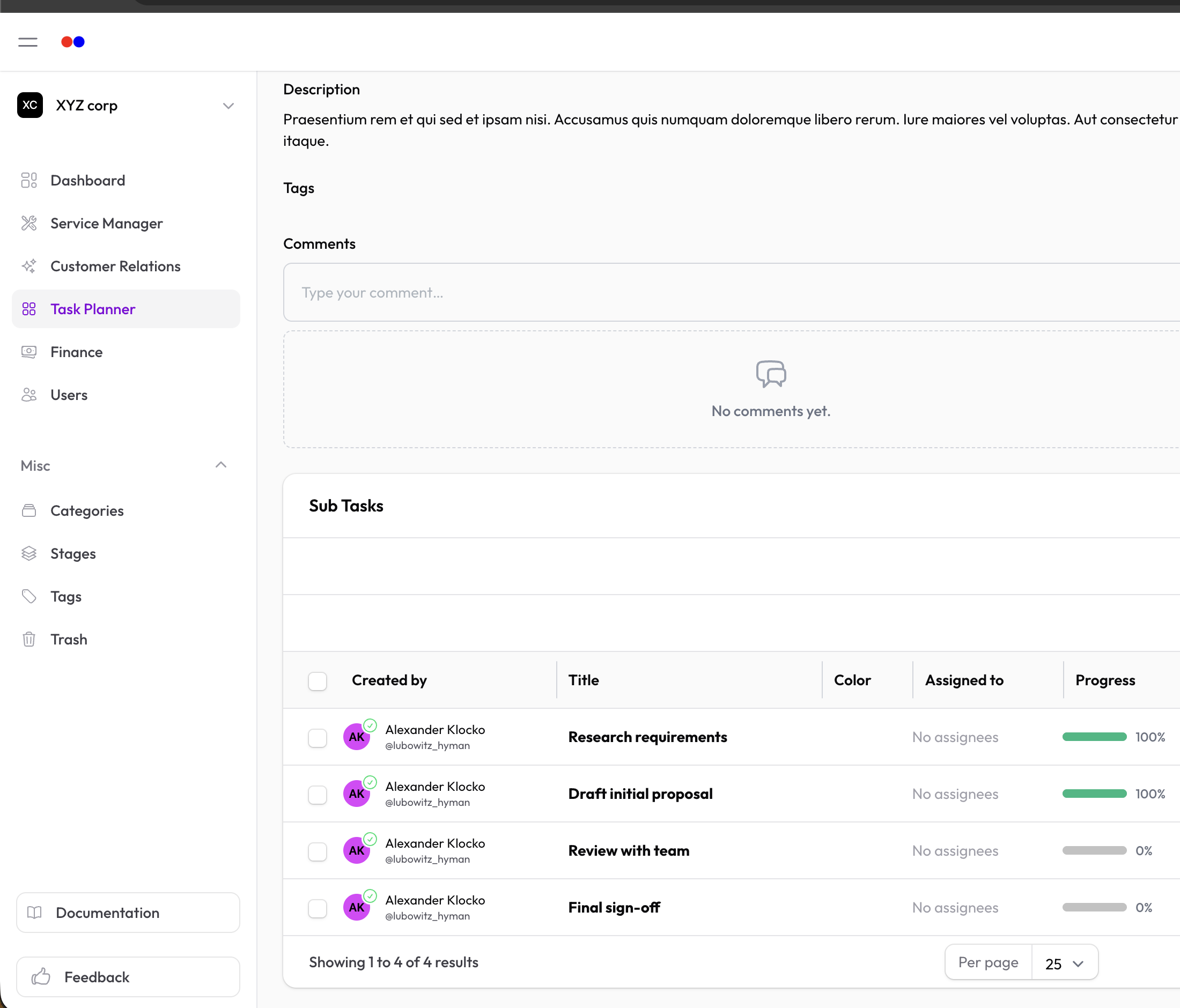
Break a task into smaller steps using sub-tasks:
- Open a task
- Scroll to the Sub Tasks section
- Click Add and fill in the sub-task title
- Each sub-task tracks its own completion state
Sub-tasks show as a progress bar on the task card in the Kanban board.
Filtering Tasks
The Tasks list supports filtering by:
- Assignee — Who it's assigned to
- Priority — Filter by urgency level
- Completed — Show only open or done tasks
- Tags — Filter by label
- Due date — Overdue toggle
- Date range — Created or updated between dates
Completing a Task
Toggle the Completed switch on the task, or check it off directly on the Kanban board.
Deleting a Task
Tasks are soft-deleted (moved to Trash). You can restore them later.
Export
Download tasks as CSV for reporting.