
Services
Services define what your organization offers to clients. Each service includes pricing, requirements, and workflow stages.
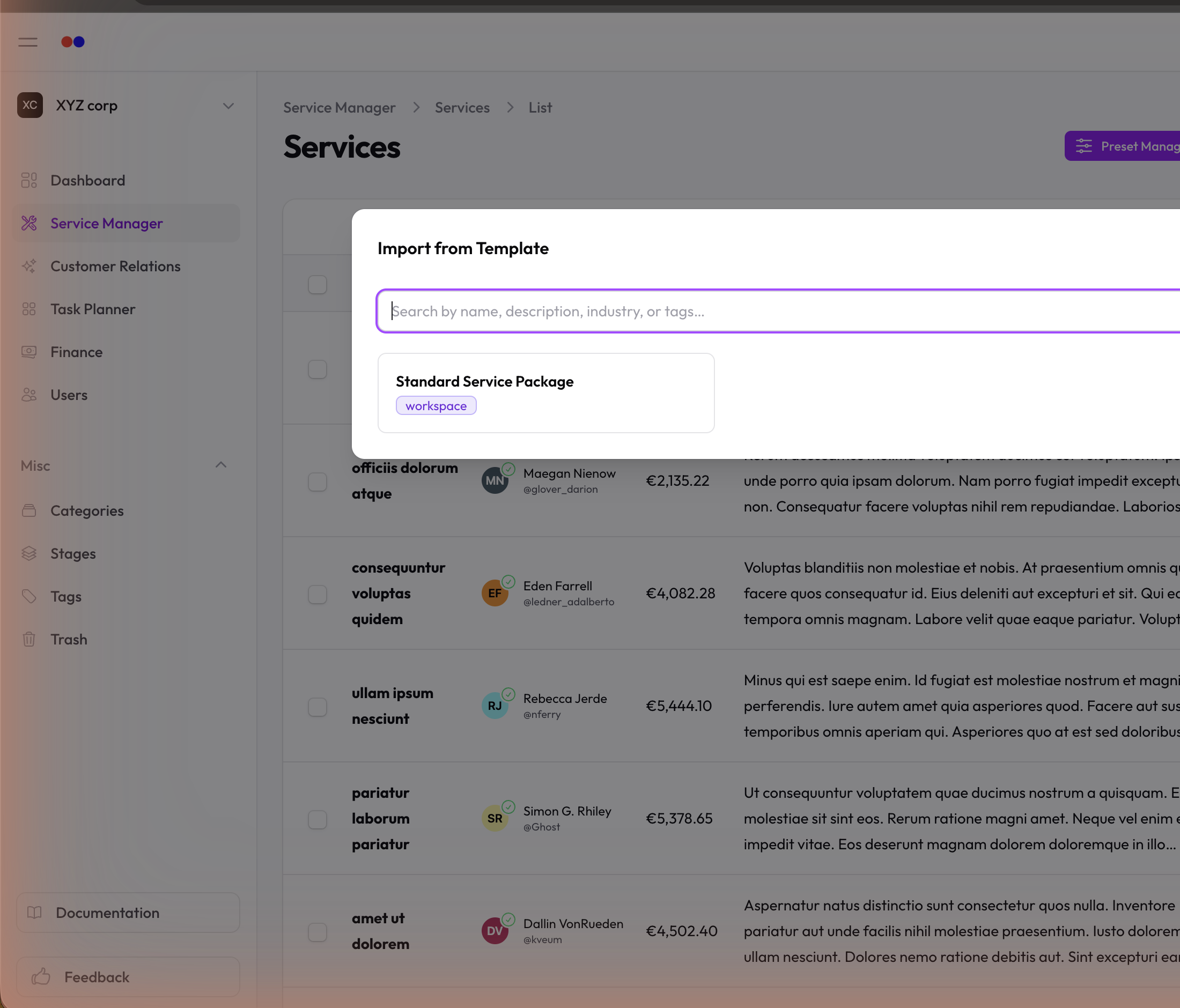
Skip the blank page. When you create an organization, we seed a starter pack of services for your industry. You can also import a service from a Template — click From Template on the Services list.
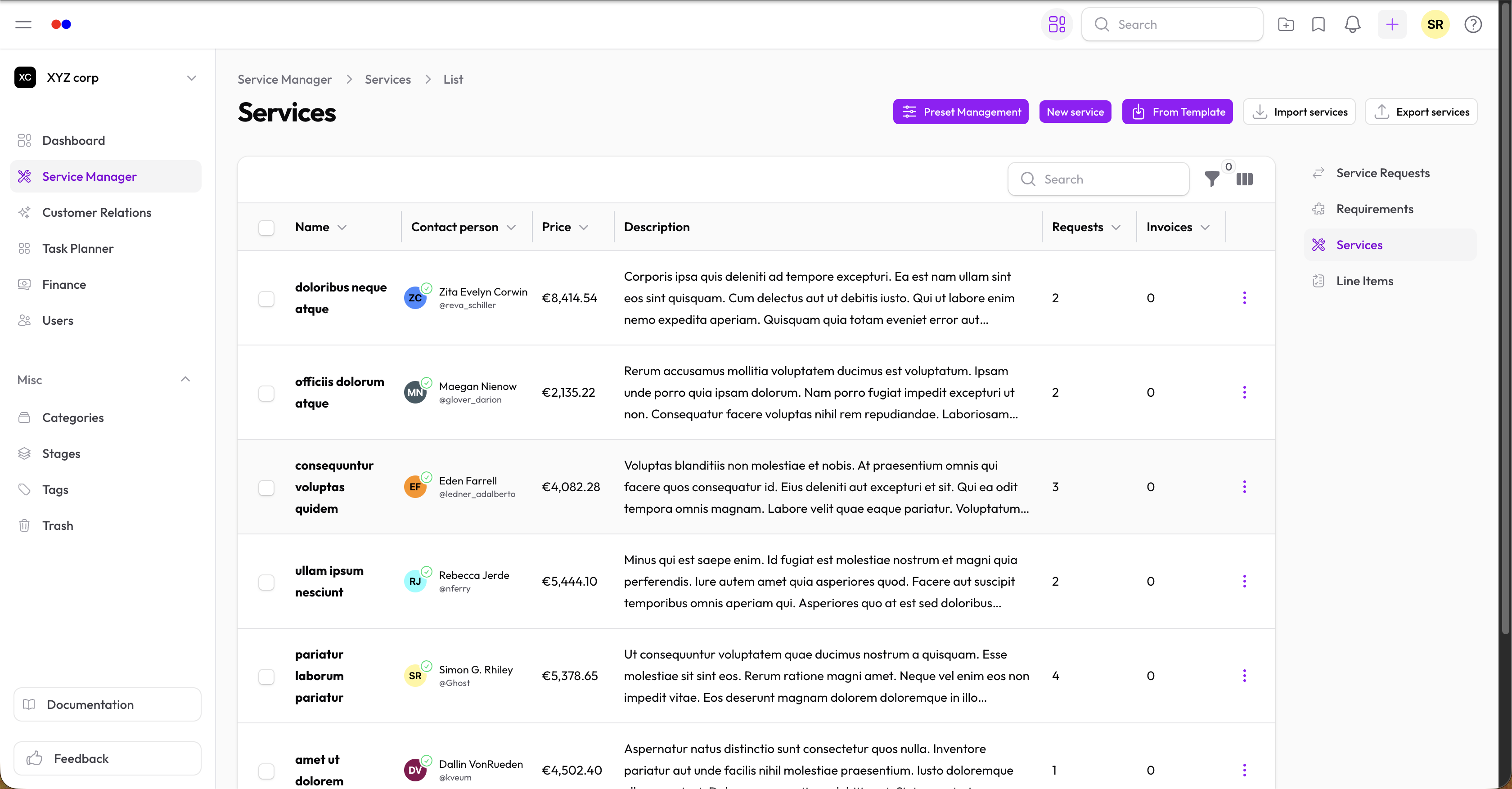
Creating a Service
- Go to Service Manager → Services
- Click New Service (or From Template to start from a saved template)
- Fill in the details:
- Name — What the service is called
- Description — Details about the service (rich text supported)
- Contact Person — Team member responsible for this service
- Active — Whether the service is available for requests
- Invoiceable — Whether this service can appear on invoices
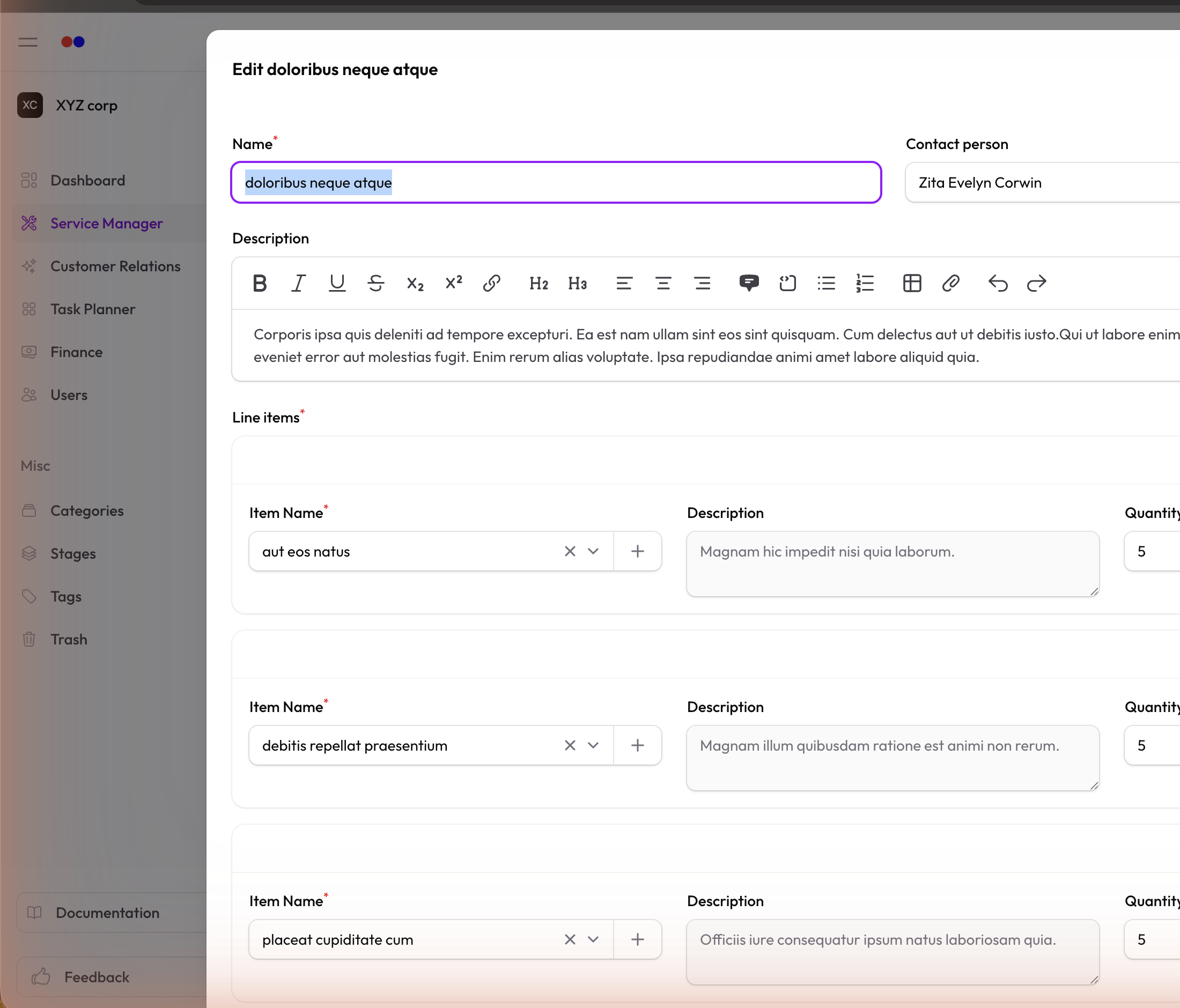
Adding Line Items
Line items determine the service price:
- In the Line Items section, click Add
- Select a line item from your catalog
- Set the Quantity
- The subtotal updates automatically
💡 Need to create line items first? See Line Items
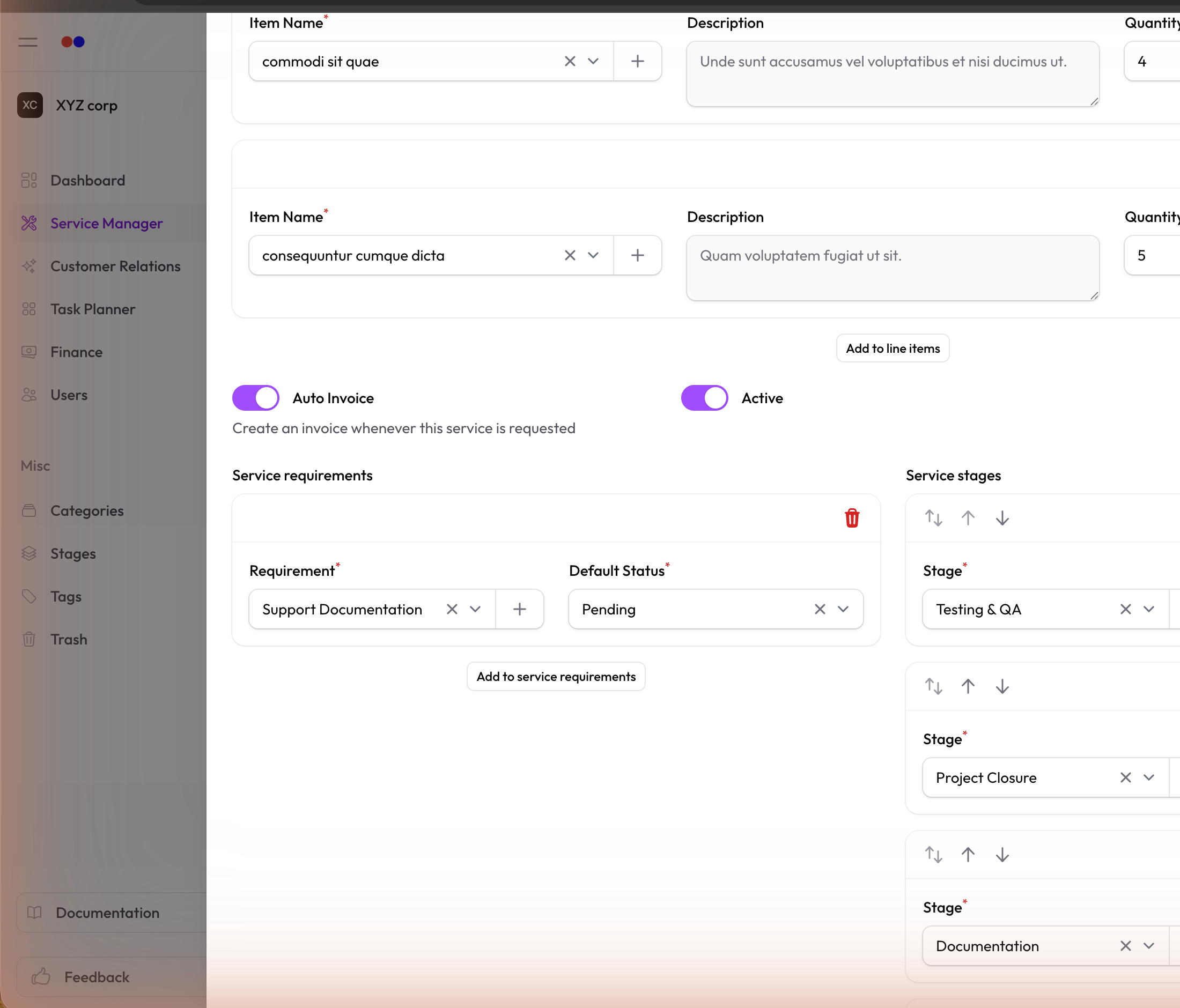
Adding Requirements
Requirements are what clients must provide:
- In the Requirements section, click Add
- Select requirements from your list
- Set the Default Status for each (usually "Pending")
💡 Need to create requirements first? See Requirements
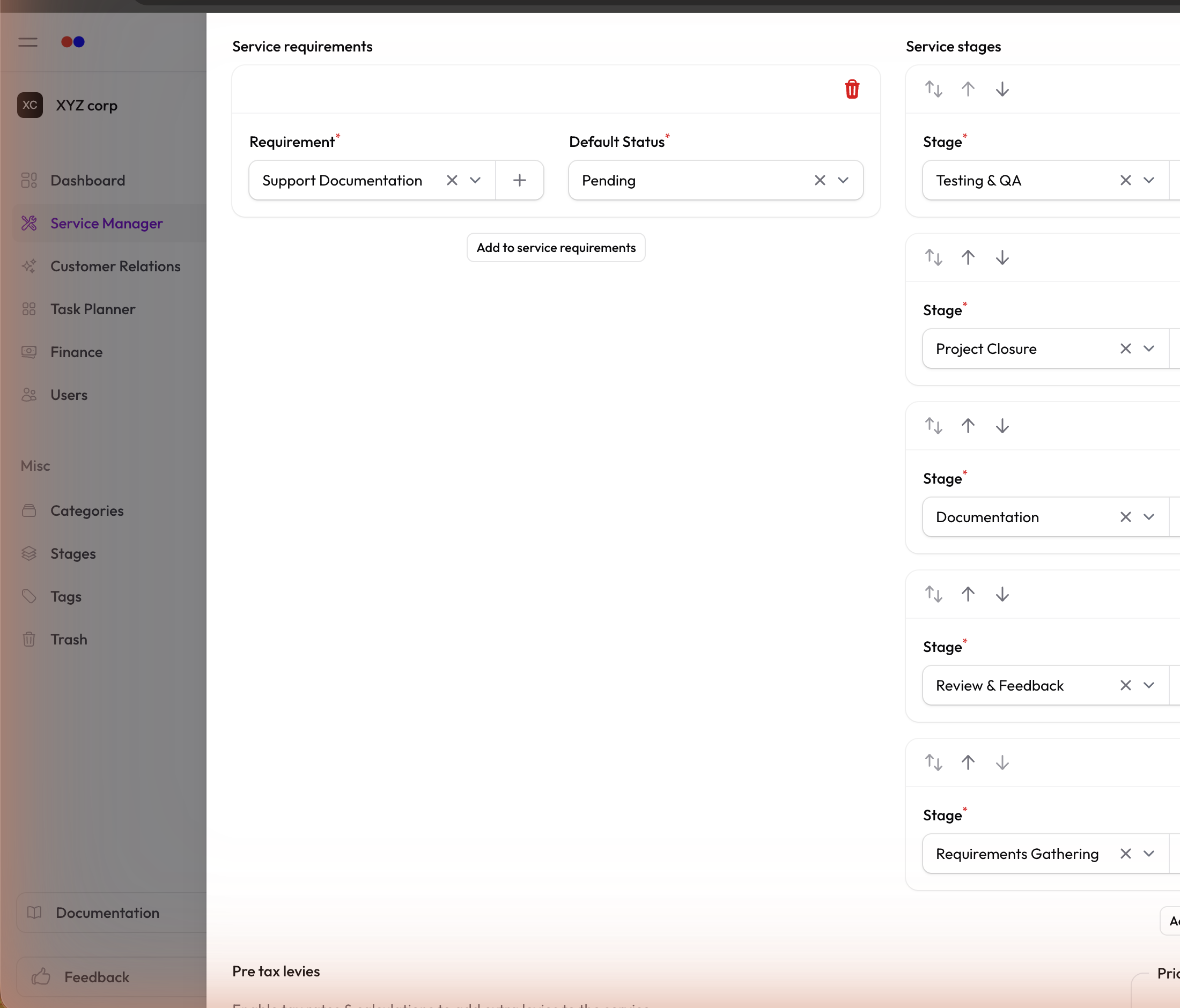
Adding Stages
Stages track workflow progress:
- In the Stages section, click Add
- Select stages from your list
- Drag to reorder them
- Mark one as Default — the starting stage for new requests
💡 Need to create stages first? See Stages
Editing a Service
- Click on any service to view it
- Click Edit to modify
- Save your changes
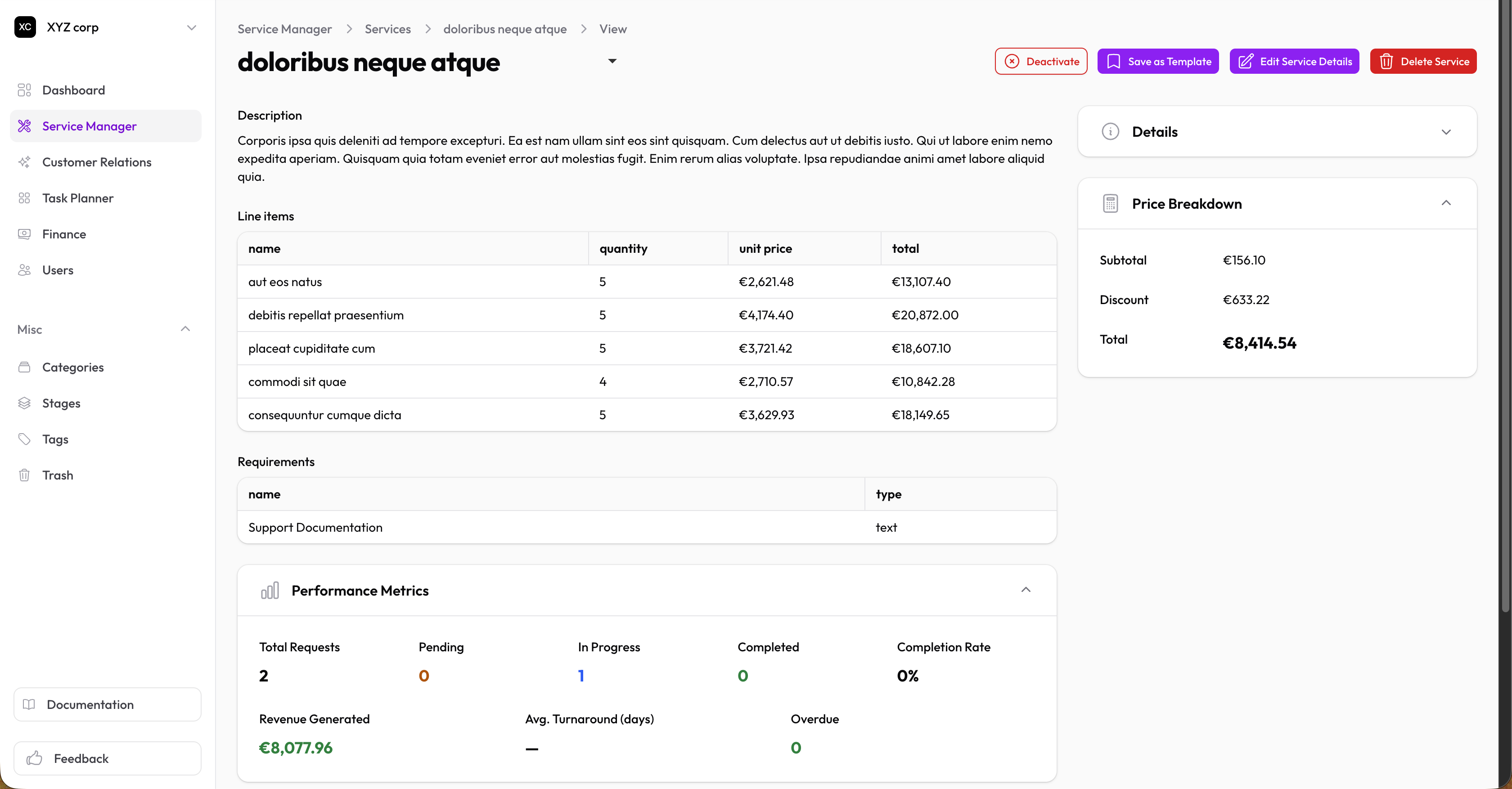
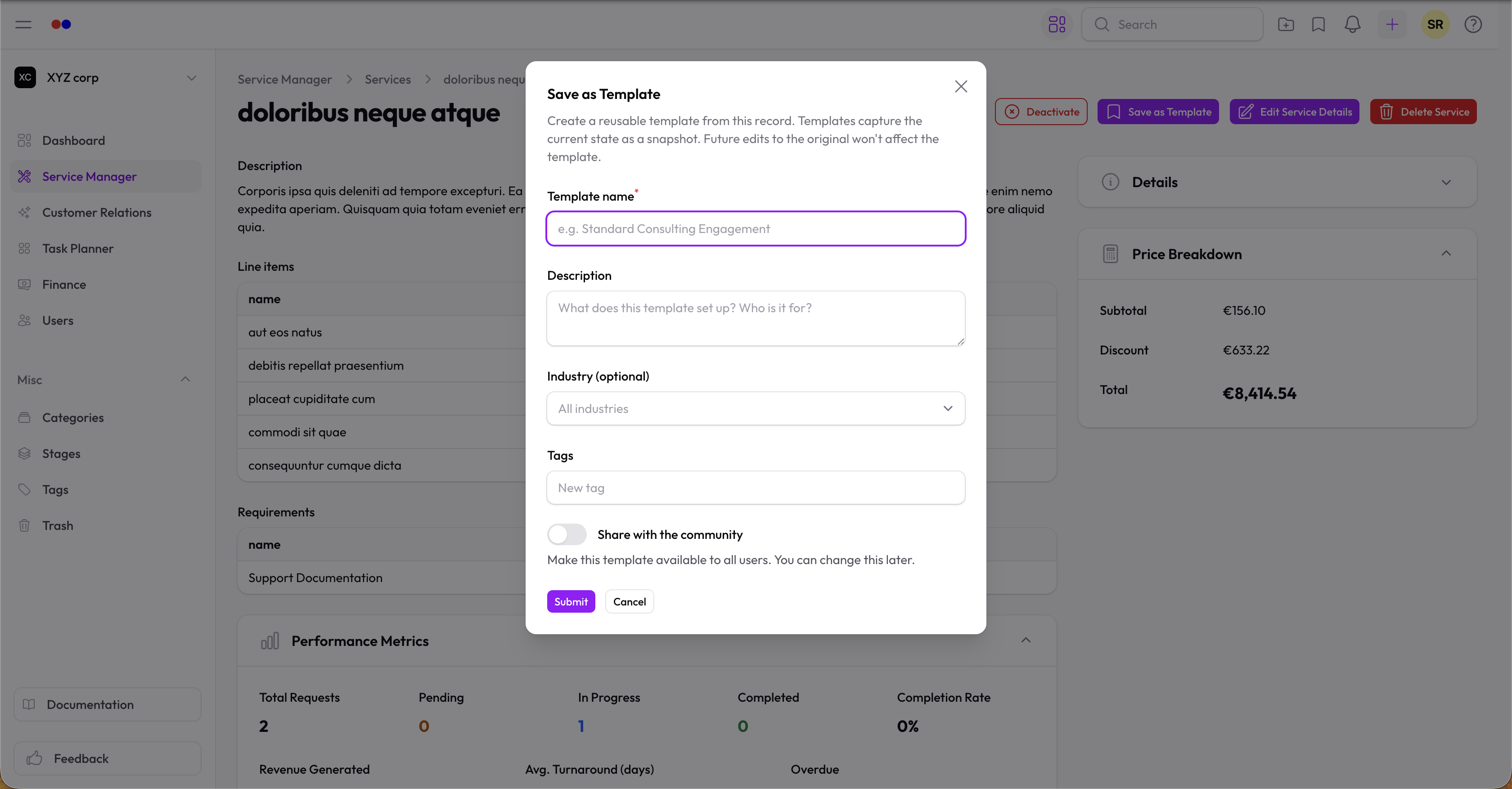
Save as Template
From a service's View page, click Save as Template to capture the current configuration (line items, requirements, stages) as a reusable template — private to your org or shared with the community. See Templates for details.
Duplicating a Service
Use the Replicate action to create a copy with the same settings.
Deleting a Service
Services are soft-deleted (moved to Trash). You can restore them later if needed.
Marketplace Visibility
Active services are automatically discoverable on the public Marketplace. To hide a service from the marketplace, set it to inactive.
Import & Export
-
From Template — Import from a saved or community Template
-
Import — Bulk import services from CSV
-
Export — Download services as CSV for backup or reporting