
Orders
An Order records a customer purchase and tracks it through to fulfilment.
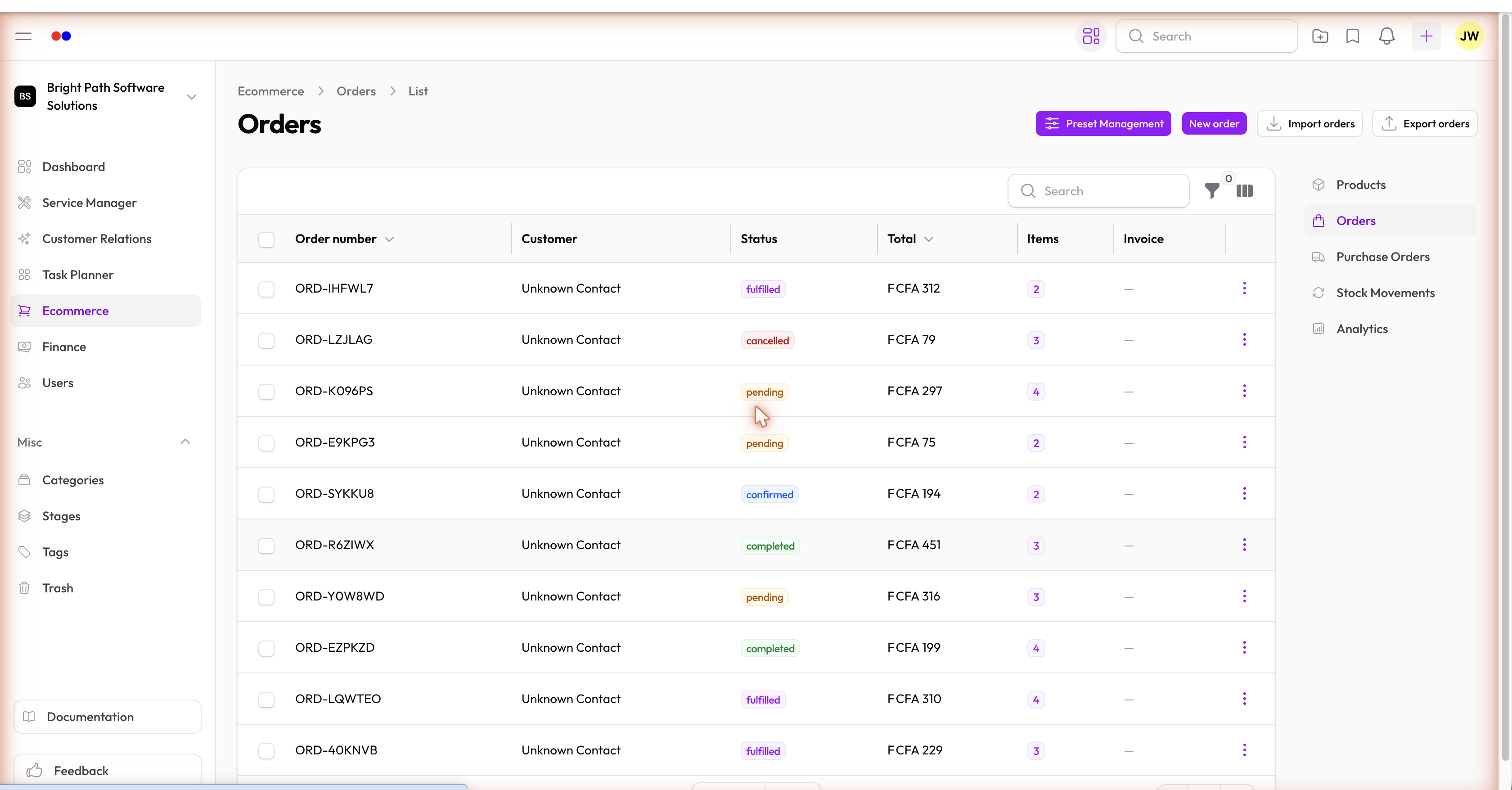
Order Statuses
| Status | Meaning |
|---|---|
| Pending | Received but not yet processed |
| Processing | Being prepared |
| Shipped | Dispatched to the customer |
| Delivered | Confirmed received |
| Cancelled | Cancelled before fulfilment |
When an order is marked Shipped or Delivered, a stock movement (stock out) is automatically logged for each line item.
Order View
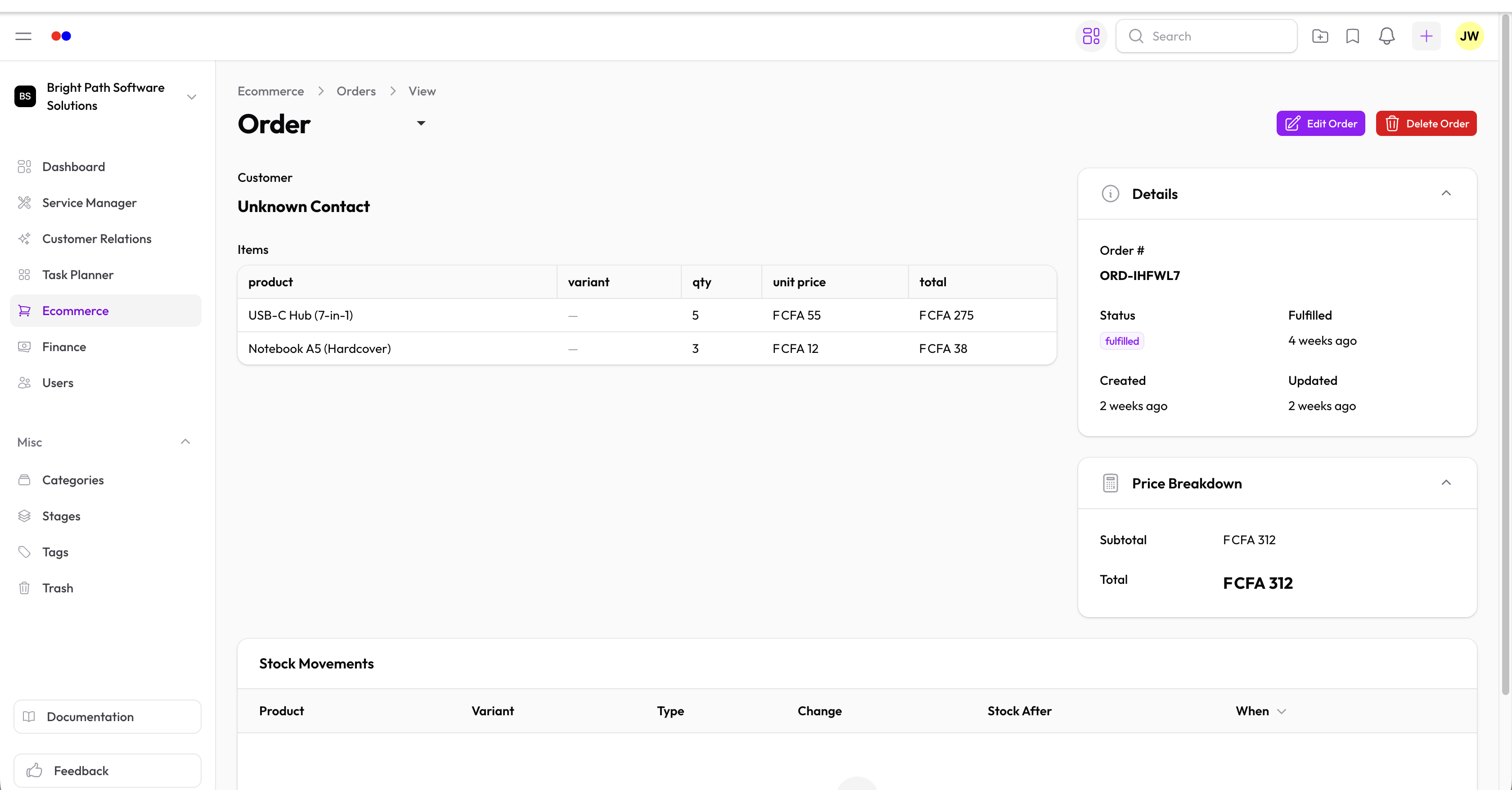
Each order shows:
- Customer — a User or Contact in your organization
- Line items — products and quantities
- Total — calculated from line items
- Status — track from Pending through to Delivered
Creating an Order
- Go to Ecommerce → Orders and click New order
- Select the customer
- Add line items — choose the product variant and quantity
- Save and update the status as it progresses through fulfilment