
Accounts
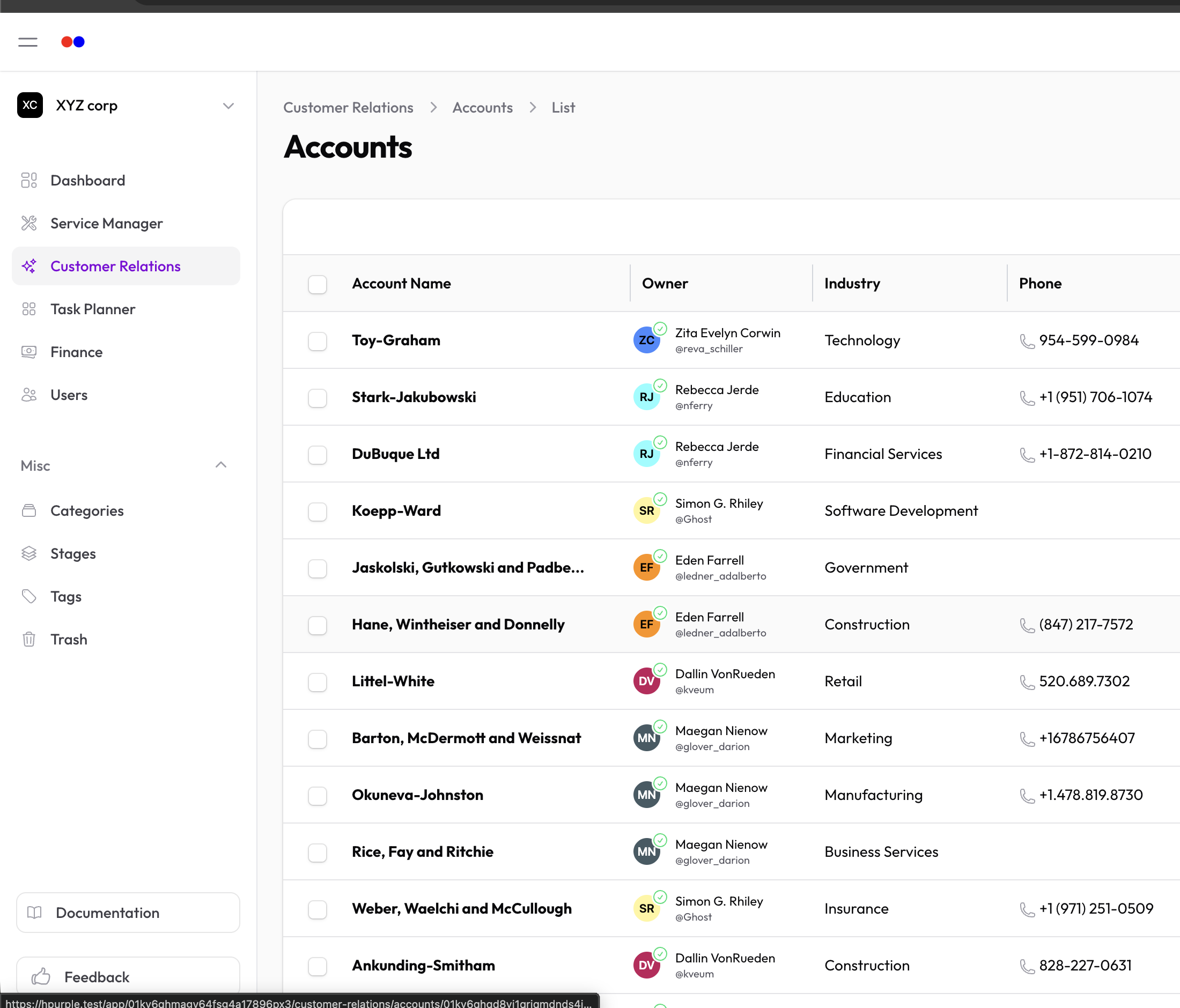
Accounts represent companies or organizations you do business with. Each account can have multiple contacts and deals associated with it.
Creating an Account
- Go to Customer Relations → Accounts
- Click New Account
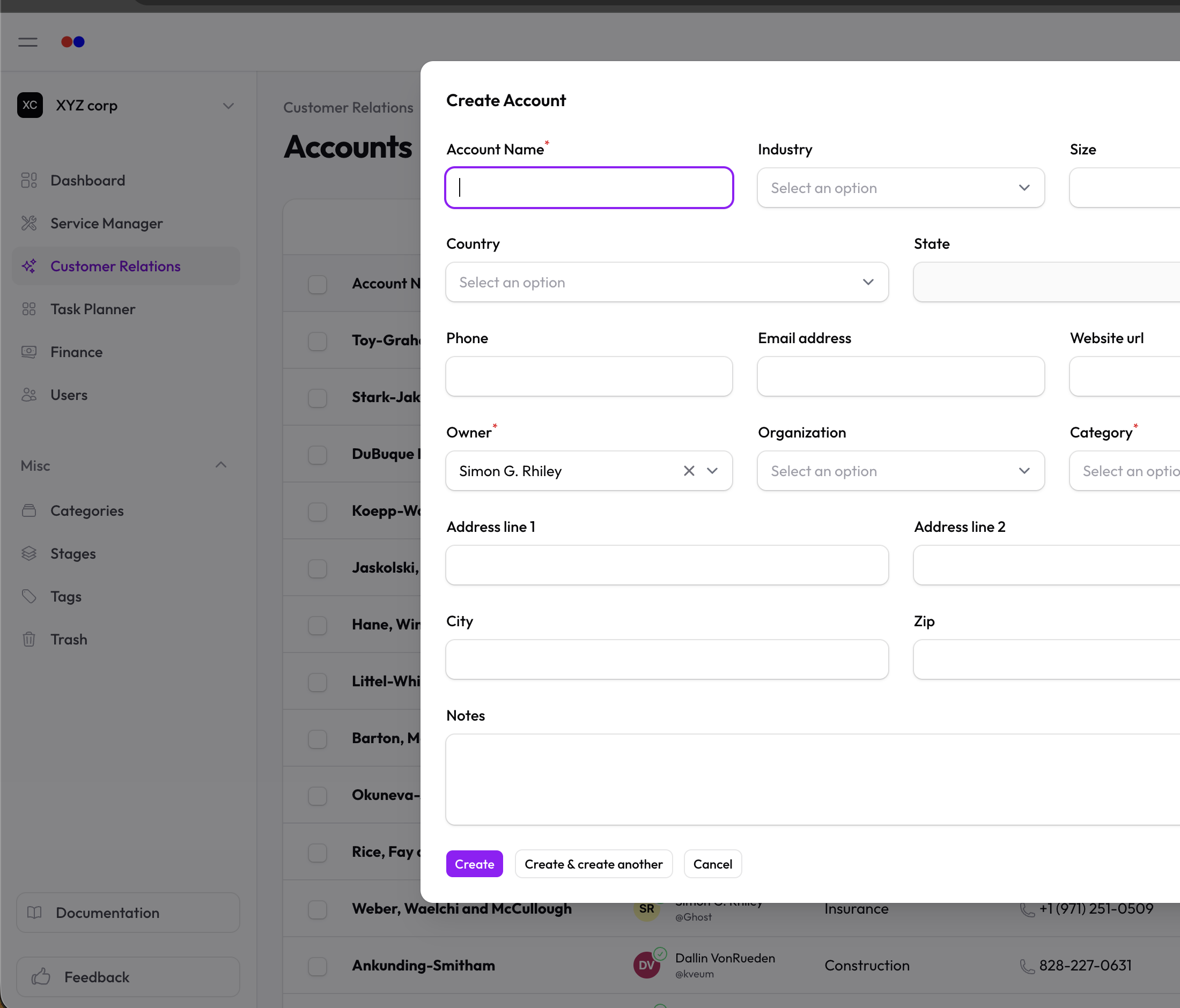
- Fill in the details:
- Name — Company name (required)
- Industry — Business sector
- Size — Number of employees
- Category — Account classification (see Categories)
- Owner — Team member responsible for this account
Contact Information
- Phone, email, website URL
- Address (line 1, line 2, city, zip)
- Country and state
Additional Info
- Notes — Internal notes about the account
Managing Contacts
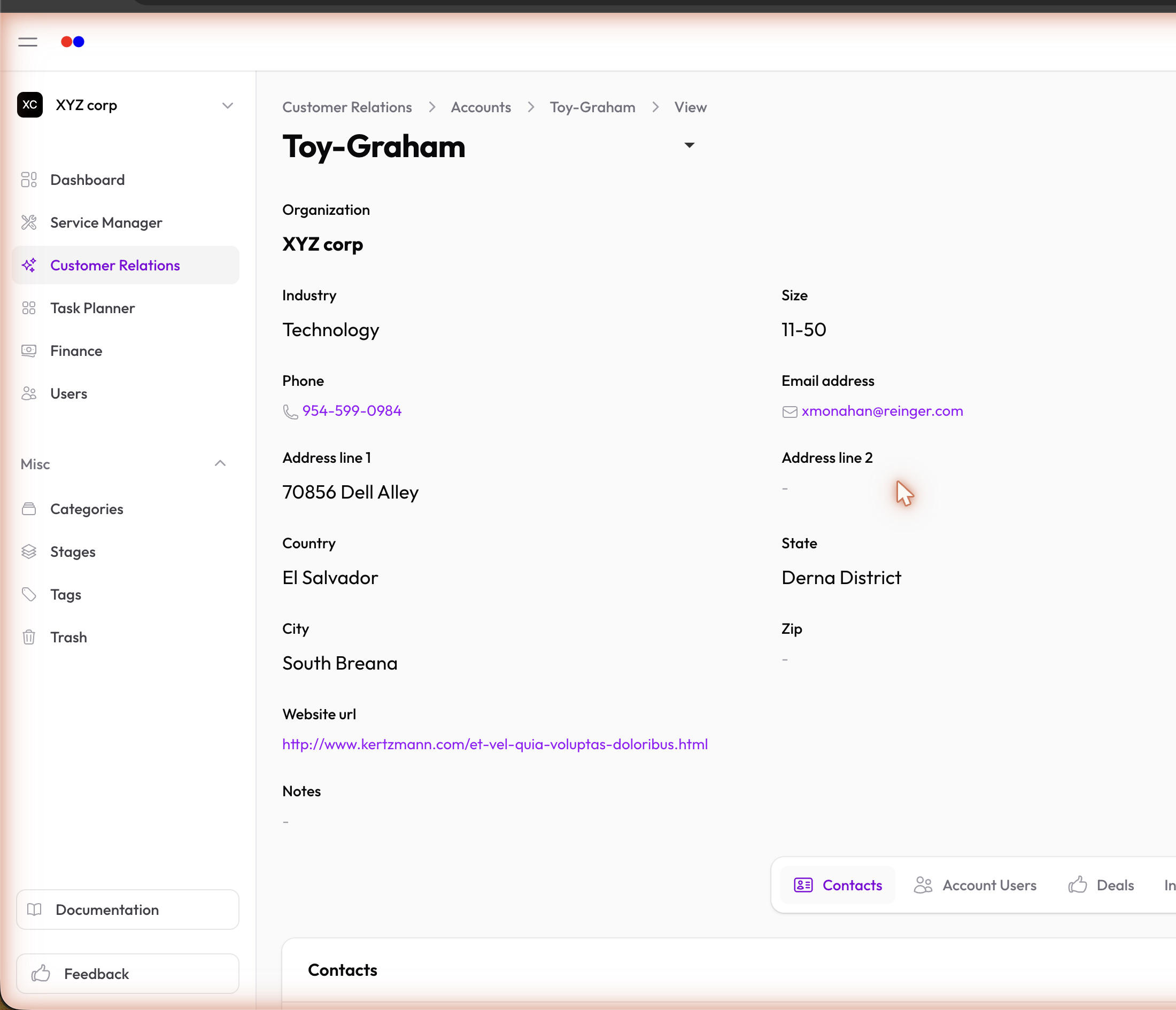
Each account can have multiple contacts (people who work there):
- Open an account
- Go to the Contacts tab
- Click Attach Contact to link existing contacts, or create new ones
Managing Deals
Track sales opportunities for each account:
- Open an account
- Go to the Deals tab
- Click New Deal to create a deal for this account
Managing Users
Assign team members to accounts:
- Open an account
- Go to the Users tab
- Attach users who should have access to this account
Editing an Account
- Click on any account to view it
- Click Edit to modify
- Save your changes
Duplicating an Account
Use the Replicate action to create a copy. The new account will be assigned to you.
Deleting an Account
Accounts are soft-deleted (moved to Trash). You can restore them later.
Import & Export
- Import — Bulk import accounts from CSV
- Export — Download accounts as CSV