
Leads
Leads are potential customers who haven't been qualified yet. Track them from initial contact through conversion into contacts, accounts, and deals.
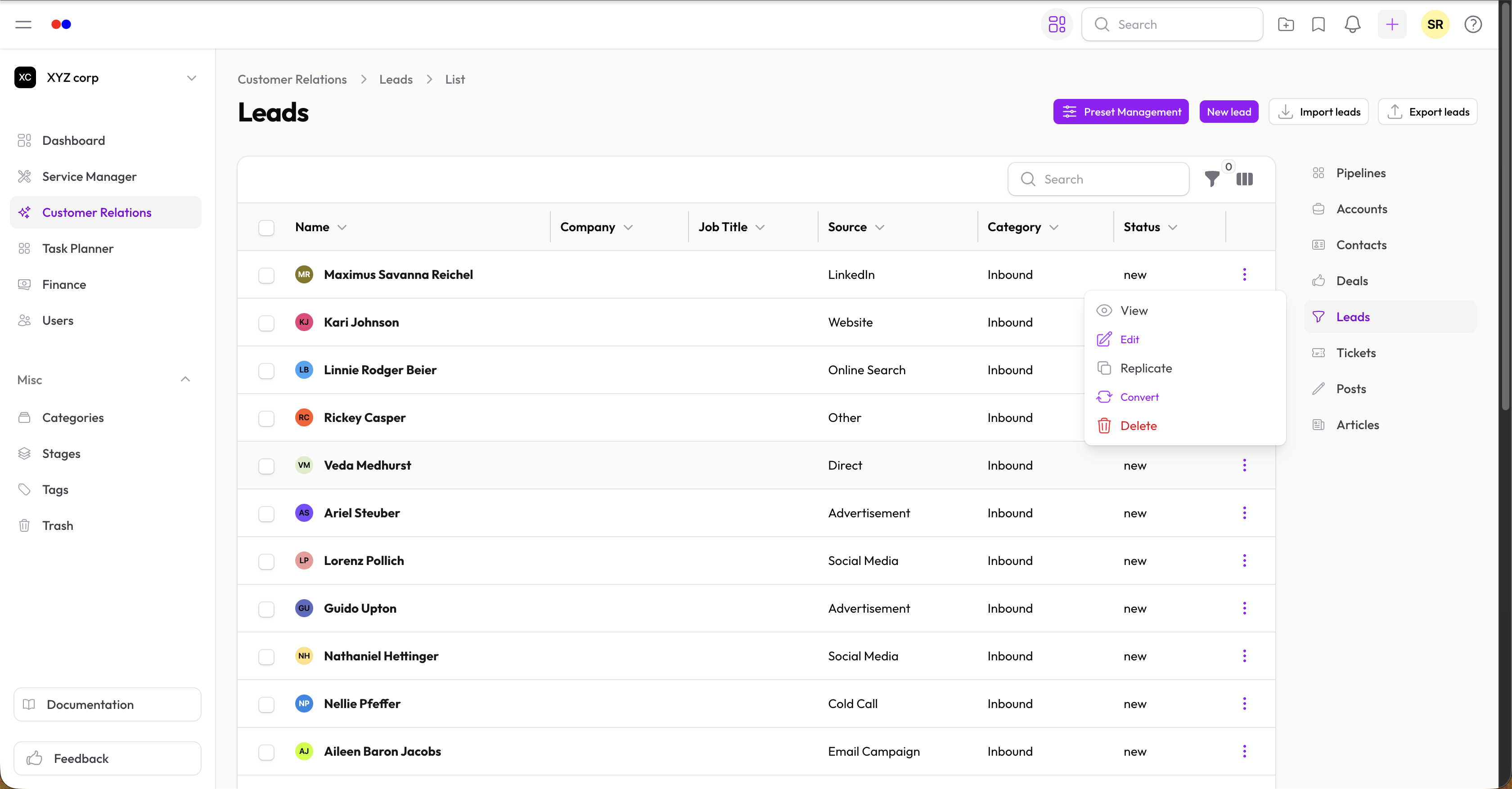
Lead Statuses
| Status | Meaning |
|---|---|
| New | Just captured, not yet contacted |
| Contacted | Initial outreach made |
| Converted | Converted to a contact (and optionally an account + deal) |
| Lost | Did not convert |
Status is editable from the lead's edit view. A lead becomes Converted automatically when you run the Convert action.
Lead Sources
Where leads come from:
- Website — Web forms, landing pages
- Email — Email inquiries
- Phone — Phone calls
- Social — Social media
Outreach Status
Separate from the overall lead status, Outreach Status tracks where a lead stands in your outreach sequence:
| Outreach Status | Meaning |
|---|---|
| Not Sent | No outreach attempt yet |
| Sent | Initial message sent |
| Replied | Lead responded |
| Call Booked | A call has been scheduled |
| Demo Done | Demo delivered |
| Not Interested | Lead declined |
Outreach Status is shown as a color-coded column on the Leads table and can be filtered.
Lead Score
Each lead has an automatically-computed Score (0–100), shown as a color-coded badge on the leads table and on the lead's view page — green (60+), amber (30–59), red (below 30) — so you can tell at a glance which leads to prioritize.
The score combines three signals:
- Source — how much you trust this lead's origin (referrals score higher than cold outreach by default)
- Outreach Status — how far along the outreach sequence the lead is (a Not Interested status subtracts points)
- Recent Engagement — a bonus while the lead has had an interaction logged recently; the bonus is lost automatically once the lead goes quiet
Scores recompute automatically — when a lead is created, whenever its Source or Outreach Status changes, and once a day for every open lead (so the engagement bonus decays even if nothing else changes). There's no manual "recalculate" button.
The point values behind each signal can be tuned per organization — see Organization Settings → Customer Relations → Lead Scoring.
Creating a Lead
- Go to Customer Relations → Leads
- Click New Lead
- Fill in the details:
- First Name / Last Name — Required
- Email — Optional (must be unique if provided)
- Phone — Optional (must be unique if provided)
- Source — Where the lead came from (required)
- Category — Lead classification, required (see Categories)
- Notes — Additional information
Tags
Add tags to organize leads (see Tags).
Converting a Lead
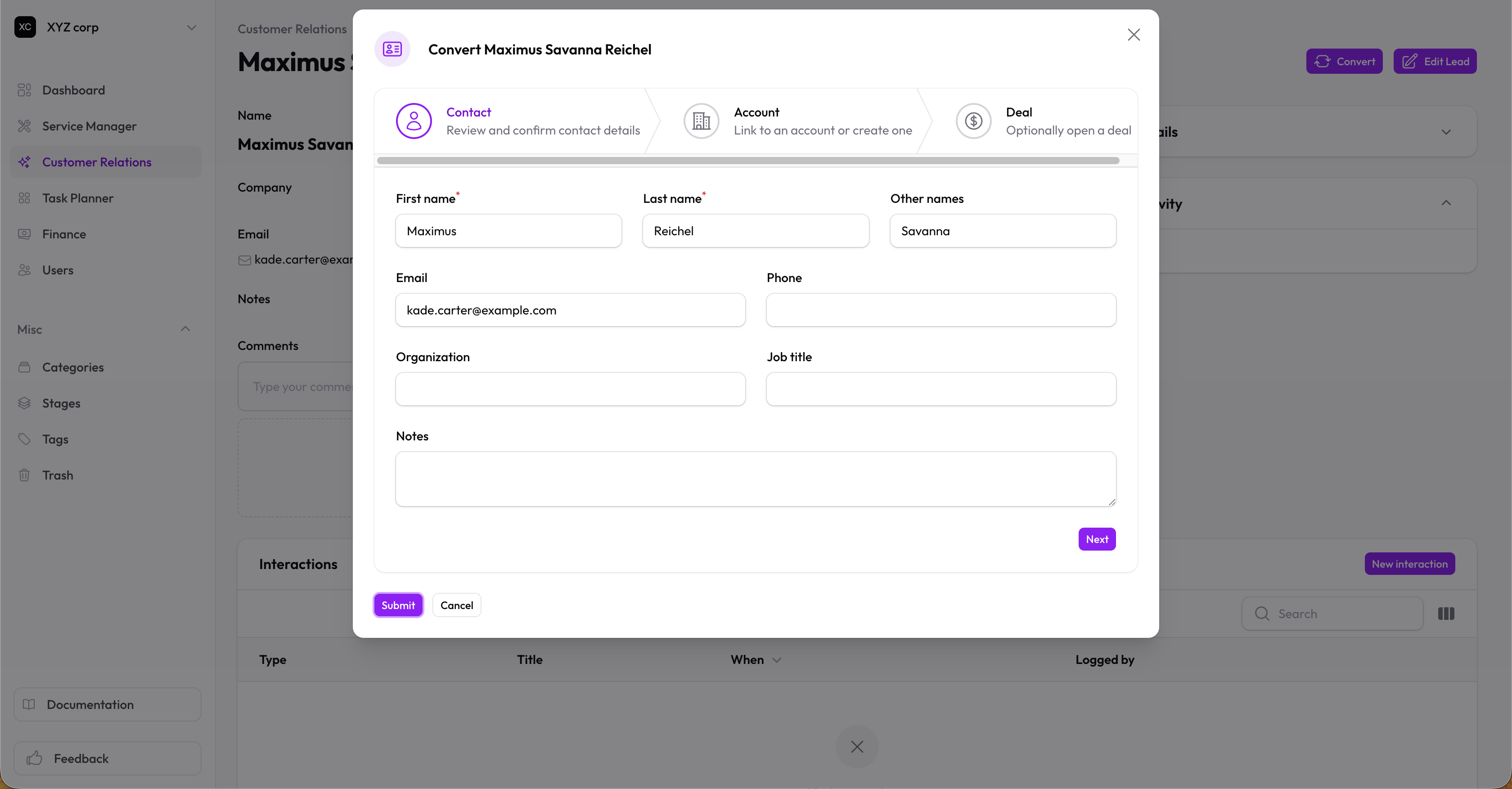
When a lead is ready, the Convert Lead action walks you through a 3-step wizard:
Step 1 — Contact
Creates a new Contact record from the lead's details. Pre-filled from the lead. This step is always required.
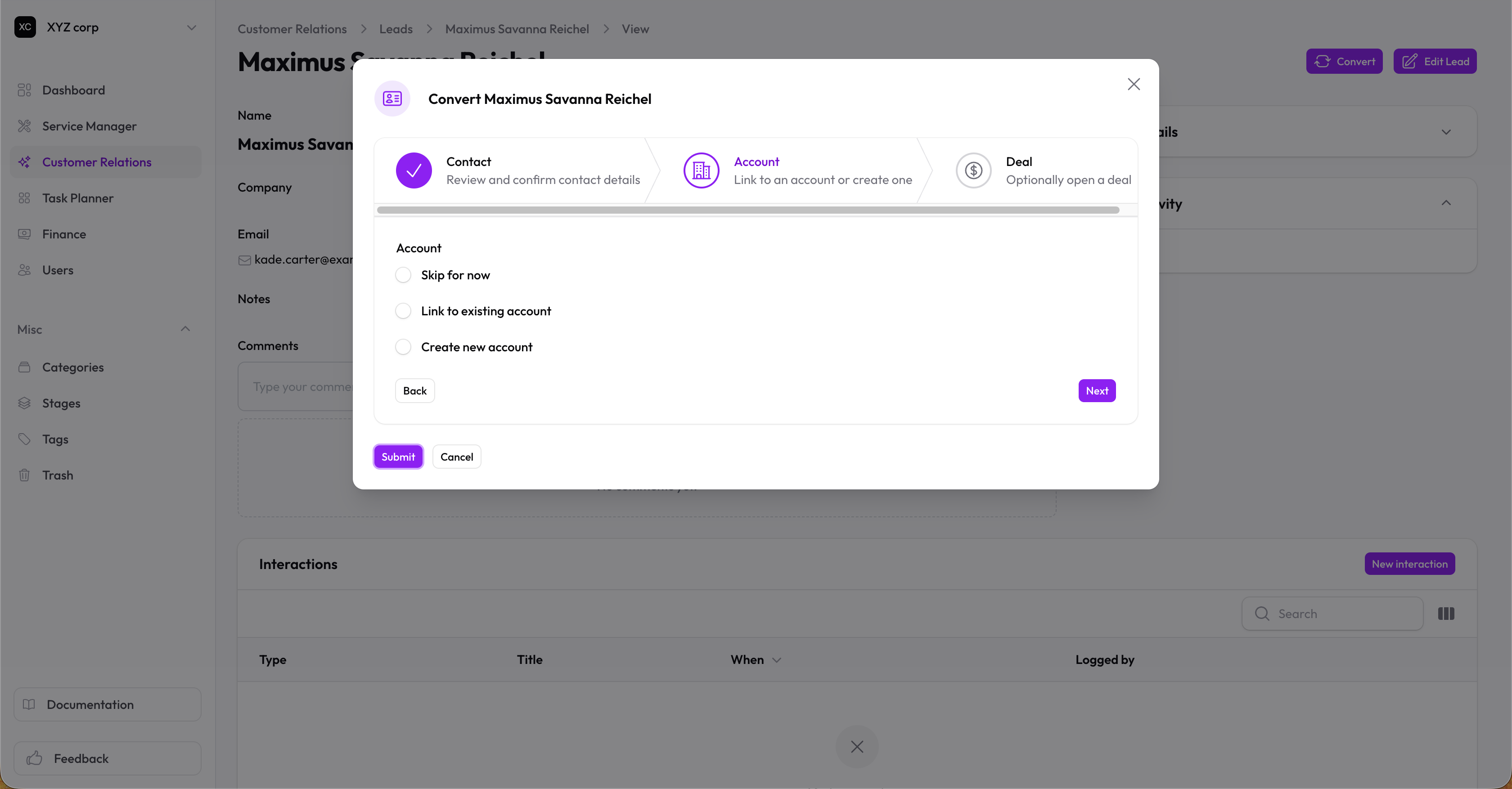
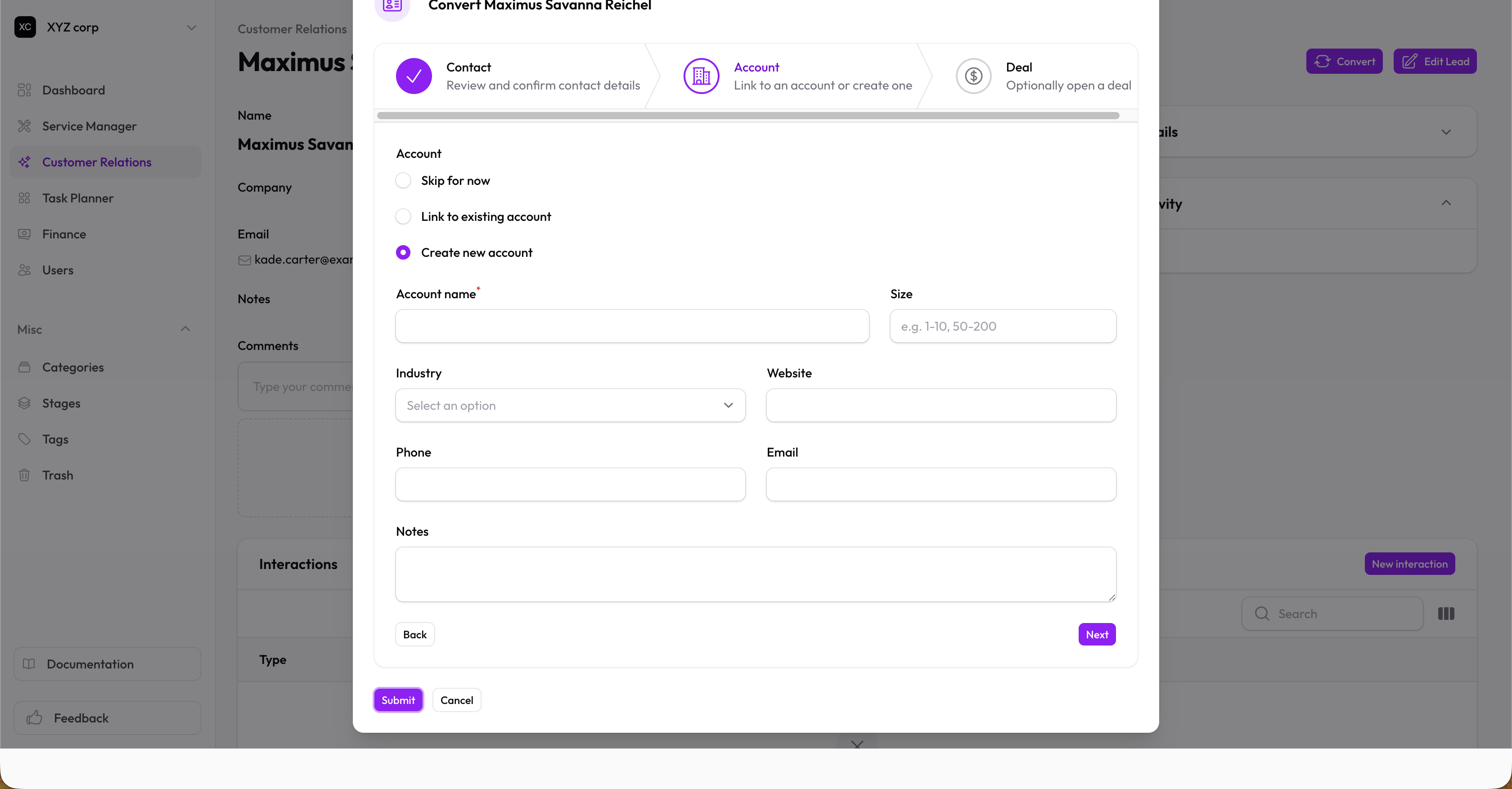
Step 2 — Account
Links the new contact to a company. Choose one of:
- Skip — Create the contact without an account
- Use existing account — Pick from your existing accounts
- Create new account — Fill in a full account record (name, industry, website, address, etc.)
Step 3 — Deal (optional)
Optionally create a deal from this lead at the same time. Toggle Create a deal and fill in:
- Name, Value, Pipeline, Stage, Status, Expected Close Date, Probability
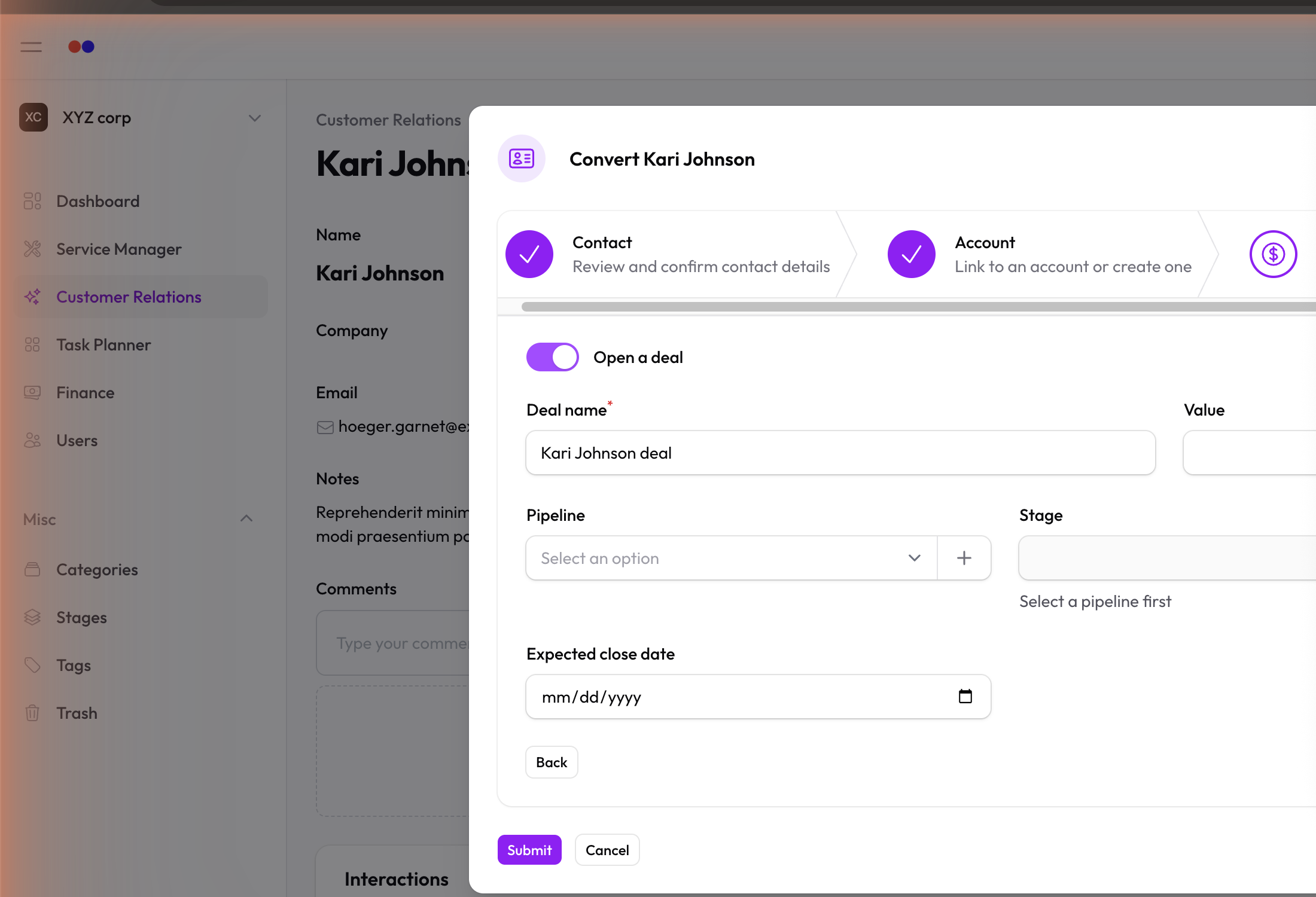
The lead's status is set to Converted when the wizard completes.
Where to find the Convert action
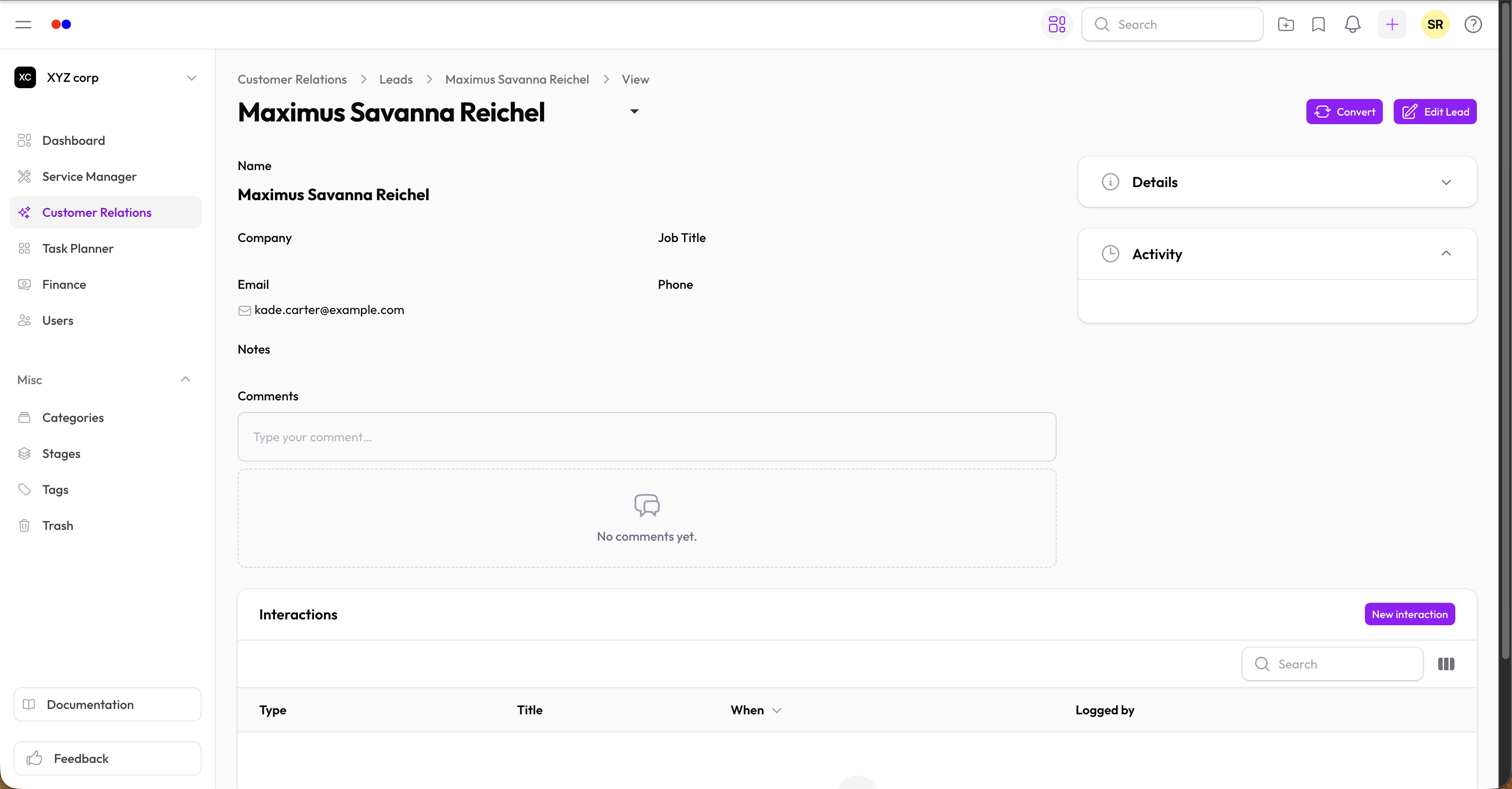
The Convert action is available in three places:
- Leads table — row action menu on any unconverted lead
- Hot Leads widget — action button on lead cards in the CRM Hot Leads widget
- Lead view page — button in the page header when viewing a lead
Filtering Leads
Use filters to manage your pipeline:
- By status (New, Contacted, Converted, Lost)
- By source
- By category
- By tags
- By date created
Editing a Lead
Click on any lead, then Edit to modify. Status is shown as a dropdown on the edit form (hidden on the create form — new leads always start as New).
You can also Replicate a lead to quickly create a similar one.
Deleting a Lead
Leads are soft-deleted (moved to Trash). You can restore them later.
Import & Export
- Import — Bulk-import leads from CSV (email and phone are optional in the import file)
- Export — Download leads as CSV for reporting or backup