
Contacts
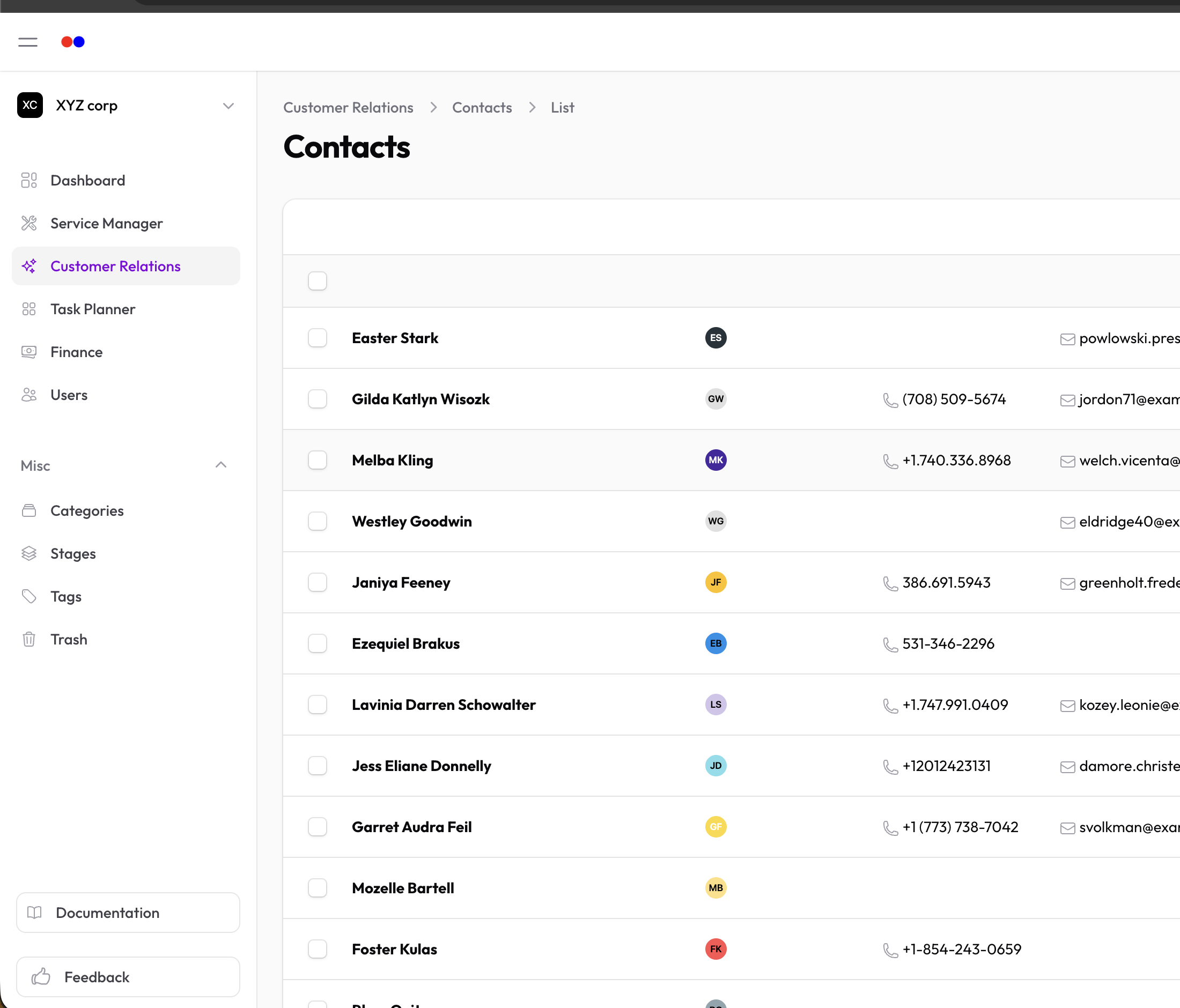
Contacts are individual people you interact with. They can be linked to accounts and used throughout the system for tickets, deals, and more.
Creating a Contact
- Go to Customer Relations → Contacts
- Click New Contact
- Fill in the details:
- First Name — Required
- Last Name — Required
- Other Names — Middle names or nicknames
- Email — Required, must be unique
- Phone — Required, must be unique
- Category — Contact group (see Categories)
Additional Info
- Organization — Company name (text field)
- Job Title — Their role
- Website — Personal or professional URL
- Address — Full address details
- Notes — Internal notes
Tags
Add tags to organize contacts (see Tags).
Linking to Accounts
Contacts can be associated with one or more accounts:
- Open an account
- Go to the Contacts tab
- Attach the contact
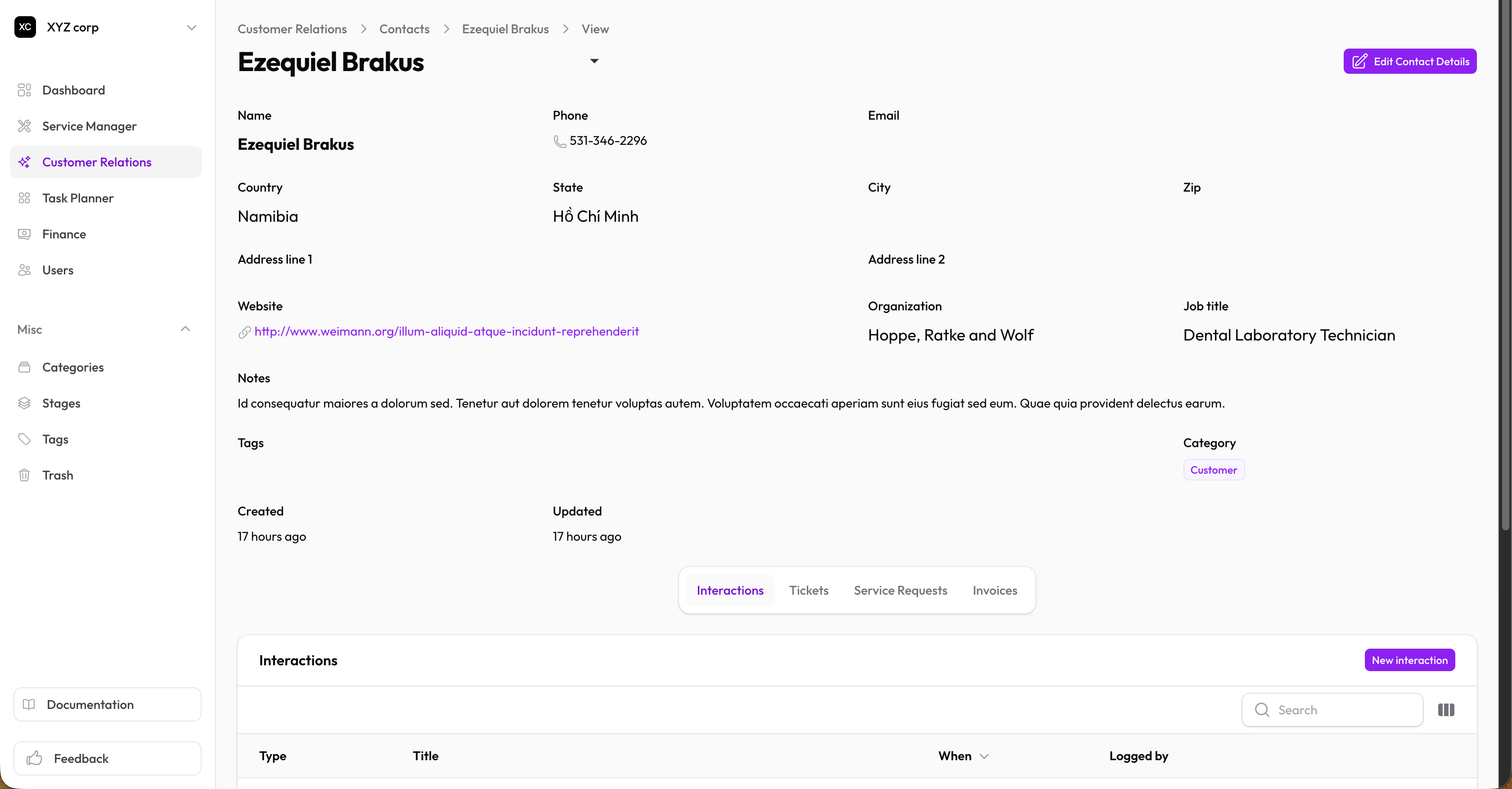
Or when viewing a contact, you can see which accounts they're linked to.
Filtering Contacts
Use filters to find specific contacts:
- By category
- By tags
- By date created
- Show deleted (trashed)
Copying Contact Info
Quickly copy contact details:
- Click the copy icon next to phone, email, or name fields
Creating a Request or Invoice for a Contact
From a contact's view page, use Create Request or Create Invoice in the header to open the standard Service Request or Invoice form pre-filled with this contact as the client — no need to look them up again on the Requests or Invoices page.
Editing a Contact
- Click on any contact
- Click Edit to modify
- Save your changes
Deleting a Contact
Contacts are soft-deleted (moved to Trash). You can restore them later.
Export
Download contacts as CSV for backup or reporting.