
Posts
Posts are announcements, updates, or discussions for internal or public communication.
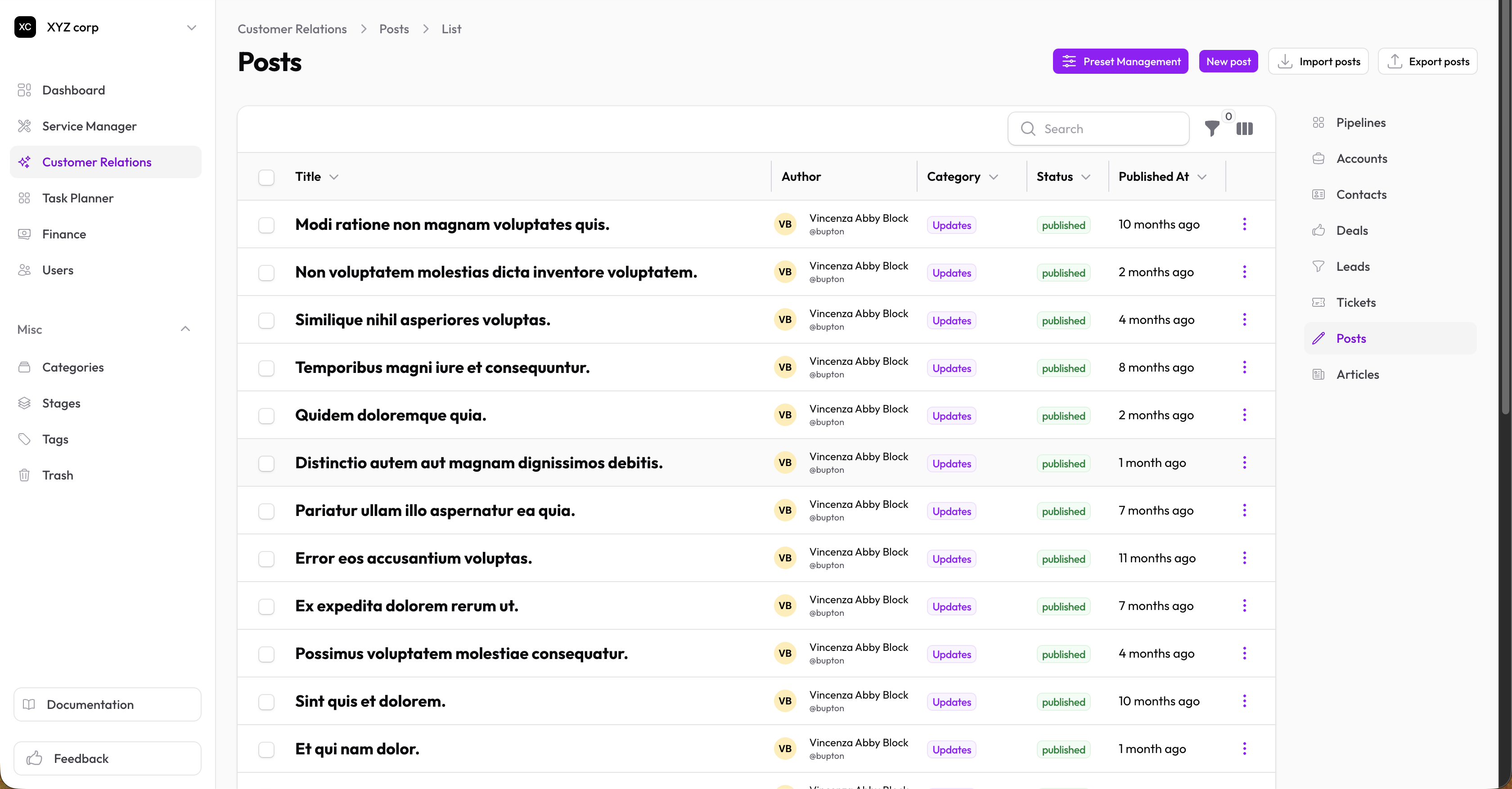
Post Statuses
| Status | Meaning |
|---|---|
| Draft | Work in progress |
| Published | Live and visible |
| Archived | No longer current |
Creating a Post
- Go to Customer Relations → Posts
- Click New Post
- Fill in the details:
- Title — Post title (required)
- Content — Post content (required)
- Category — Post category (see Categories)
- Status — Draft, Published, or Archived (required)
- Files — Attach images or documents
- Published At — When to publish
Tags
Add tags to categorize posts (see Tags).
Features
@Mentions
Tag team members in posts using @username.
Quoting Posts
Reply to or quote another post:
- Creates a linked reference to the original
- Original author is notified
Reposts
Share someone else's post with your network.
Engagement Tracking
Posts automatically track:
- Views — How many times it's been seen
- Likes — User reactions
- Bookmarks — Users saving for later
- Comments — Discussion threads
Editing a Post
- Click on any post
- Click Edit to modify
- Save your changes
Deleting a Post
Posts are soft-deleted (moved to Trash). You can restore them later.
Export
Download posts as CSV for backup.