
Pipelines
Pipelines are named sales workflows. Each pipeline has its own Kanban board of stages, and deals belong to one pipeline at a time. Having multiple pipelines lets you run separate processes — for example, a New Business pipeline alongside a Renewals pipeline.
Opening Pipelines
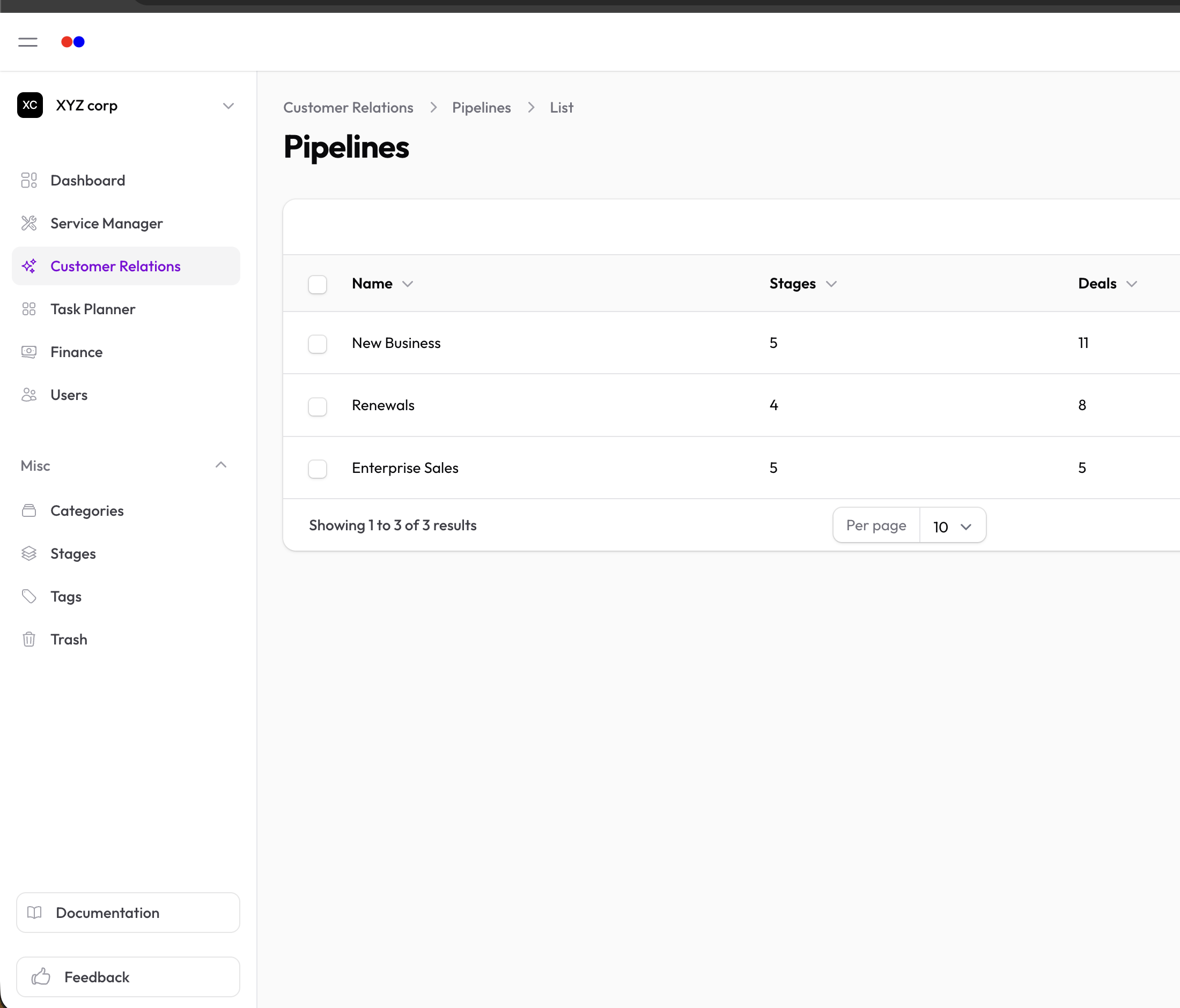
Sidebar → Customer Relations → Pipelines.
You'll see a list of all your pipelines. Click any pipeline to open its board.
The Pipeline Board
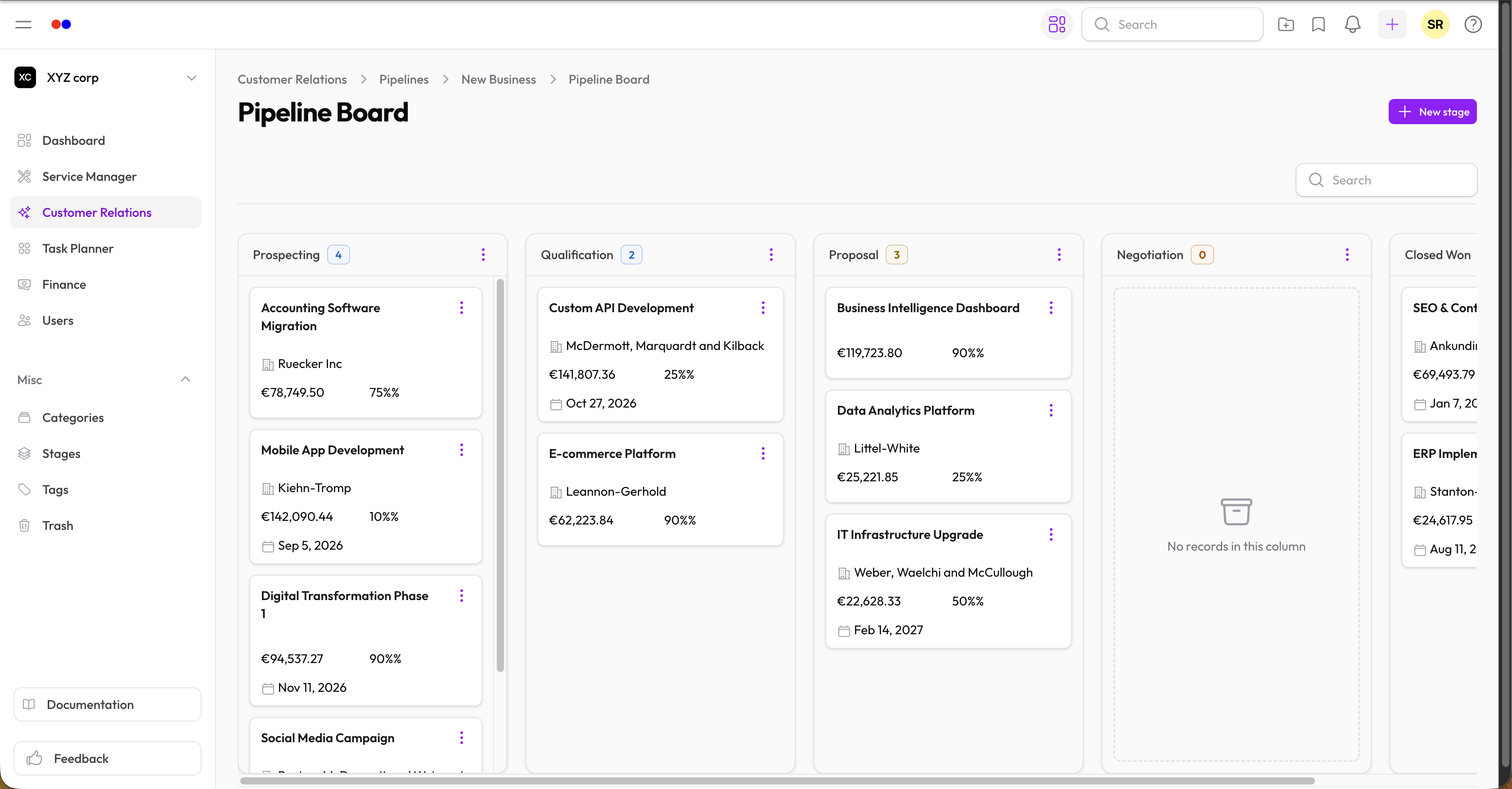
Each pipeline's board is a Kanban view of all open deals in that pipeline, organized into columns by stage.
What Each Card Shows
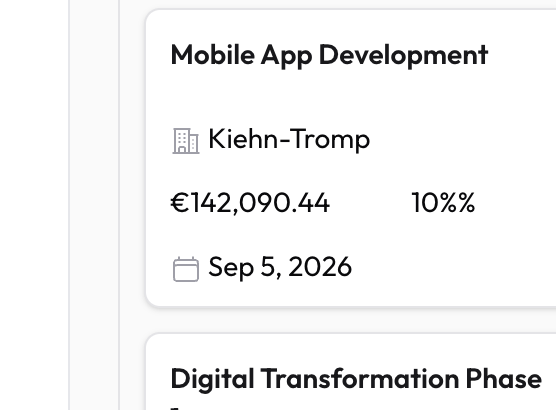
- Deal name (the card title)
- Account — the company the deal is with
- Value — formatted in your organization's accounting currency
- Probability — your win confidence (%)
- Expected close date
Click a card to view the deal, or use the delete icon to remove it.
Managing Stages
Stages are the columns on the board. Each stage belongs to exactly one pipeline.
Add a new stage
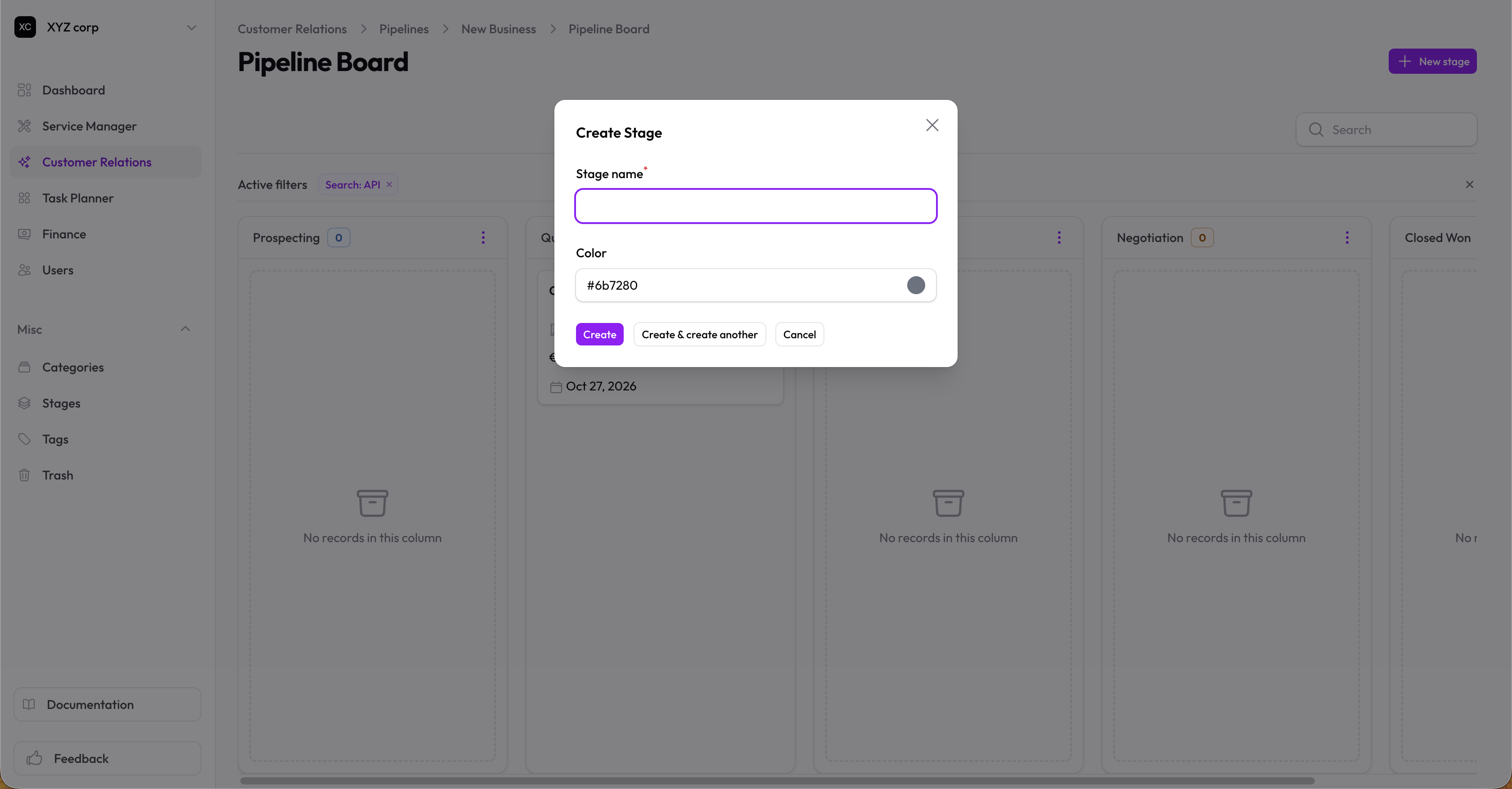
Click New stage in the page header, give it a name and a color, then save. New stages are appended to the right of the board.
Reorder stages
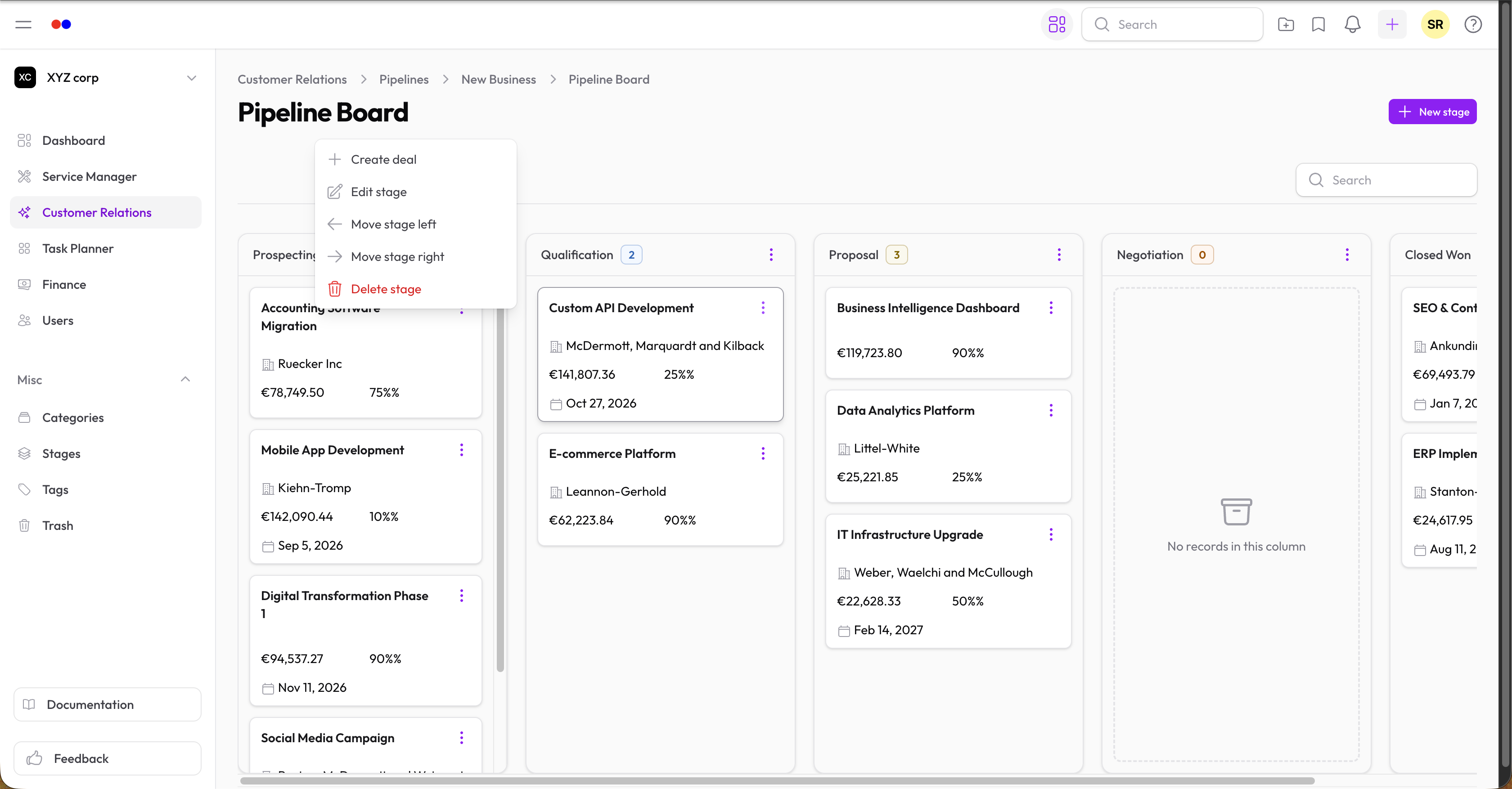
Open the column menu (⋮ on a column header) and pick Move stage left or Move stage right.
Edit or delete a stage
Open the column menu and pick Edit stage or Delete stage.
Create a stage from the deal form
When creating or editing a deal, you can create a new stage inline from the Stage dropdown. The new stage will be pre-assigned to whichever pipeline you've already selected on the form.
Stages are also manageable from Stages under Miscellaneous.
Creating Deals from the Board
Open the column menu (⋮) on any stage and pick Create deal. The deal form opens with the Pipeline and Stage already filled in from the column you clicked.
Moving Deals
Drag a card to a different column to move the deal to that stage. The change is saved immediately.
Creating a New Pipeline
- Go to Customer Relations → Pipelines
- Click New Pipeline
- Give it a name and an optional description
- Save — the pipeline board opens and you can add stages
You can also create a pipeline inline from the Pipeline dropdown in the deal form.
Searching
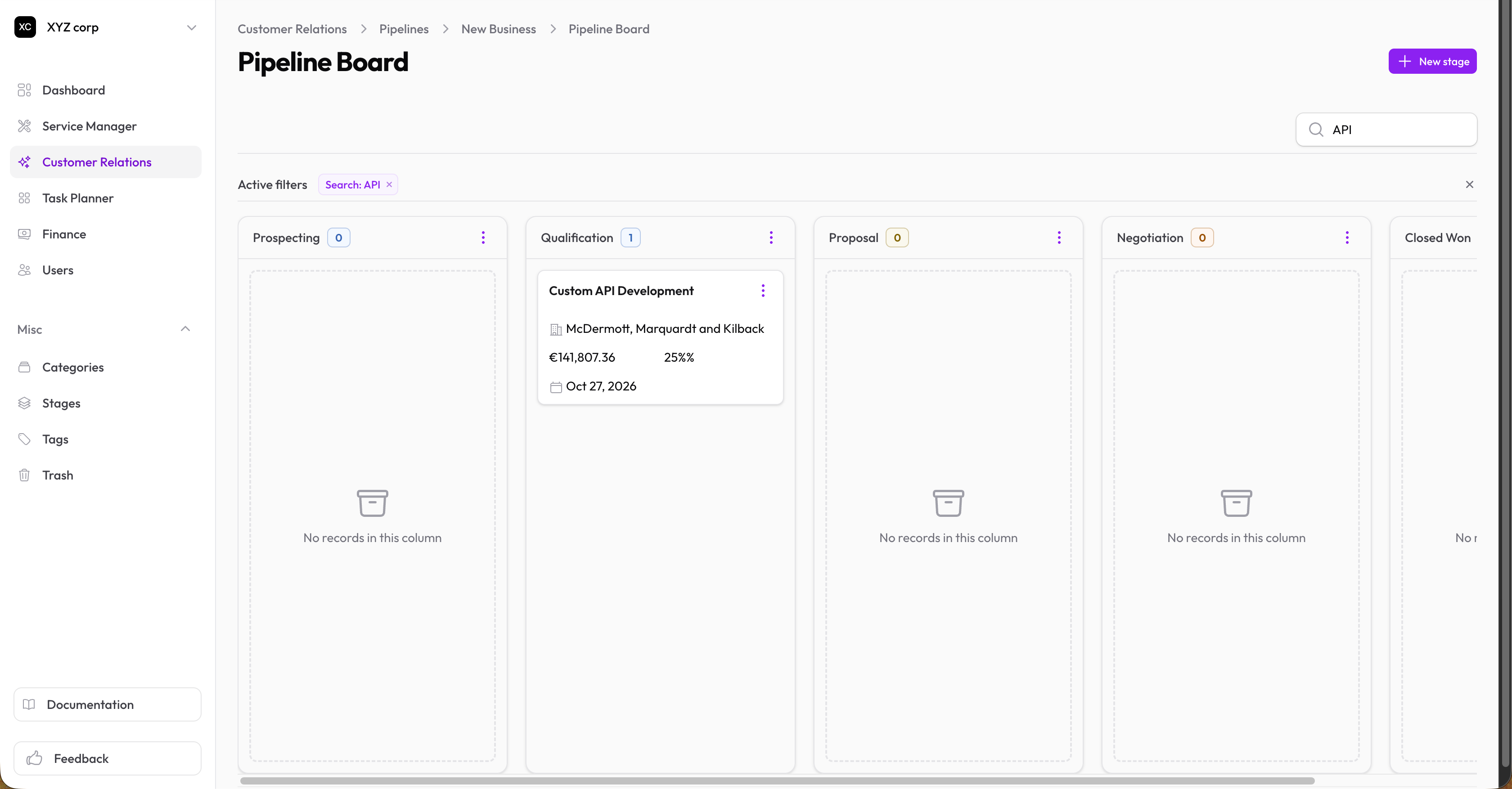
Use the search box in the board header to filter cards by deal name or account name. Cards in every column update live.
Tips
- Deals only show on the board while their status is Open. Won and lost deals drop off automatically.
- Want a flat list with filters and exports? Use the standard Deals page.
- Use stage colors to encode meaning — for example, red for "at-risk", green for "ready to close".
- Keep pipeline names short and distinct so they're easy to identify in dropdowns on the deal form.