
Articles
Articles are long-form, blog-style content — think Medium posts or editorial pieces. They're a richer, more structured version of Posts, suited for in-depth writing, thought leadership, tutorials, and anything you'd publish as a standalone piece rather than a quick update.
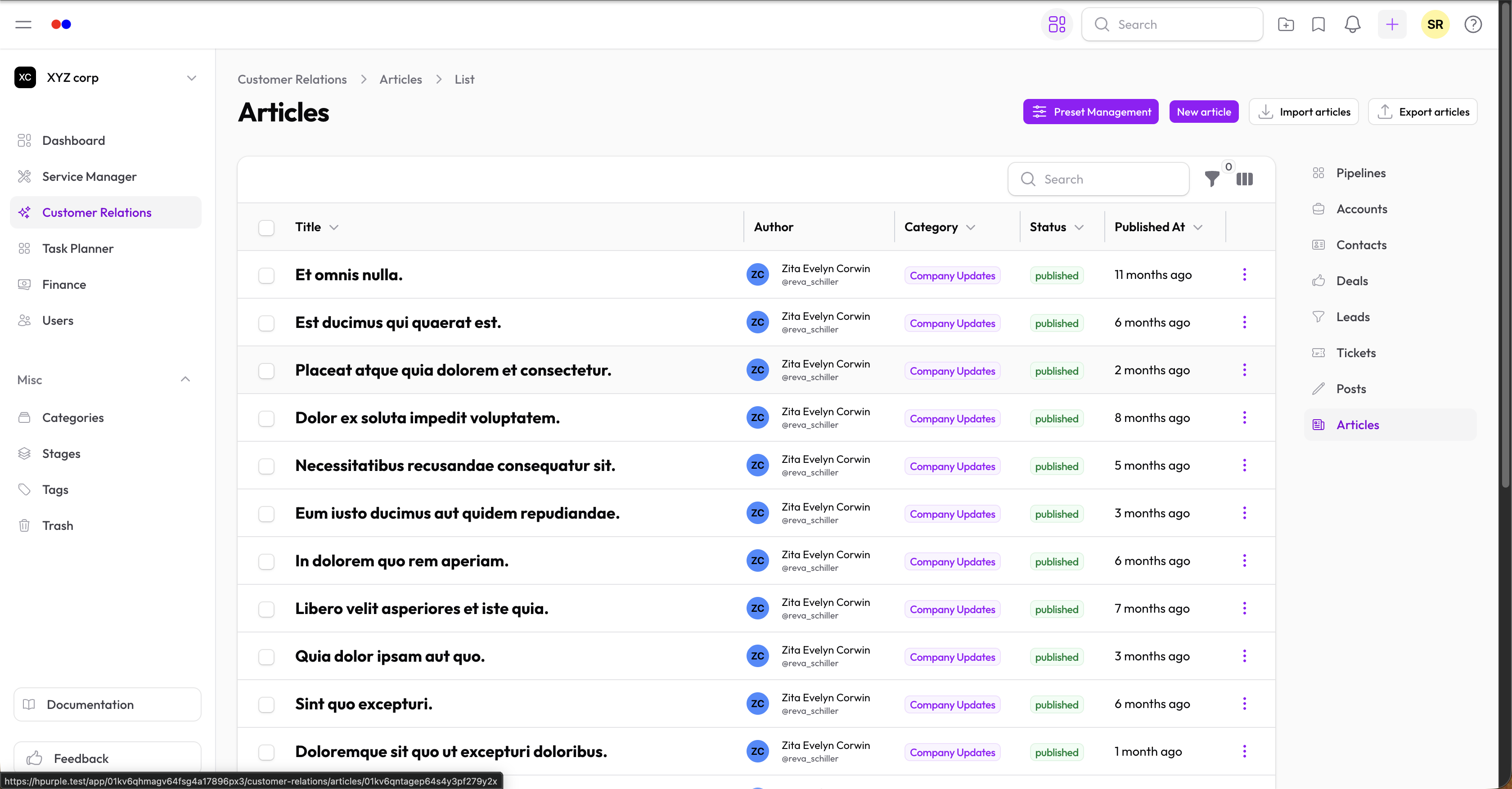
Article Statuses
| Status | Meaning |
|---|---|
| Draft | Work in progress, not visible |
| Published | Live and accessible |
| Archived | No longer current, hidden |
Creating an Article
- Go to Customer Relations → Articles
- Click New Article
- Fill in the details:
- Title — Article title (required)
- Content — Full article content (required)
- Category — Article category (see Categories)
- Status — Draft, Published, or Archived
- Featured Image — Optional header image
- Published At — When to publish (for scheduling)
Tags
Add tags to help users find related content (see Tags).
Rich Editor
The content editor supports:
- Headings (H1-H6)
- Bold, italic, underline, strikethrough
- Lists (bullet and numbered)
- Links and images
- Tables
- Code blocks
- Blockquotes
- Custom blocks
- Fullscreen editing mode
Article URL
Each article gets an auto-generated URL slug based on the title.
Engagement Tracking
Articles automatically track:
- Views — How many times it's been read
- Likes — User appreciation
- Bookmarks — Users saving for later
Comments
Enable comments for user feedback and questions.
Editing an Article
- Click on any article
- Click Edit to modify
- Save your changes
Deleting an Article
Articles are soft-deleted (moved to Trash). You can restore them later.
Export
Download articles as CSV for backup.