
Deals
Deals track sales opportunities through your pipeline. Each deal belongs to a Pipeline and is placed in one of that pipeline's Stages.
Want a visual view? Open a Pipeline — each pipeline has its own Kanban board where you can drag deals between stages.
Plan limits
The number of deals an organization can have is capped on the Free plan (5 deals). Paid plans allow unlimited deals — see Plans & Billing.
Creating a Deal
- Go to Customer Relations → Pipelines, open a pipeline, then click Create deal from a stage column
— or —
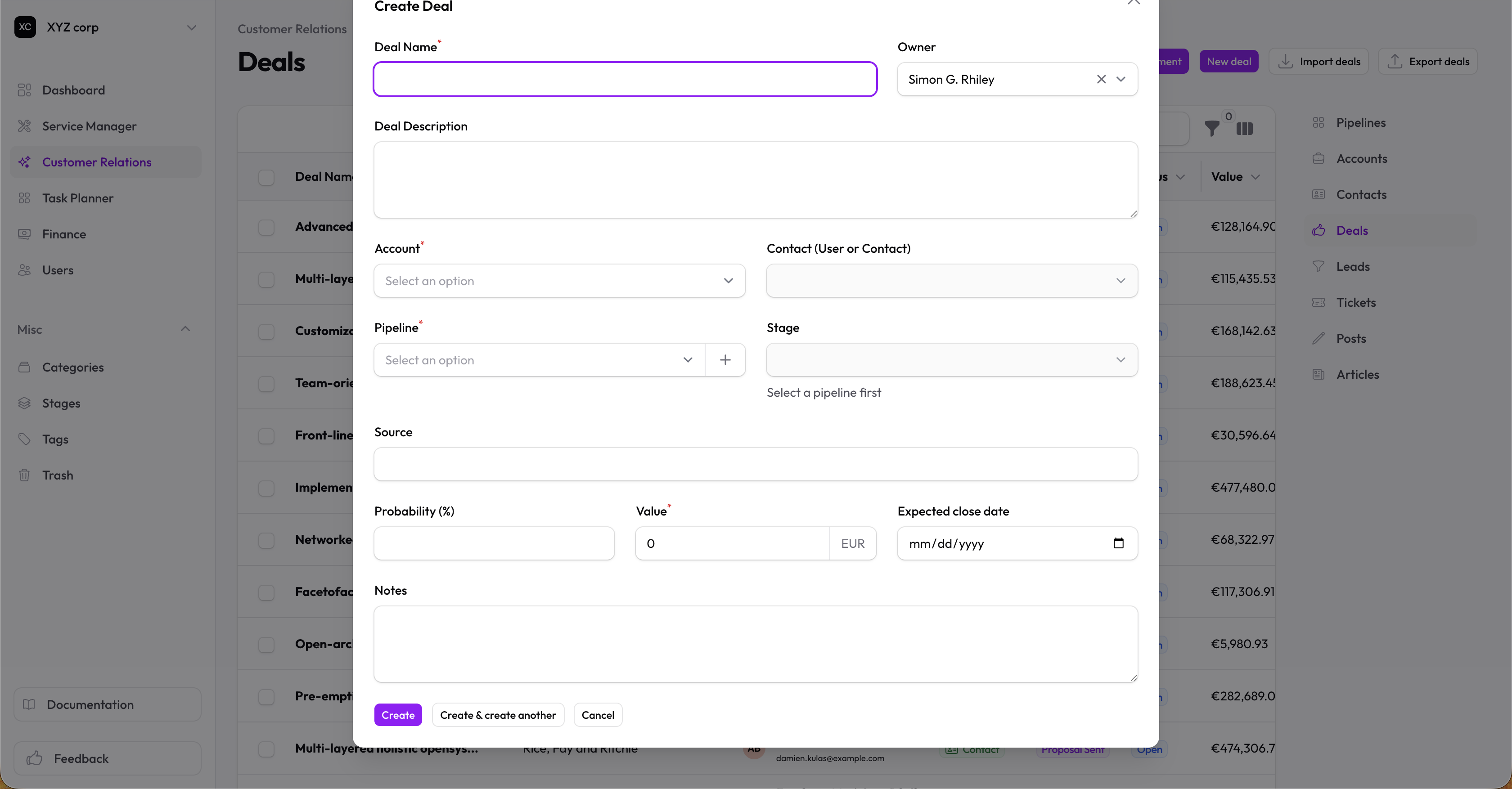
Go to Customer Relations → Deals and click New Deal - Fill in the details:
- Name — Deal name (required)
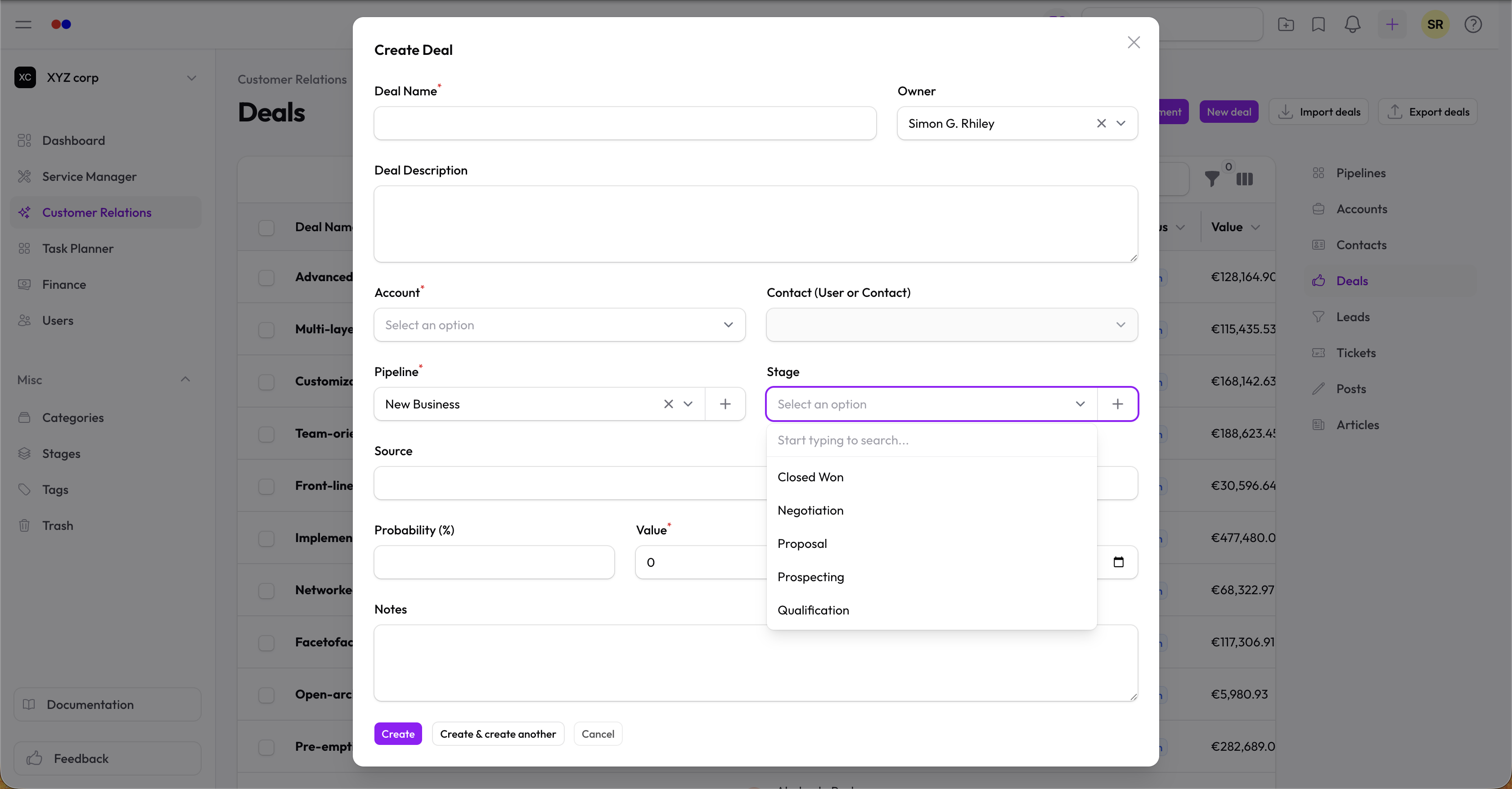
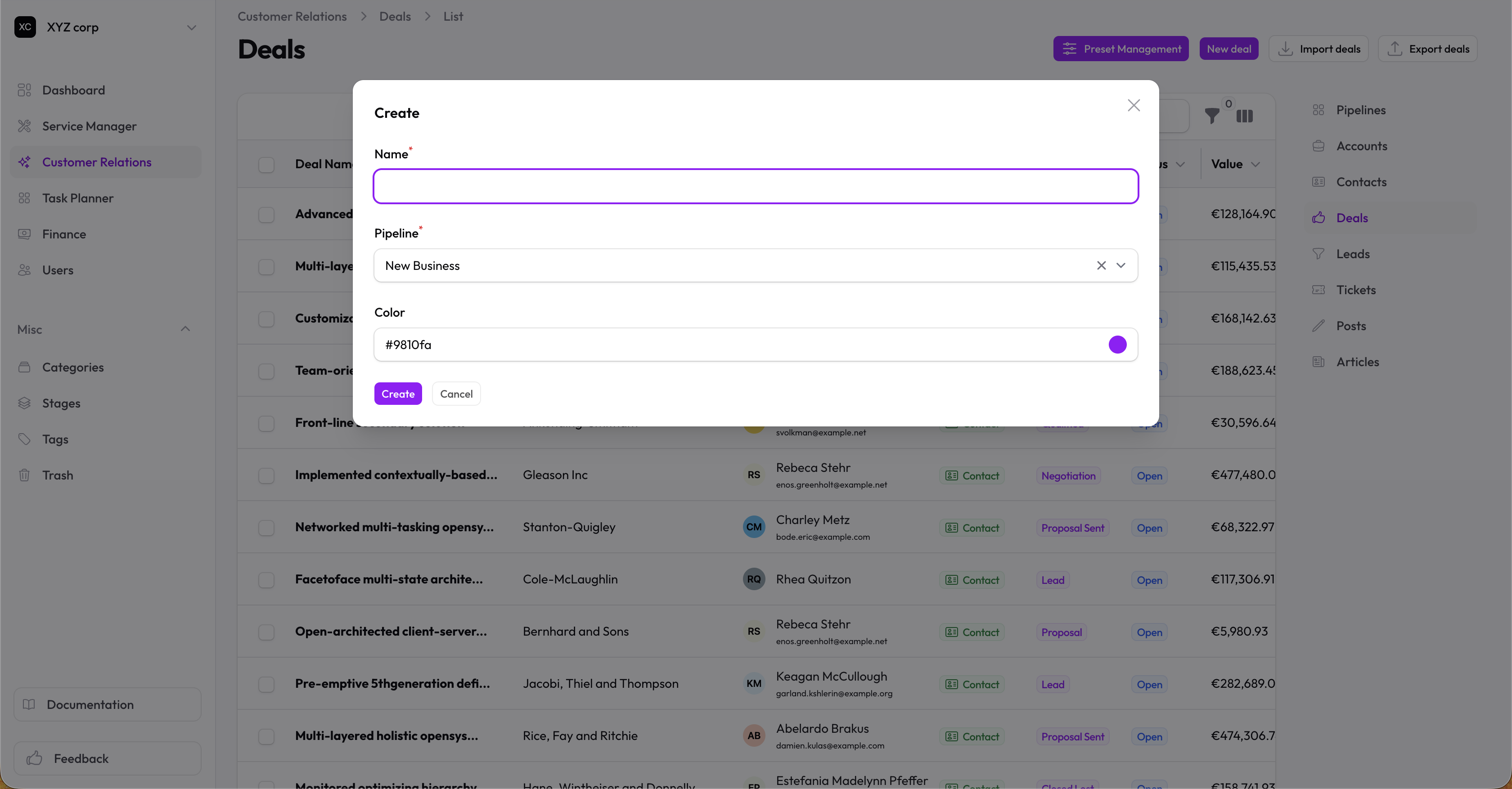
- Pipeline — The sales pipeline this deal belongs to (required). You can create a new pipeline inline.
- Stage — The current stage within that pipeline (required once pipeline is selected). You can create a new stage inline; it will be pre-assigned to the selected pipeline.
- Account — The company this deal is with
- Contact / User — Specific person on the deal
- Value — Monetary value (required)
- Status — Open, Won, or Lost
- Expected Close Date — When you expect to close
- Probability — Win probability percentage
- Source — Where the opportunity came from
- Owner — Team member responsible
Tip: The Stage dropdown is disabled until you choose a Pipeline. Stages shown are scoped to only the stages belonging to the selected pipeline.
Additional Info
- Description — Details about the deal
- Notes — Internal notes
- Interactions — Log calls, meetings, and emails as a relation on each deal
Deal Stages and Status
Deals have two related concepts:
- Pipeline — The sales workflow this deal follows (e.g. Enterprise Sales, SMB Pipeline). Pipelines each have their own columns on the board.
- Stage — A column within a pipeline (e.g. Qualification → Proposal → Negotiation). Configure stages from the Pipelines board or from Stages.
- Status —
open,won, orlost. Closed (won/lost) deals drop off the Pipeline Board but remain in the deals list.
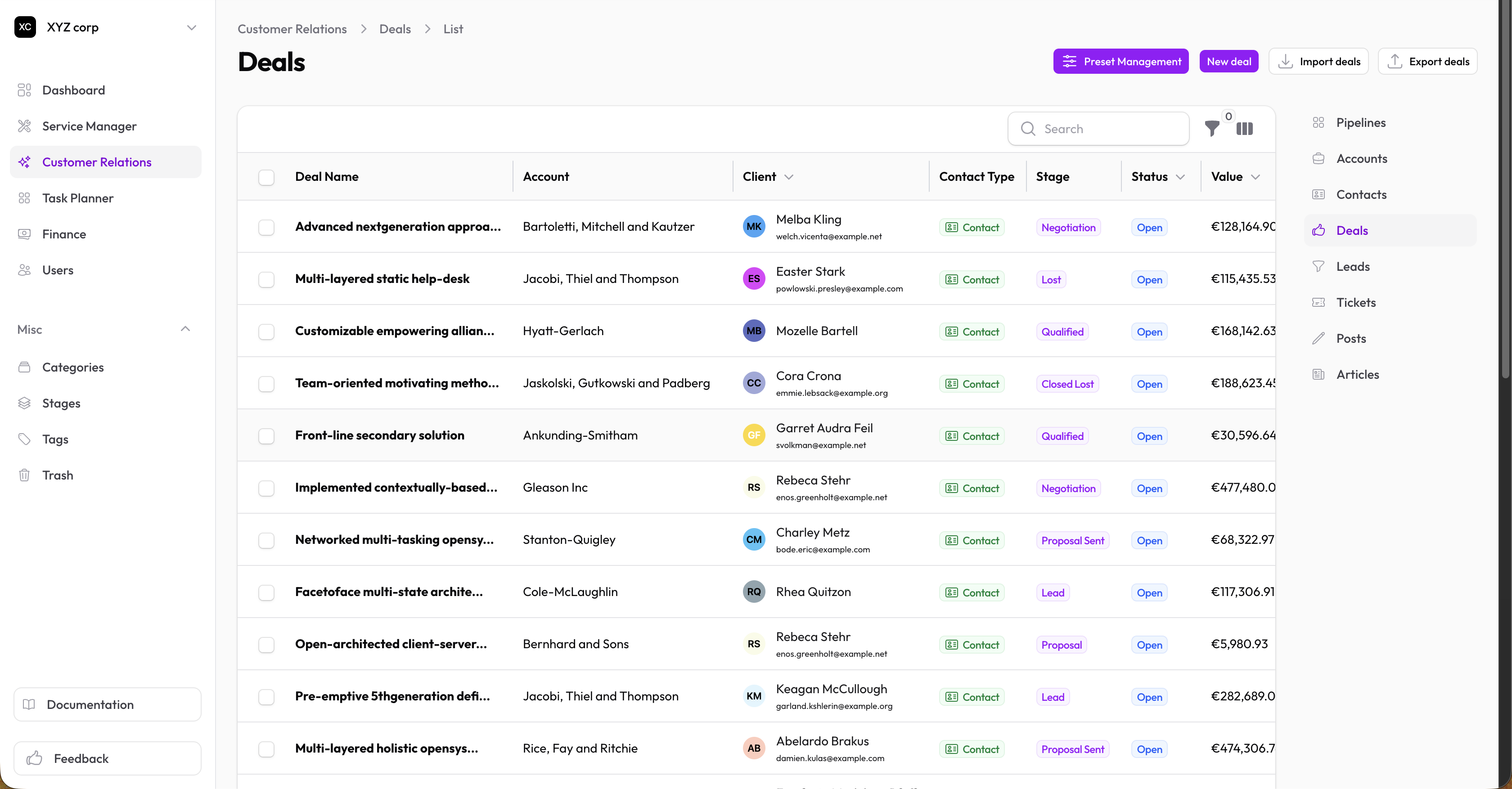
Viewing Deals
The deals table shows:
- Deal name, owner, account
- Pipeline and Stage (color-coded)
- Status, Value (in your organization's currency)
- Expected close date, probability, and source
Filtering Deals
Filter by:
- Status (Open / Won / Lost)
- Pipeline, Stage, Account, Owner
- Value range and expected close date
Comments and Interactions
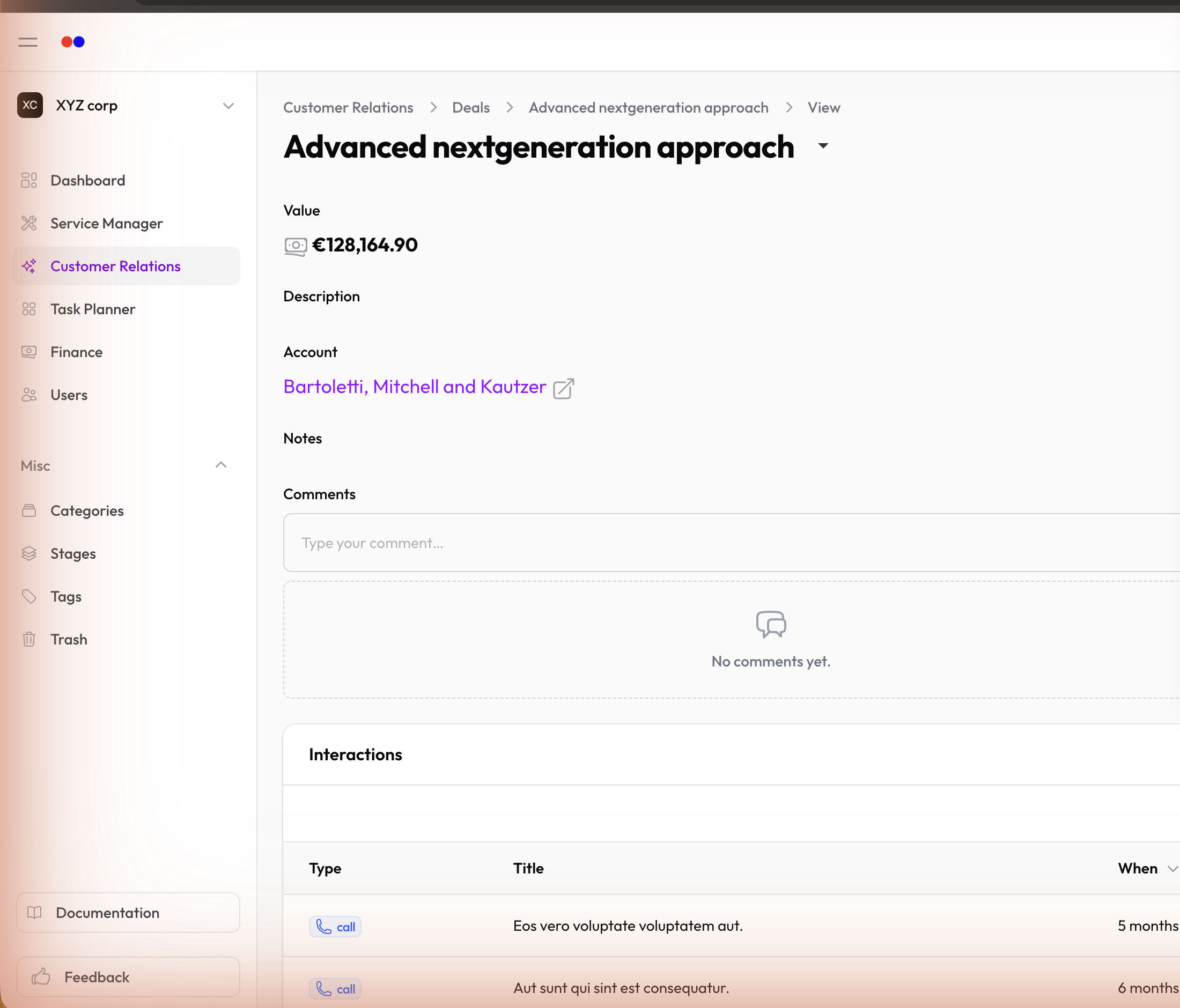
Open a deal to:
- Comment — track internal discussion via @mentions
- Log interactions — record calls, meetings, and emails using the Interactions relation
Editing a Deal
- Click on any deal
- Click Edit to modify (or use Replicate to clone)
- Save your changes
Marking the status as Won or Lost automatically removes the card from the Pipeline Board.
Creating a Service Request from a Won Deal
Once a deal's status is Won, a Create Request button appears in the deal's header. It opens the standard Service Request form pre-filled with the deal's contact or user as the client, so you can move straight from a closed deal into fulfilling the work.
Creating Deals via Lead Conversion
When you convert a lead using the Convert Lead wizard, you can create a deal as the final step — pre-linked to the new contact and account. See Leads for the full convert flow.
Deleting a Deal
Deals are soft-deleted (moved to Trash). You can restore them later.
Import & Export
- Import — Bulk-import deals from CSV
- Export — Download deals as CSV for reporting