
Tickets
Tickets track customer support requests from submission to resolution.
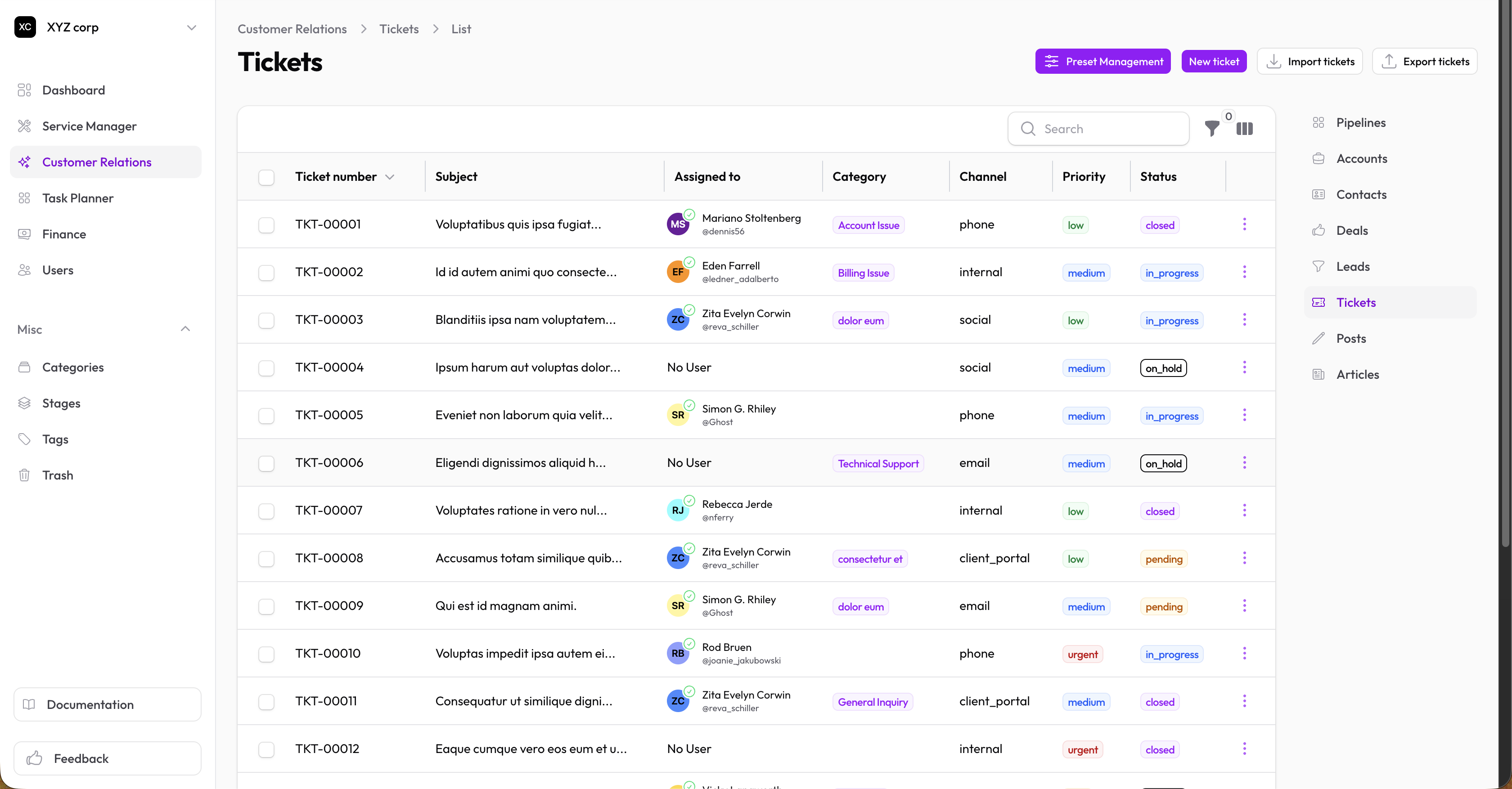
Ticket Statuses
| Status | Color | Meaning |
|---|---|---|
| Pending | Yellow | New ticket, not started |
| In Progress | Blue | Being worked on |
| On Hold | Gray | Waiting for something |
| Closed | Green | Resolved and closed |
| Cancelled | Red | Cancelled |
Priority Levels
| Priority | Color | Response Time |
|---|---|---|
| Low | Green | When possible |
| Medium | Blue | Standard |
| High | Yellow | Soon |
| Urgent | Red | Immediately |
Channels
Where tickets come from:
- Phone
- Social media
- Client portal
- Internal
- Other
Creating a Ticket
- Go to Customer Relations → Tickets
- Click New Ticket
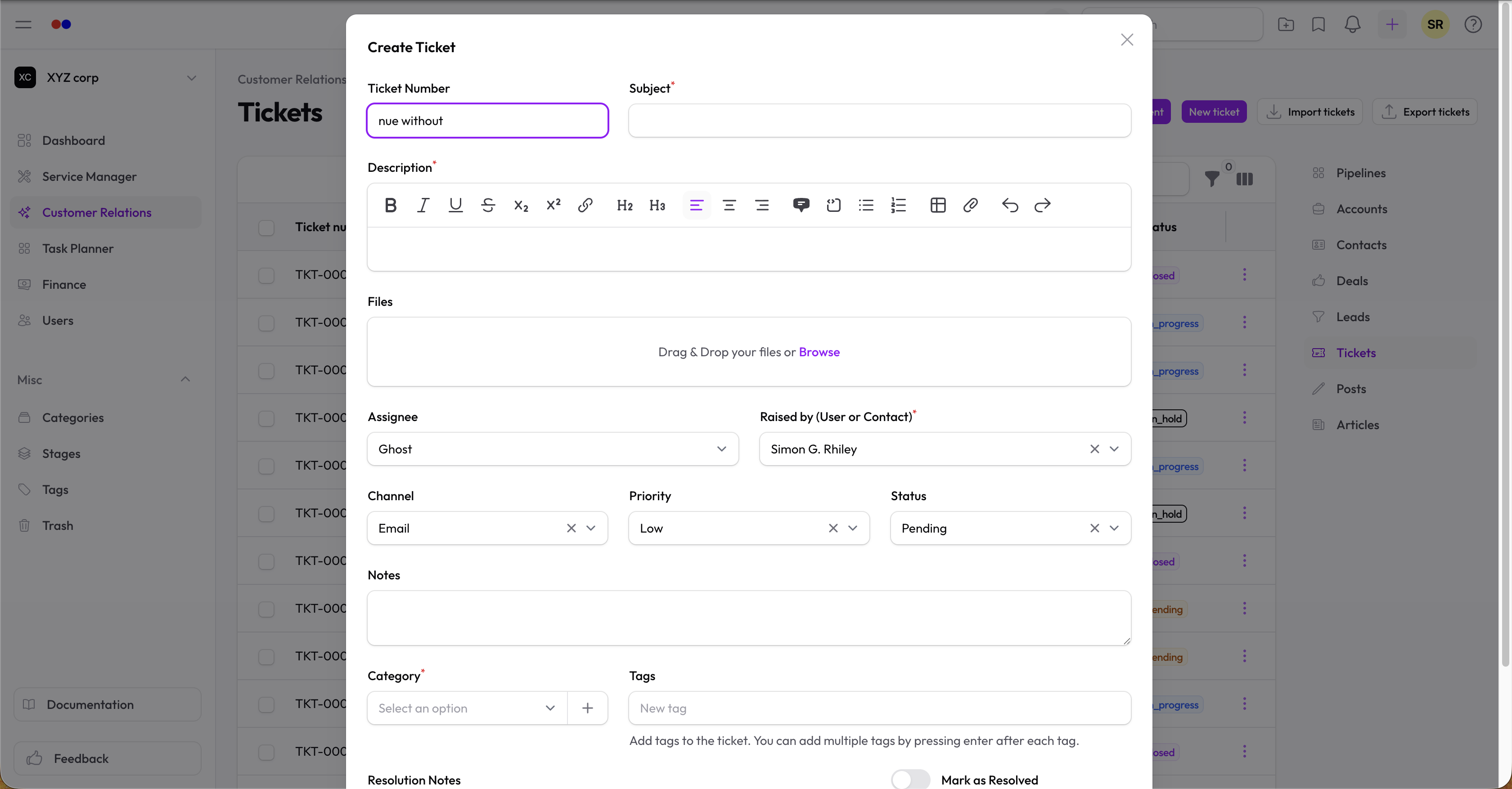
- Fill in the details:
- Subject — Brief description (required)
- Description — Full details (required)
- Submitter — Contact or User who submitted
- Channel — How it was submitted
- Priority — Urgency level
- Category — Ticket type (see Categories)
- Assignee — Team member to handle it
- Files — Attach relevant files
Options
- Create Task from Ticket — Automatically create a task for this ticket
Ticket Numbers
Each ticket gets a unique number based on your Organization Settings:
- Prefix (e.g., "TKT")
- Format (auto-increment or random)
Managing Tickets
Updating Status
- Open the ticket
- Click Edit
- Change the status
- Save
Adding Comments
Use comments to:
- Communicate with your team
- Log progress
- Track customer interactions
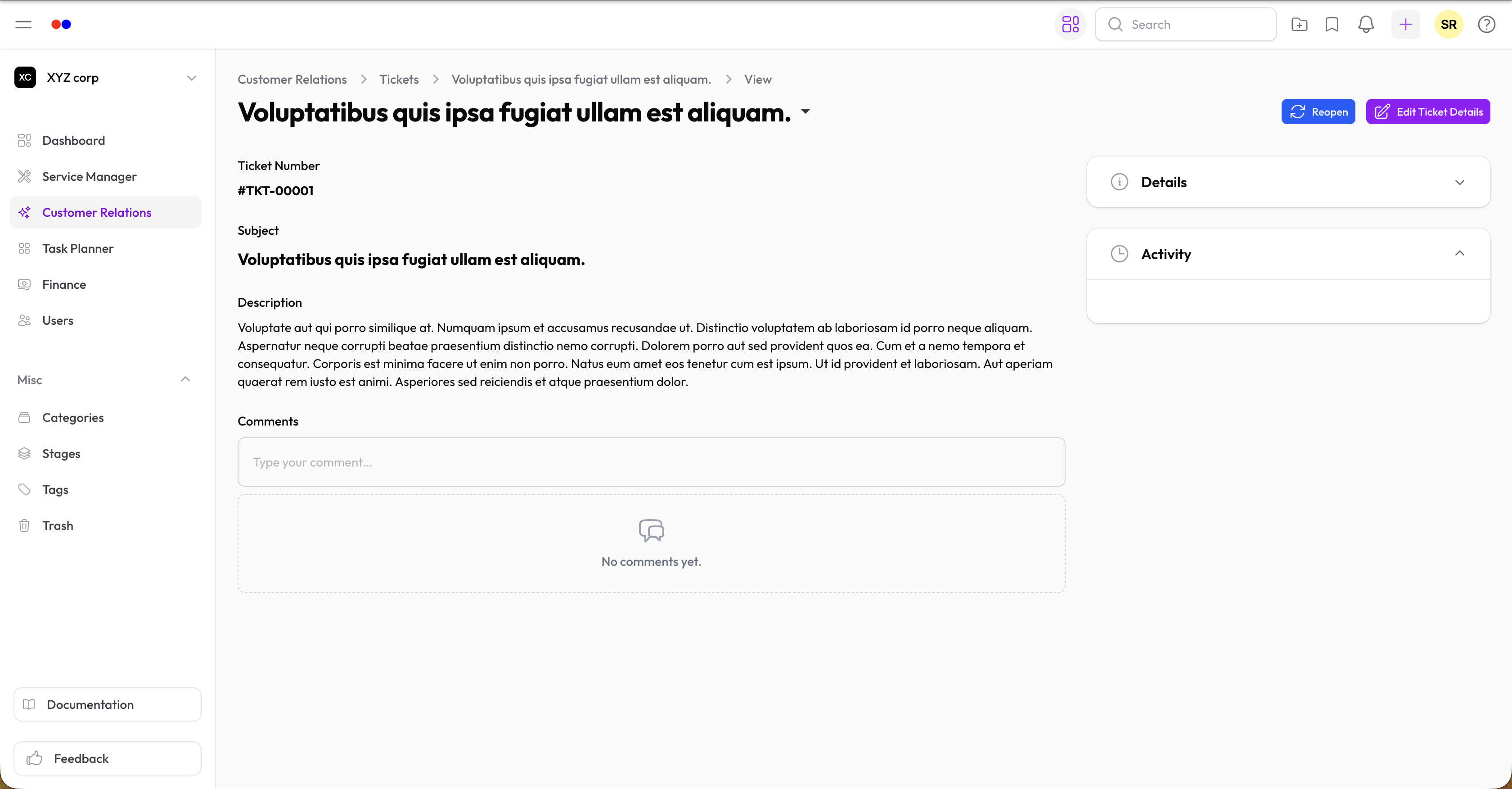
Resolving a Ticket
- Mark as Closed when resolved
- Optionally add Resolution Notes
- Toggle Is Resolved if appropriate
Filtering Tickets
Filter by:
- Status
- Priority
- Assignee
- Channel
- Category
- Date range
Deleting a Ticket
Tickets are soft-deleted (moved to Trash). You can restore them later.
Export
Download tickets as CSV for reporting.