
Creditors
Track money your organization owes to suppliers, vendors, or other parties.
Creating a Creditor
- Go to Finance → Creditors
- Click New Creditor
- Fill in:
- Name — Creditor's name
- Amount — Total amount owed
- Date Opened — When the debt was incurred
- Contact Info — Email, phone, address (optional)
- Notes — Additional information
Managing Creditors
Viewing Creditors
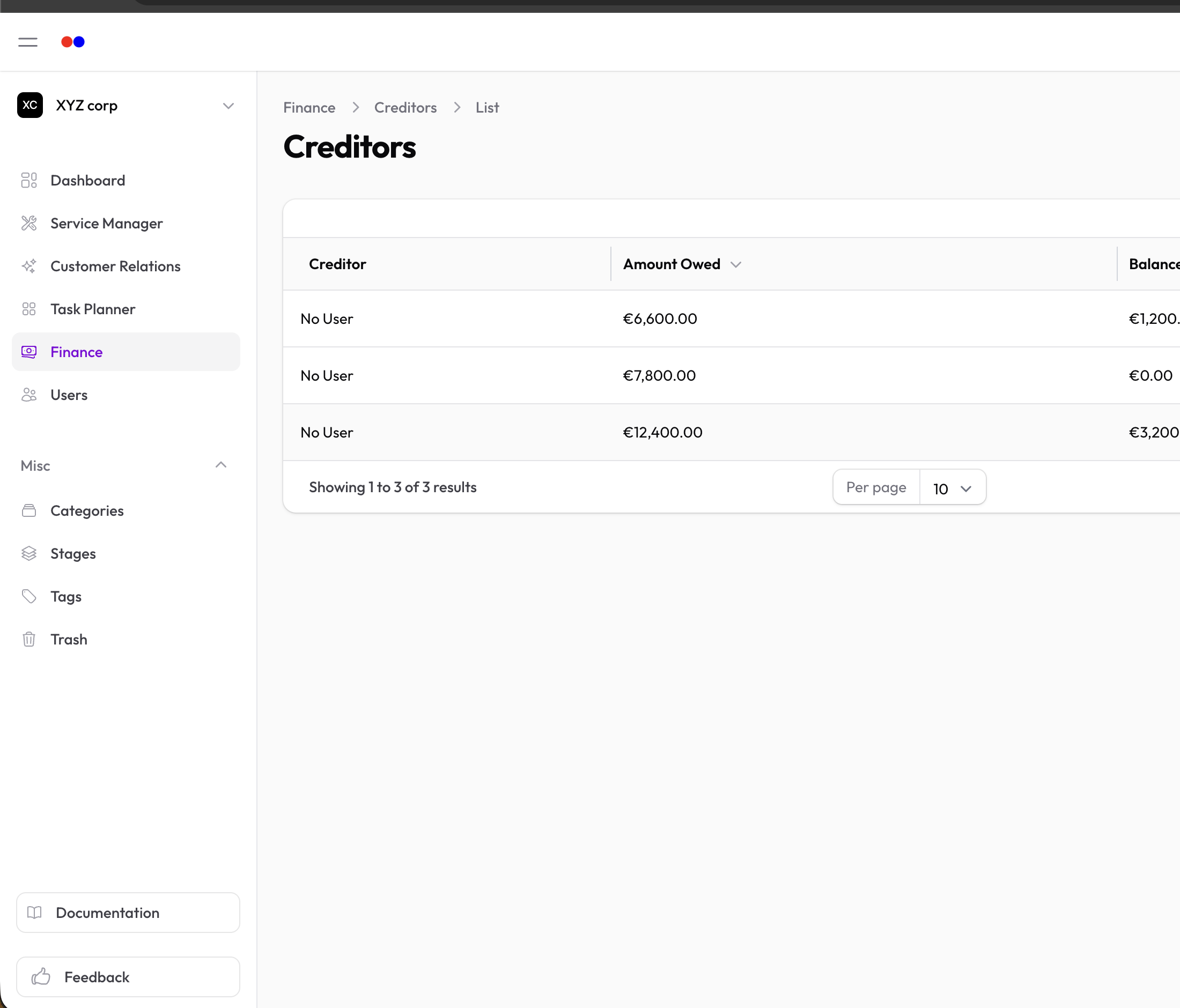
The table shows:
- Name
- Original amount
- Current balance
- Active status
- Date opened
Recording Payments
When you make a payment to a creditor:
-
Open the creditor record
-
Click Add Payment
-
Enter:
- Amount — Payment amount
- Date — Payment date
- Payment Method — Cash, Check, Bank Transfer, Credit Card, or Other
- Description — Optional notes (e.g., check number)
-
Click Save
What happens:
- Payment is recorded
- Balance is automatically reduced
- If balance reaches zero, creditor is marked inactive
Payment Methods
| Method | Use For |
|---|---|
| Cash | Cash payments |
| Check | Check payments |
| Bank Transfer | Wire or ACH transfers |
| Credit Card | Card payments |
| Other | Any other method |
Viewing Payment History
Open a creditor and check the Payments tab to see all recorded payments.
Editing a Creditor
- Click on the creditor
- Click Edit
- Make changes and save
Closing a Creditor Account
When fully paid:
- The creditor is automatically marked inactive
- You can set a Date Closed for your records
To manually close:
- Edit the creditor
- Toggle Active off
- Set the Date Closed
- Save