
Invoices
Create and manage invoices for billing customers.
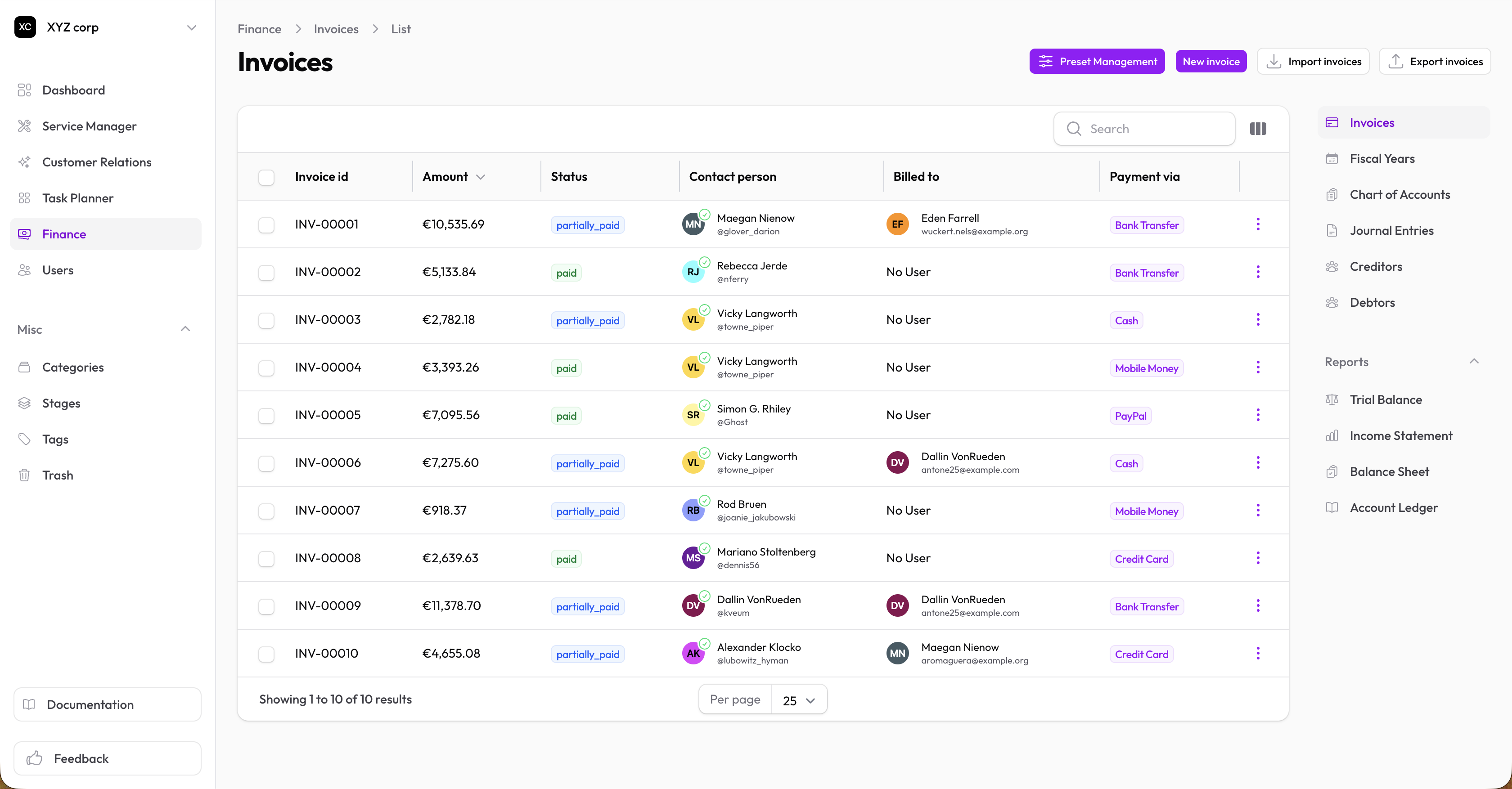
Invoice Statuses
| Status | Color | Meaning |
|---|---|---|
| Paid | Green | Fully paid |
| Partially Paid | Blue | Some payment received |
| Unpaid | Yellow | No payment yet |
| Overdue | Red | Past due date |
Creating an Invoice
- Go to Finance → Invoices
- Click New Invoice
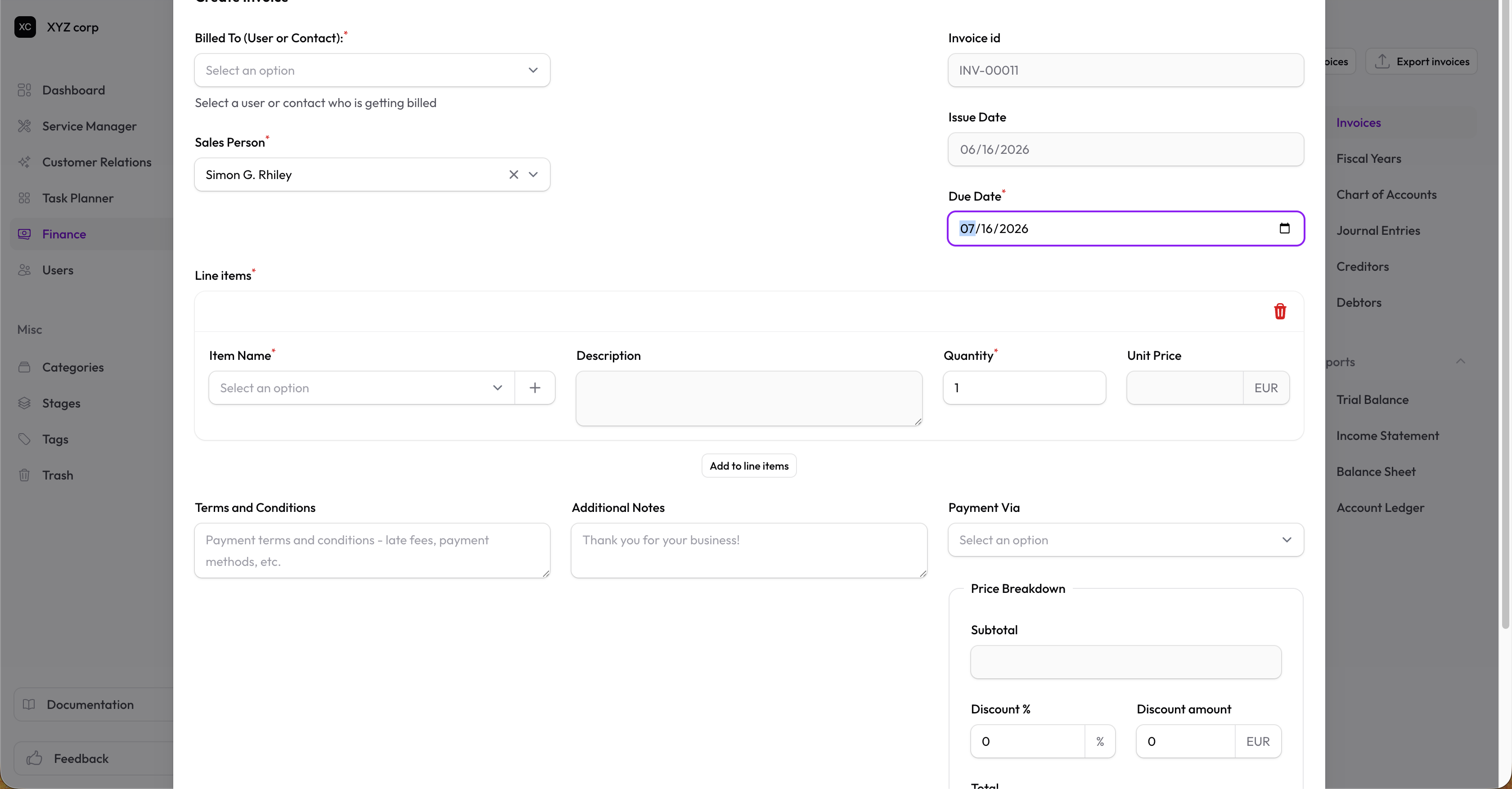
- Fill in the details:
- Bill To — Select a Contact or User
- Contact Person — Sales person responsible
- Issue Date — When the invoice is issued (backdating allowed if enabled in Organization Settings)
- Due Date — Payment deadline
- Payment Method — How payment should be made
Adding Line Items
- In the Line Items section, click Add
- Select an item from your catalog
- Adjust Quantity as needed
- Price and description auto-fill from the item
Pricing
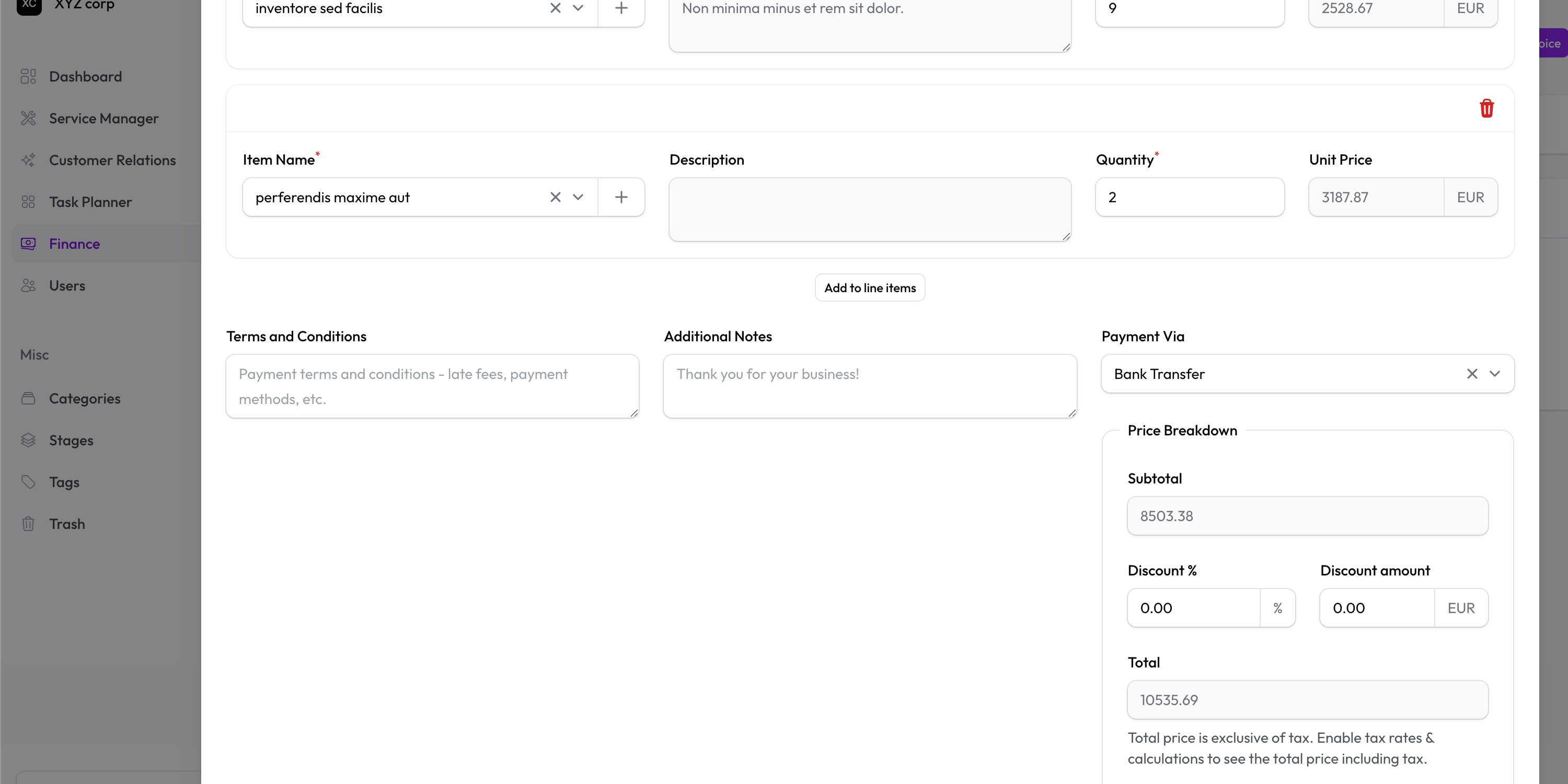
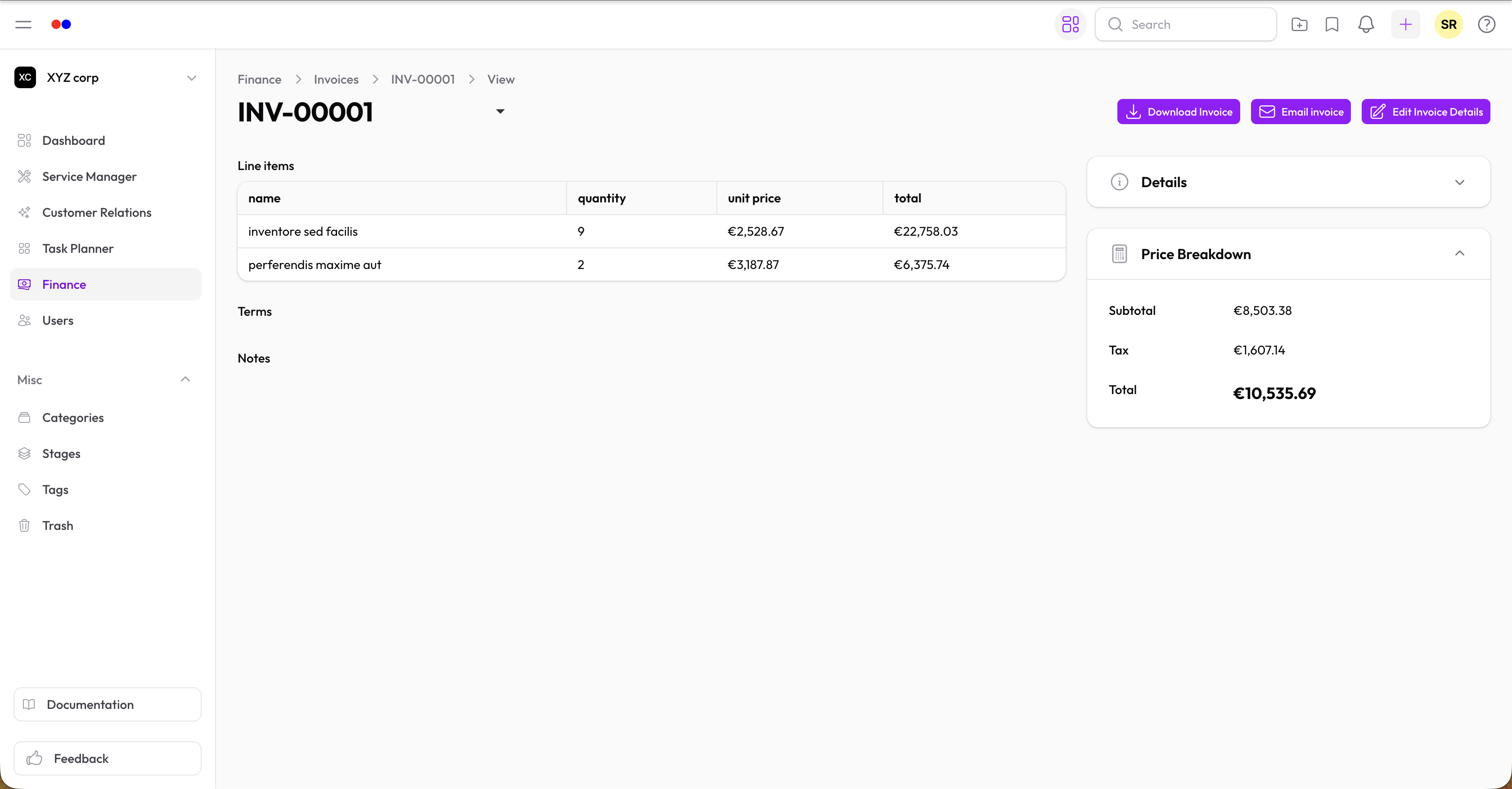
The invoice total is calculated as:
| Step | Description |
|---|---|
| Subtotal | Sum of line items |
| + Pre-tax Levies | Configured in Organization Settings |
| − Discount | Percentage or fixed amount |
| + Tax | Based on tax rate |
| = Total | Final amount due |
Additional Fields
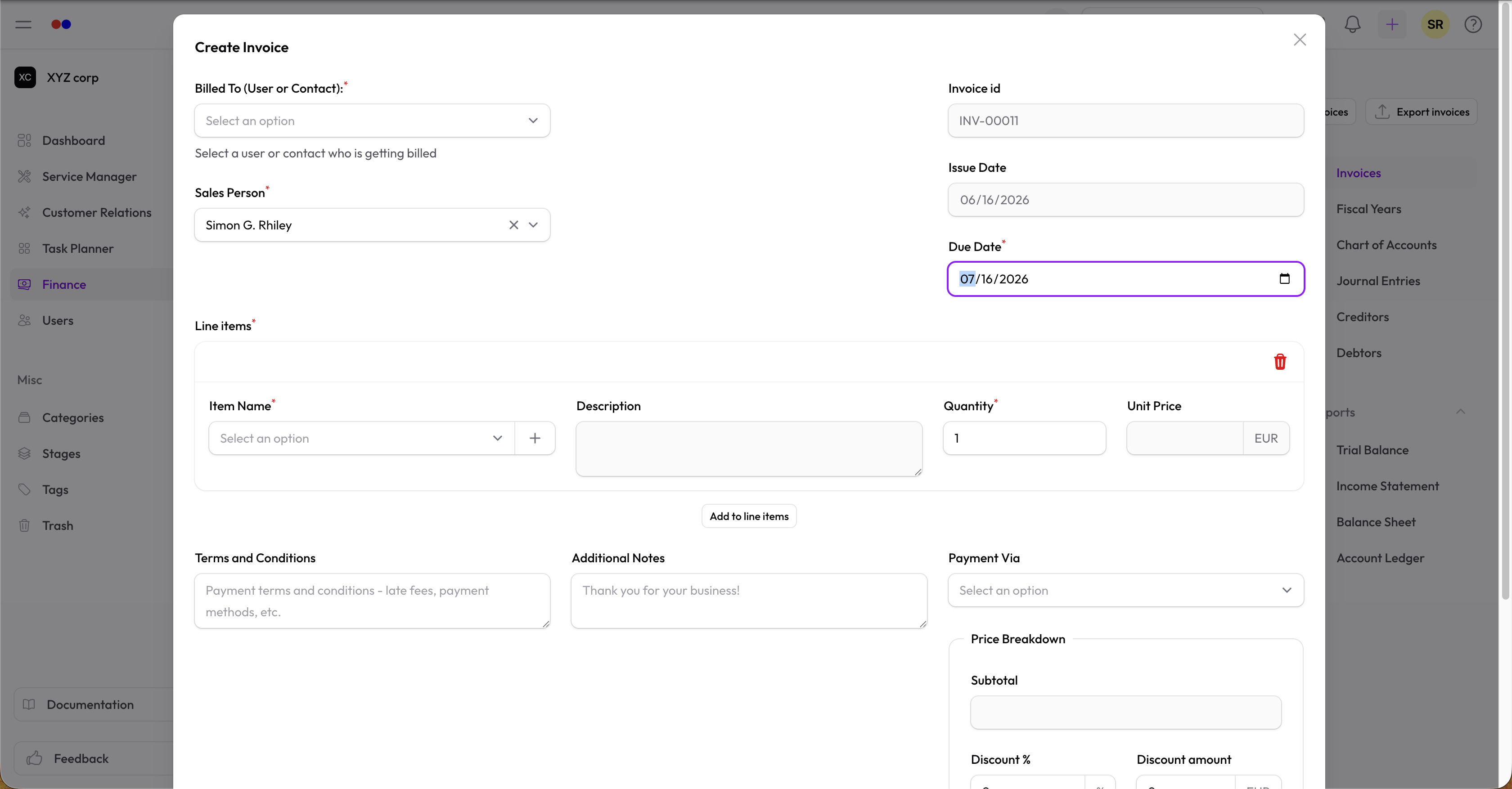
- Notes — Information for the customer
- Terms — Payment terms and conditions
Invoice IDs
Invoice numbers are auto-generated using your prefix and format from Organization Settings → Finance → Invoices (e.g. INV-00001, INV-ABC123, or a custom value).
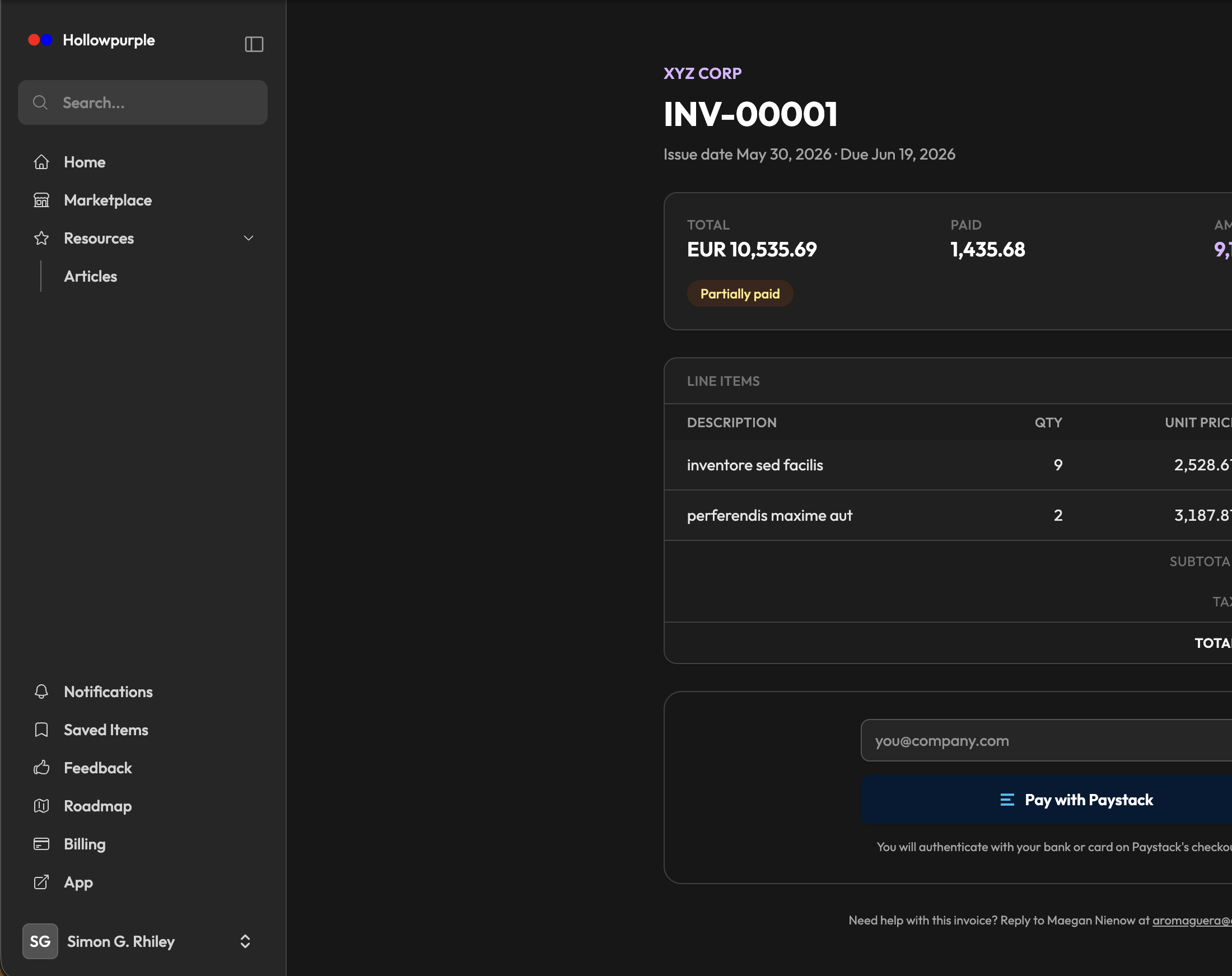
Online Payments
If you've configured a payment gateway (Paystack, Stripe, or PayPal) in Organization Settings, the gateway is automatically listed as a payment option on the invoice. Clients viewing the invoice in the Client Portal can pay online directly.
Managing Invoices
Viewing Invoices
The table shows:
- Invoice ID
- Customer
- Amount
- Status (color-coded)
- Issue and due dates
Filtering
Filter invoices by:
- Status
- Customer
- Date range
- Amount range
Duplicating an Invoice
Use the Replicate action to create a copy with the same line items and settings.
Cancelling an Invoice
An unpaid invoice can be cancelled from its view page — this is only allowed before any payment has been received. Cancelling voids the invoice and clears any linked debtor record.
Recording a Refund
If a client was refunded outside the app (through your payment provider), use Record Refund on the invoice to log it for your own bookkeeping. This does not move any money — it only records that a refund happened.
Credit Notes
Add a Credit Note to reduce an invoice's outstanding balance without recording it as a payment (for example, a goodwill discount or a billing correction). Credit notes are listed on the invoice and reduce the amount still due.
Debtor Records
If an invoice represents an actual debt owed — rather than a normal pending payment — use Create Debtor Record on the invoice to add it to your Debtors ledger. Once linked, View Debtor jumps straight to that record, and its balance stays in sync with the invoice automatically.
Deleting an Invoice
Invoices are soft-deleted (moved to Trash). You can restore them later.
Export
Download invoices as CSV for reporting.