
Transactions
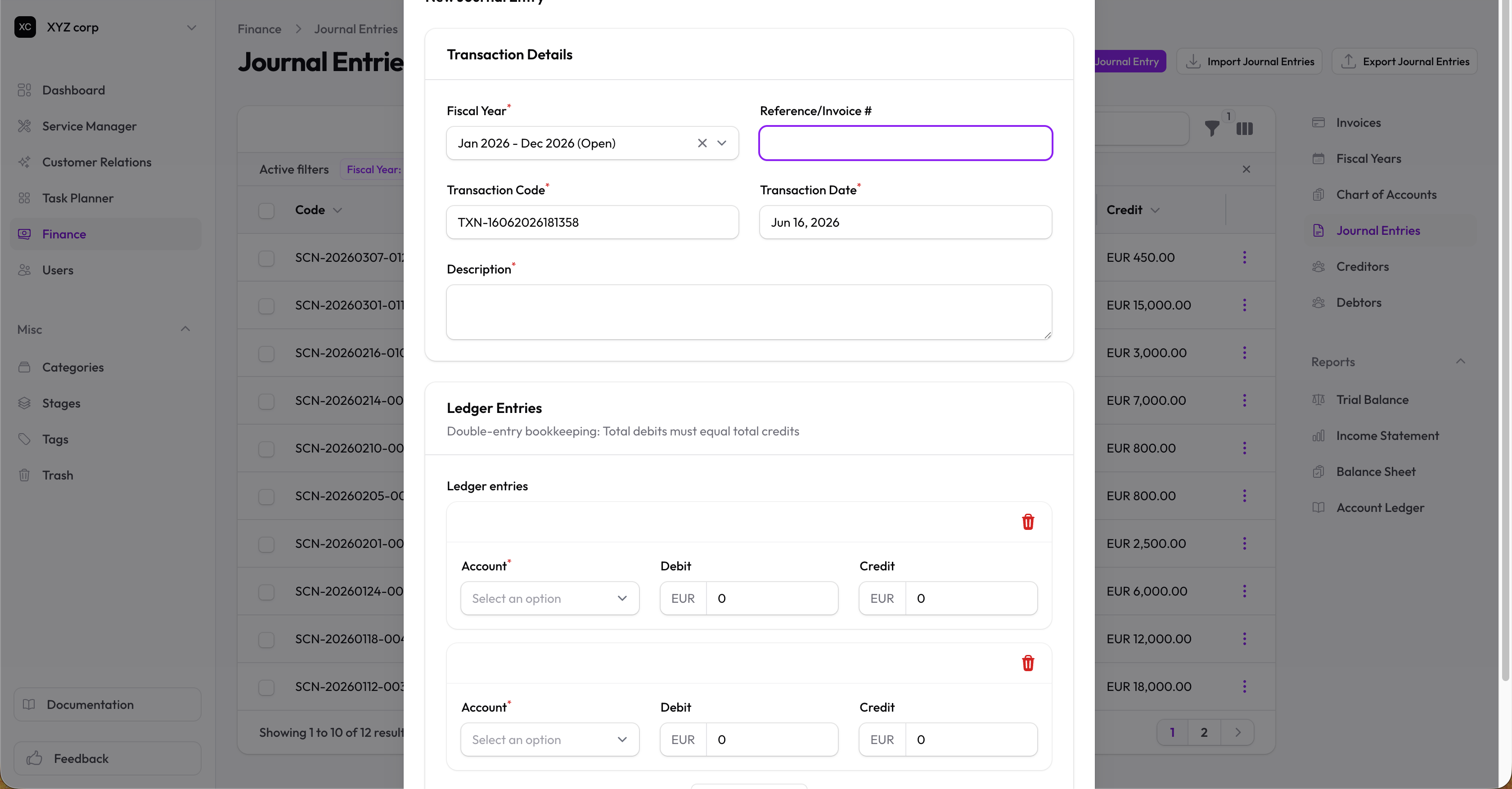
Transactions are journal entries that record financial activity using double-entry bookkeeping.
Double-Entry Bookkeeping
Every transaction must have:
- At least one debit entry
- At least one credit entry
- Total debits = Total credits
This ensures your books always balance.
Creating a Transaction
- Go to Finance → Transactions
- Click New Transaction
- Fill in:
- Date — Transaction date
- Description — What the transaction is for
- Invoice Number — Optional reference number
- Fiscal Year — Automatically set to current open year
Adding Ledger Entries
- In the entries section, click Add Entry
- Select an Account
- Enter either a Debit or Credit amount (not both)
- Add more entries as needed
Example: Recording a sale
| Account | Debit | Credit |
|---|---|---|
| Cash | $1,000 | |
| Sales Revenue | $1,000 |
Validation
The form validates that:
- At least two entries exist
- Total debits equal total credits
- You'll see an error if the entry doesn't balance
Transaction Codes
Transactions automatically receive a code:
- Regular:
TXN-ddmmYYYYHHiiss - Reversals:
RSV-ddmmYYYYHHiiss
Managing Transactions
Viewing Transactions
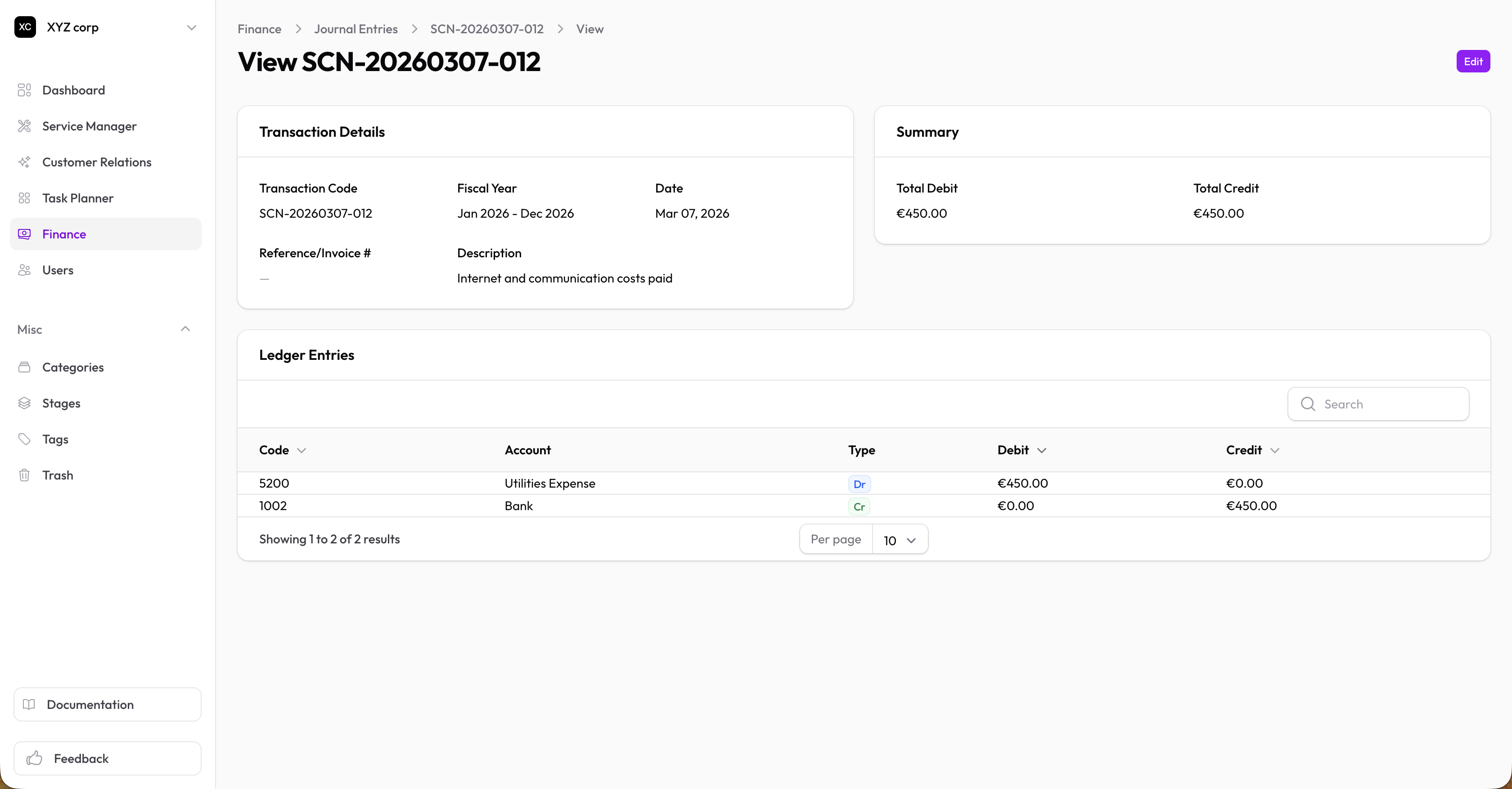
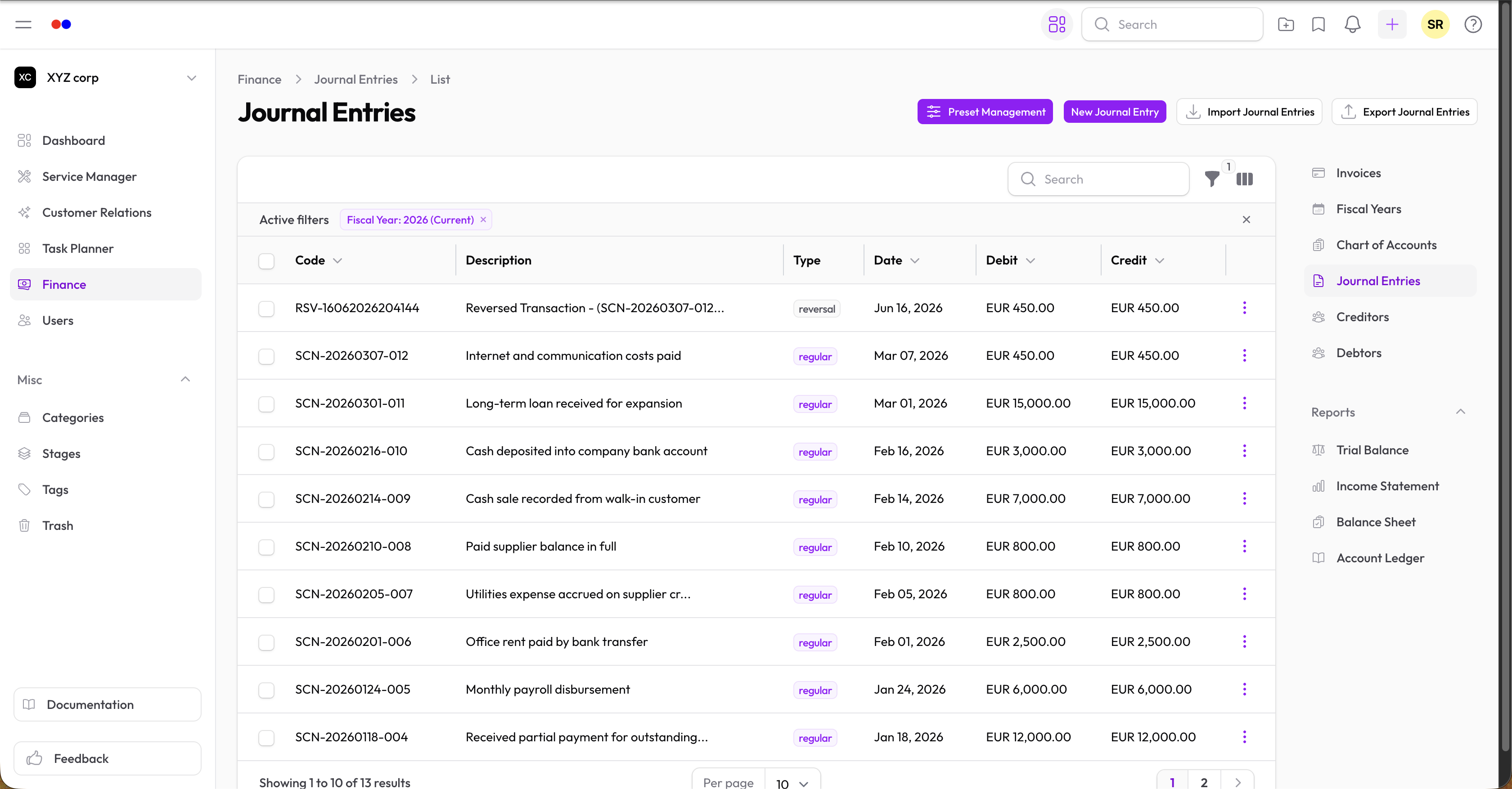
The table shows:
- Transaction code
- Date
- Description
- Fiscal year
- Voided status
Filtering
Filter by fiscal year to focus on a specific period.
Viewing Details
Click on a transaction to see the full journal entry with all ledger entries.
Voiding a Transaction
If a transaction was entered in error:
- Open the transaction
- Click Void
- Confirm the action
What happens:
- A reversal transaction is created (with RSV- prefix)
- The original is marked as voided
- Account balances are corrected
Note: Voiding creates an audit trail rather than deleting the record.
Editing Transactions
Transactions can only be edited if:
- The accounting year is still open
- The transaction hasn't been voided
Ledger Entries
View individual ledger entries in the Ledger Entries tab of each transaction.