
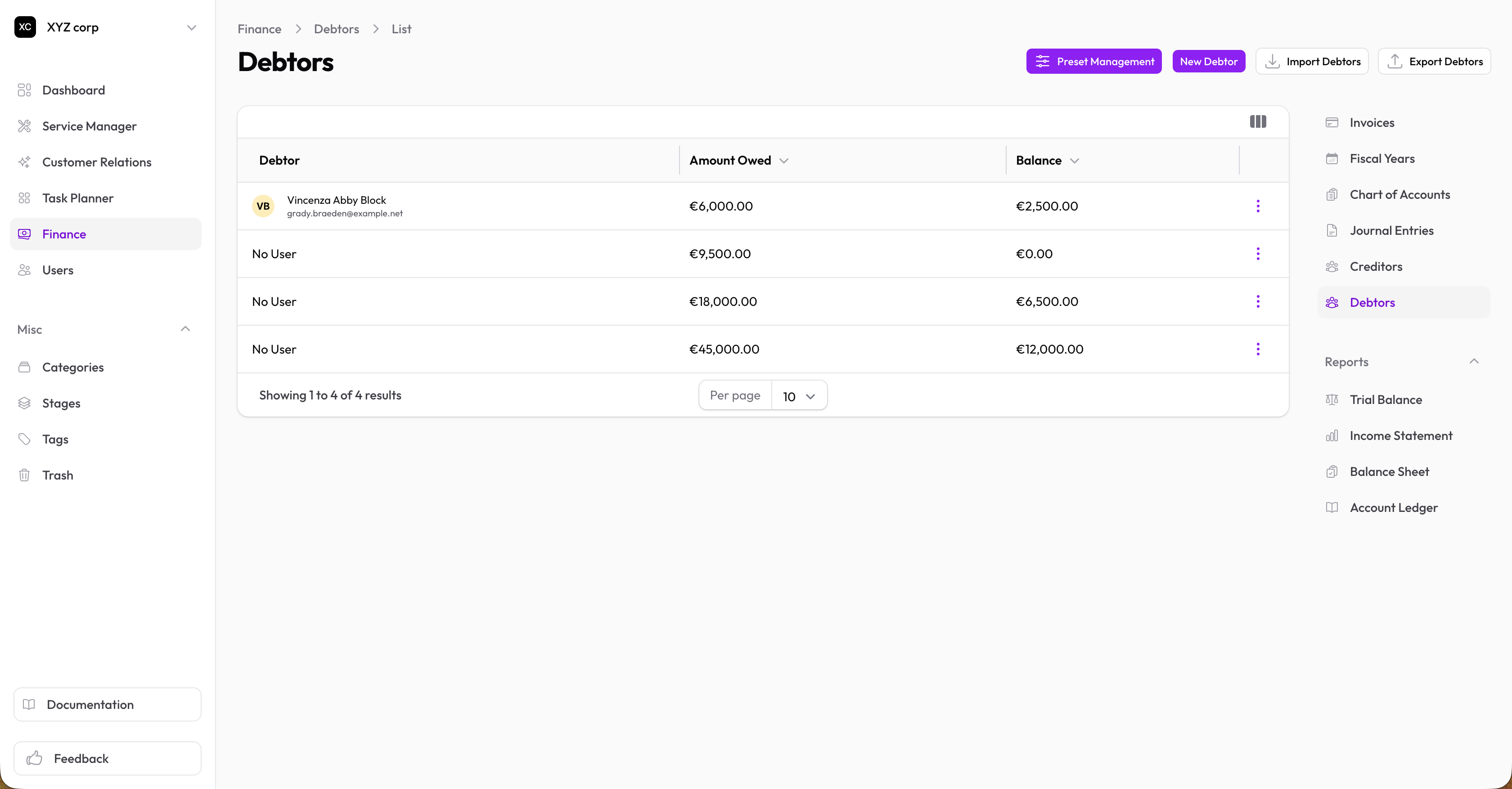
Debtors
Track money owed to your organization by customers or other parties.
Creating a Debtor
- Go to Finance → Debtors
- Click New Debtor
- Fill in:
- Name — Debtor's name
- Amount — Total amount owed
- Date Opened — When the debt was created
- Contact Info — Email, phone, address (optional)
- Notes — Additional information
Creating a Debtor from an Invoice
Instead of creating a debtor manually, you can promote an existing invoice into the debtor ledger:
- Open the invoice
- Click Create Debtor Record
- The outstanding balance becomes a linked debtor automatically
Once linked, the debtor's balance stays in sync with the invoice — payments, credit notes, and refunds recorded on the invoice update the debtor automatically. Use View Debtor on the invoice to jump to the linked record.
Debtor Reconciliation
Finance → Debtor Reconciliation lists every debtor alongside its linked invoice's outstanding amount (where one exists), flags any that have drifted out of sync, and labels debtors with no linked invoice as Freeform.
Managing Debtors
Viewing Debtors
The table shows:
- Name
- Original amount
- Current balance
- Active status
- Date opened
Recording Payments
When a debtor makes a payment:
-
Open the debtor record
-
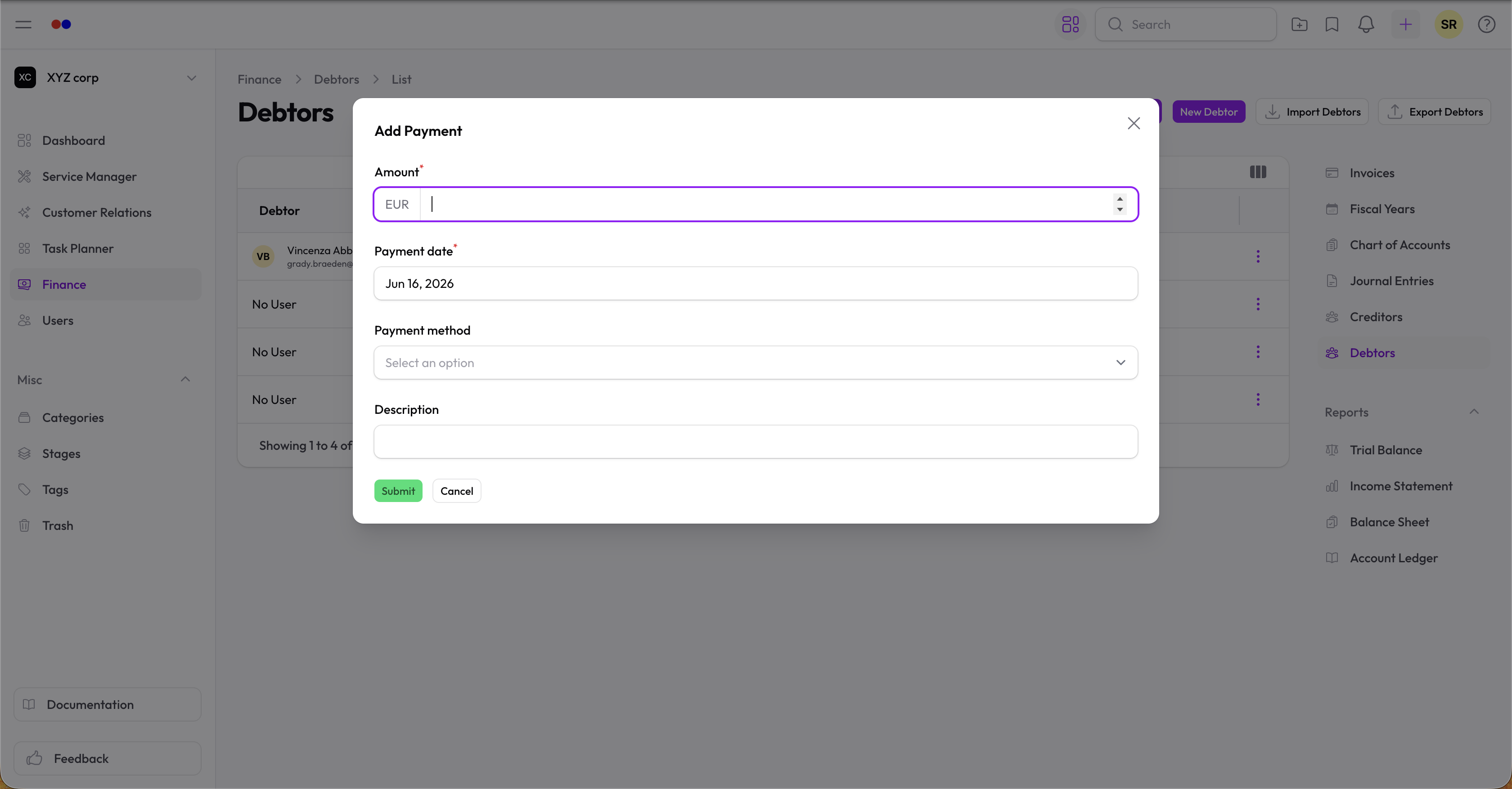
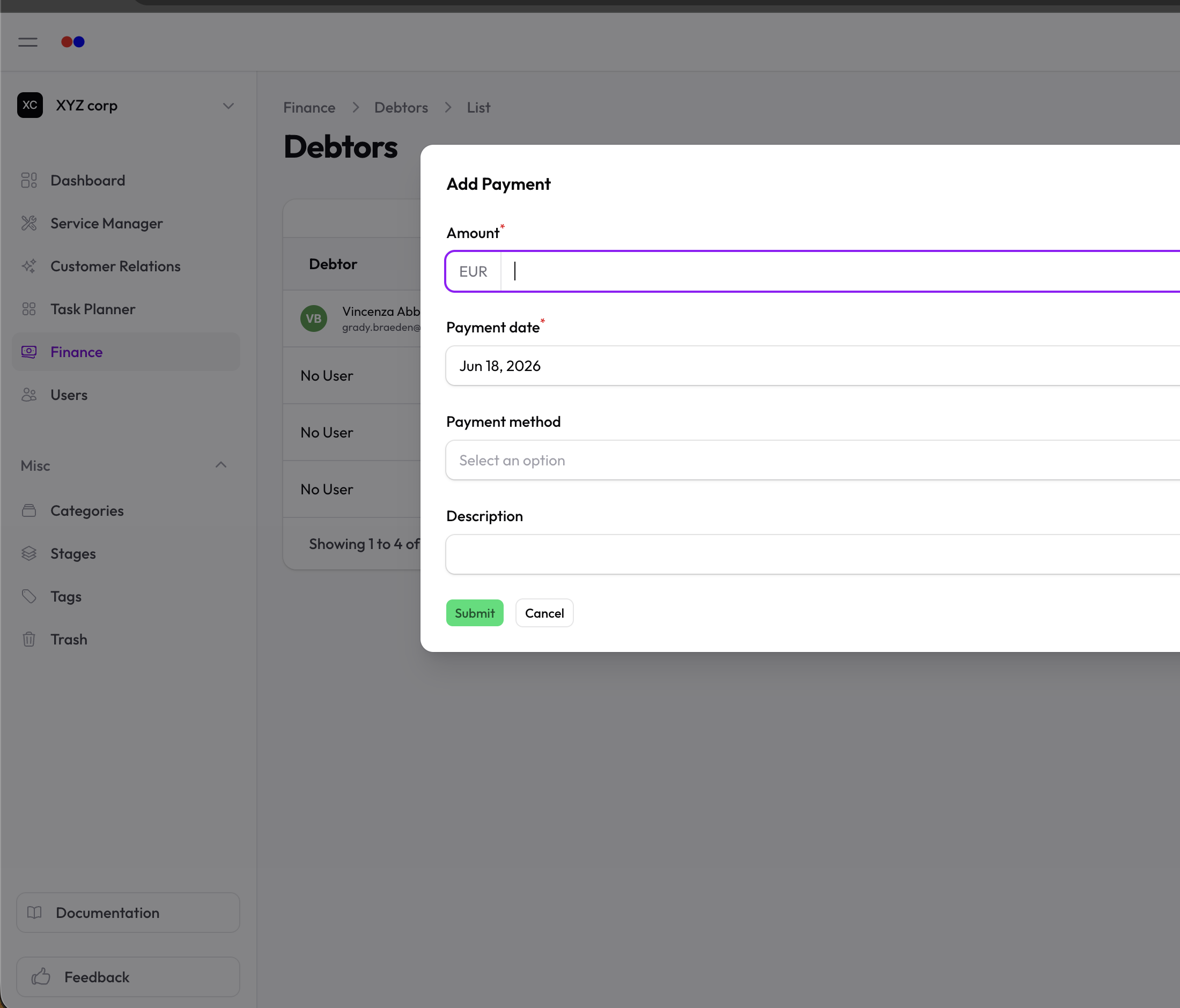
Click Add Payment
-
Enter:
- Amount — Payment amount
- Date — Payment date
- Payment Method — Cash, Check, Bank Transfer, Credit Card, or Other
- Description — Optional notes
-
Click Save
What happens:
- Payment is recorded
- Balance is automatically reduced
- If balance reaches zero, debtor is marked inactive
Payment Methods
| Method | Use For |
|---|---|
| Cash | Cash payments |
| Check | Check payments |
| Bank Transfer | Wire or ACH transfers |
| Credit Card | Card payments |
| Other | Any other method |
Viewing Payment History
Open a debtor and check the Payments tab to see all recorded payments.
Editing a Debtor
- Click on the debtor
- Click Edit
- Make changes and save
Closing a Debtor Account
When fully paid:
- The debtor is automatically marked inactive
- You can set a Date Closed for your records
To manually close:
- Edit the debtor
- Toggle Active off
- Set the Date Closed
- Save