
Plans & Billing
HollowPurple is billed per organization, by active seat. The Free plan is enough to evaluate the platform; paid plans unlock the Client Portal, accounting, dashboards, automations, integrations, and more storage.
Plans at a Glance
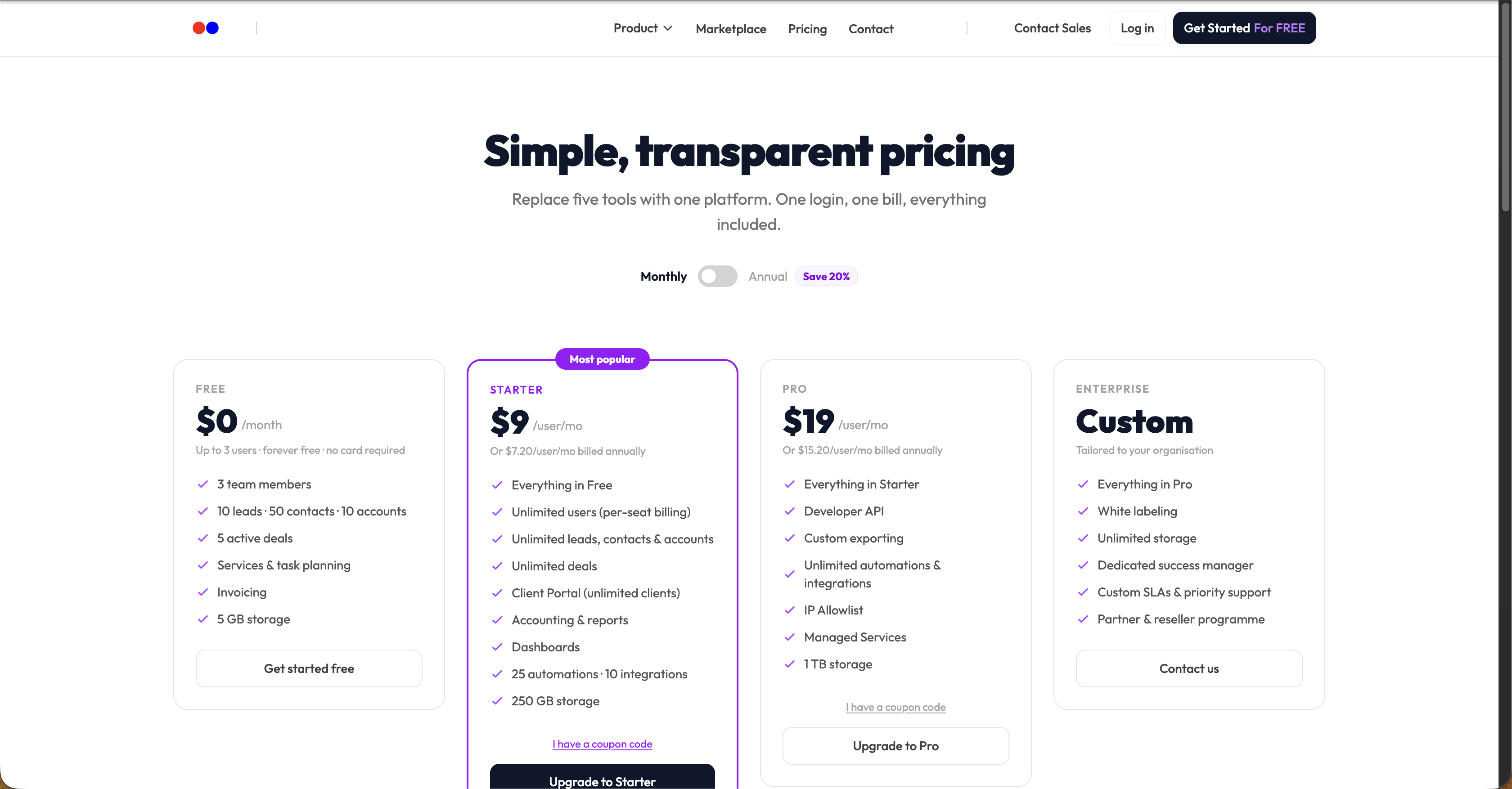
| Plan | Price | Users | Deals | Storage | Automations | Integrations |
|---|---|---|---|---|---|---|
| Free | $0 | 3 (hard cap) | 5 | 5 GB | — | — |
| Starter | $9 / user / month | Unlimited (per seat) | Unlimited | 250 GB | 25 | 10 |
| Pro | $19 / user / month | Unlimited (per seat) | Unlimited | 1 TB | Unlimited | Unlimited |
| Enterprise | Custom | Unlimited | Unlimited | Custom | Unlimited | Unlimited |
Annual billing saves 20% on Starter and Pro.
The pricing page (
/pricing) is always the canonical source for current pricing and what's included on each plan.
Per-Seat Billing on Paid Plans
On Starter, Pro, and Enterprise, every team member is one seat.
- When you invite a new user, your Stripe subscription quantity is automatically incremented by one. The invite modal shows you the per-seat charge that will apply on your next invoice.
- When a user is removed from your org, the subscription quantity decreases.
- Stripe prorates mid-cycle changes, so you only pay for what you used.
Where to Manage Billing
Visit /billing in the app (or click the billing entry in the sidebar profile menu). Only organization owners can manage billing.
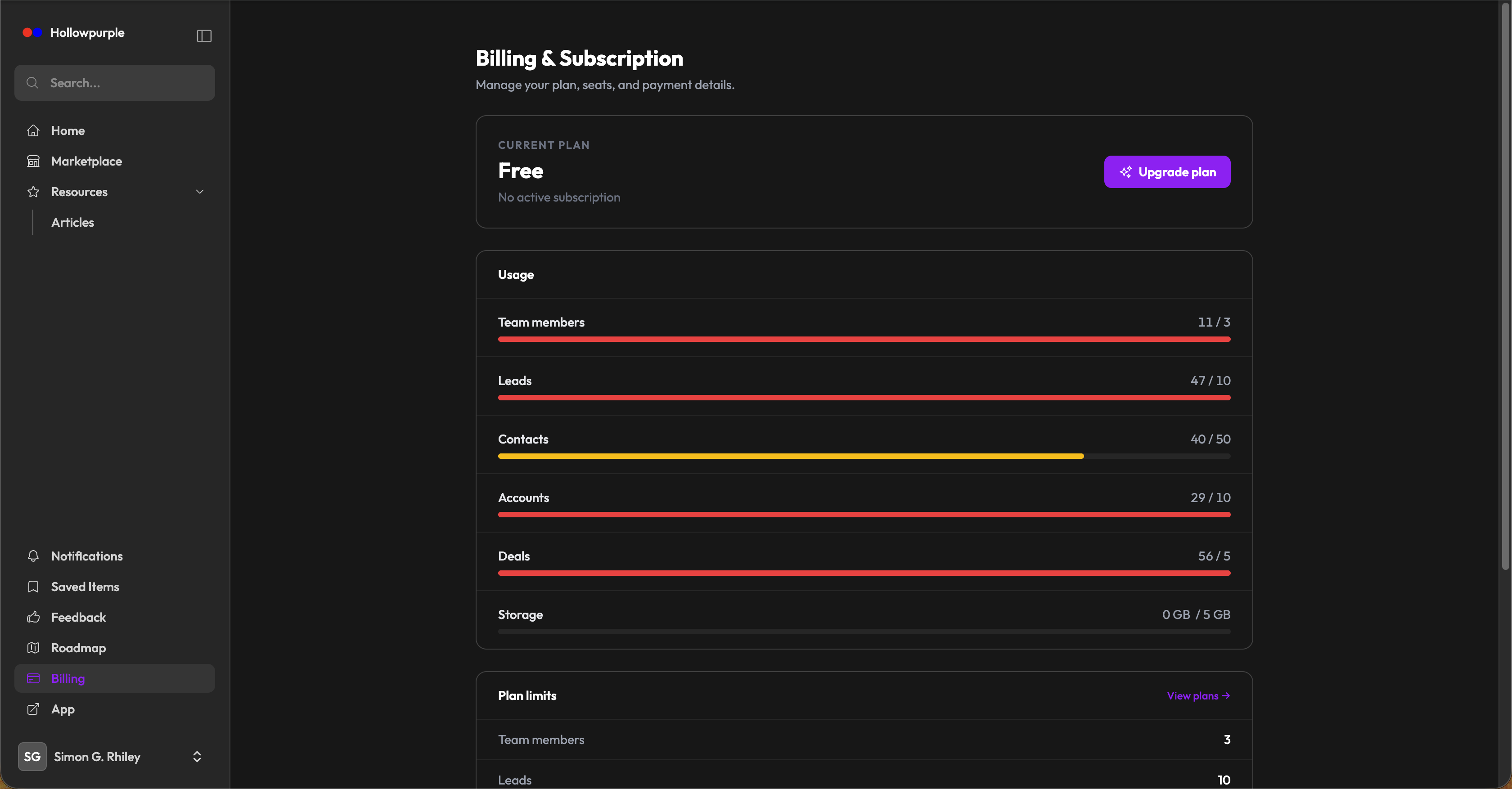
The billing page shows:
| Section | What it does |
|---|---|
| Current plan | Plan label, status (Active / Cancels on … / Ended), and a CTA to Manage billing (Stripe portal) or Upgrade plan (pricing page) |
| Seats | Your current seat count — only shown on paid plans |
| Usage | Team members and deals against your plan limits, with progress bars |
| Plan limits | The hard caps for users, deals, storage, automations, and integrations on your current plan |
Org switcher
If you own multiple organizations, an org switcher appears on the billing page so you can flip between them and manage each one's subscription separately.
Upgrading
- Open
/pricing(or click Upgrade plan on the billing page) - Pick Monthly or Annual, then click Upgrade to Starter / Pro
- You're redirected to Stripe Checkout
- After paying, Stripe sends you back to the billing page with the new plan active
Switching Billing Cycle, Updating Card, Cancelling
Click Manage billing on the billing page. This redirects you to your Stripe billing portal, where you can:
- Update the payment method
- Switch between monthly and annual billing
- Cancel the subscription (you keep access until the end of the period)
- Download invoices and receipts
When you cancel, the billing page shows Cancels on … and your plan reverts to Free at the end of the period.
What Happens When You Hit a Limit
- User cap (Free plan) — the Invite user button warns you and the send is blocked. Upgrade to lift the cap.
- Deal cap (Free plan) — the Create deal button is disabled. Upgrade to remove the cap.
For storage, automations, and integrations, the relevant feature surfaces a similar message when you exceed your plan limit.
Tips
- Annual saves 20% — if you're committed to the platform, the annual cycle is cheaper and locks in the price.
- If you've upgraded but the new plan doesn't show, refresh the page — the Stripe webhook may take a few seconds to land.
- Each org has its own subscription. Owning multiple orgs means multiple subscriptions; consolidate organizations if you want a single bill.