
Client Portal
The Client Portal is a separate, simplified panel where the people you work with (not for) can see what's relevant to them — their invoices, the requests they've raised, and the support tickets they've opened.
Who Sees It
When you invite someone as a Client (instead of Staff) from Invitations, they don't get access to the full app. They only see the Client Portal, scoped to data your organization has linked to them.
Staff and Owners use the main app (
/app) — Clients use the Client Portal.
What's in It
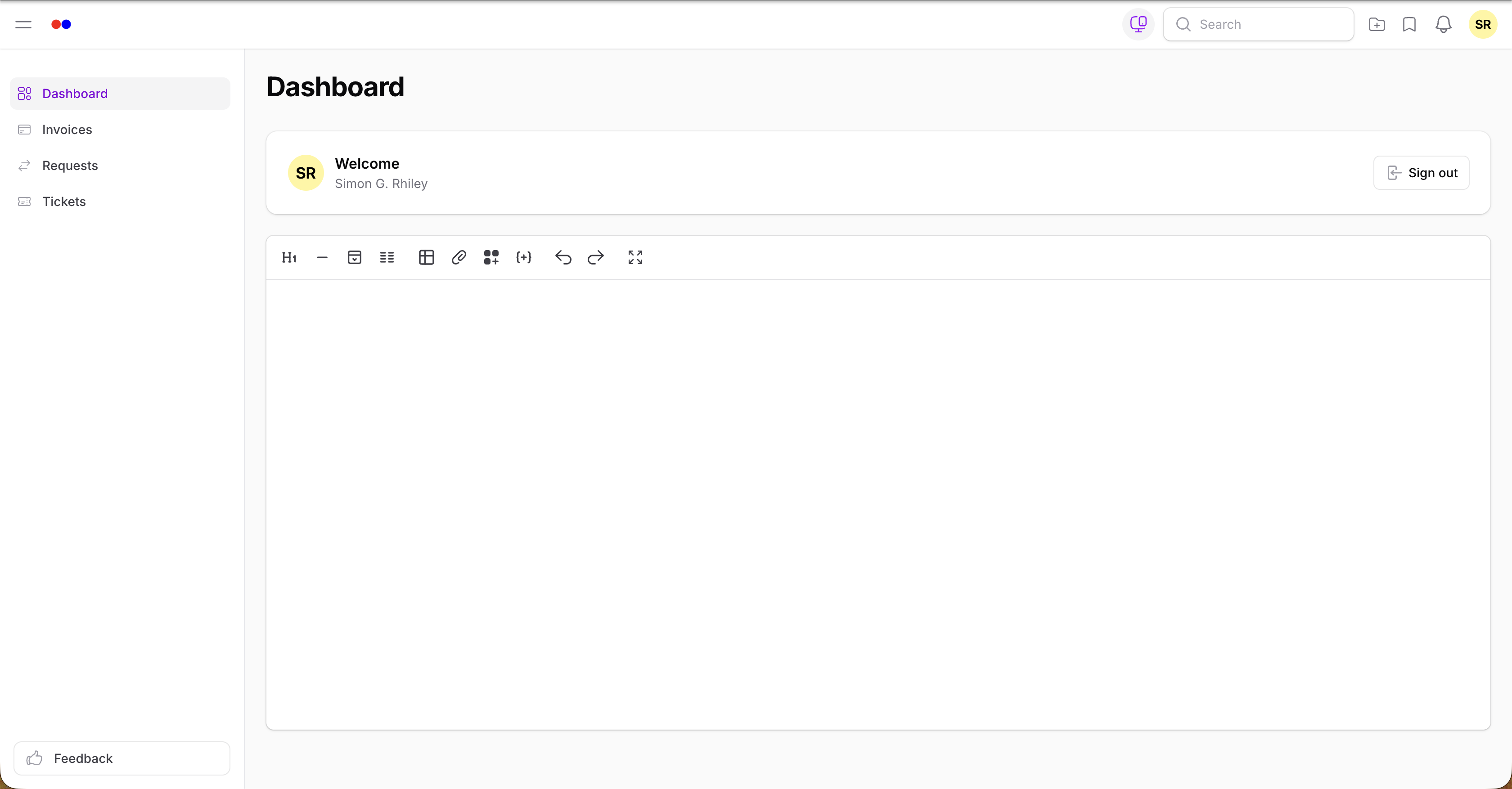
The Client Portal has its own dashboard plus three resources:
| Section | What clients can do |
|---|---|
| Dashboard | Account widget and a personal Quick Notes pad |
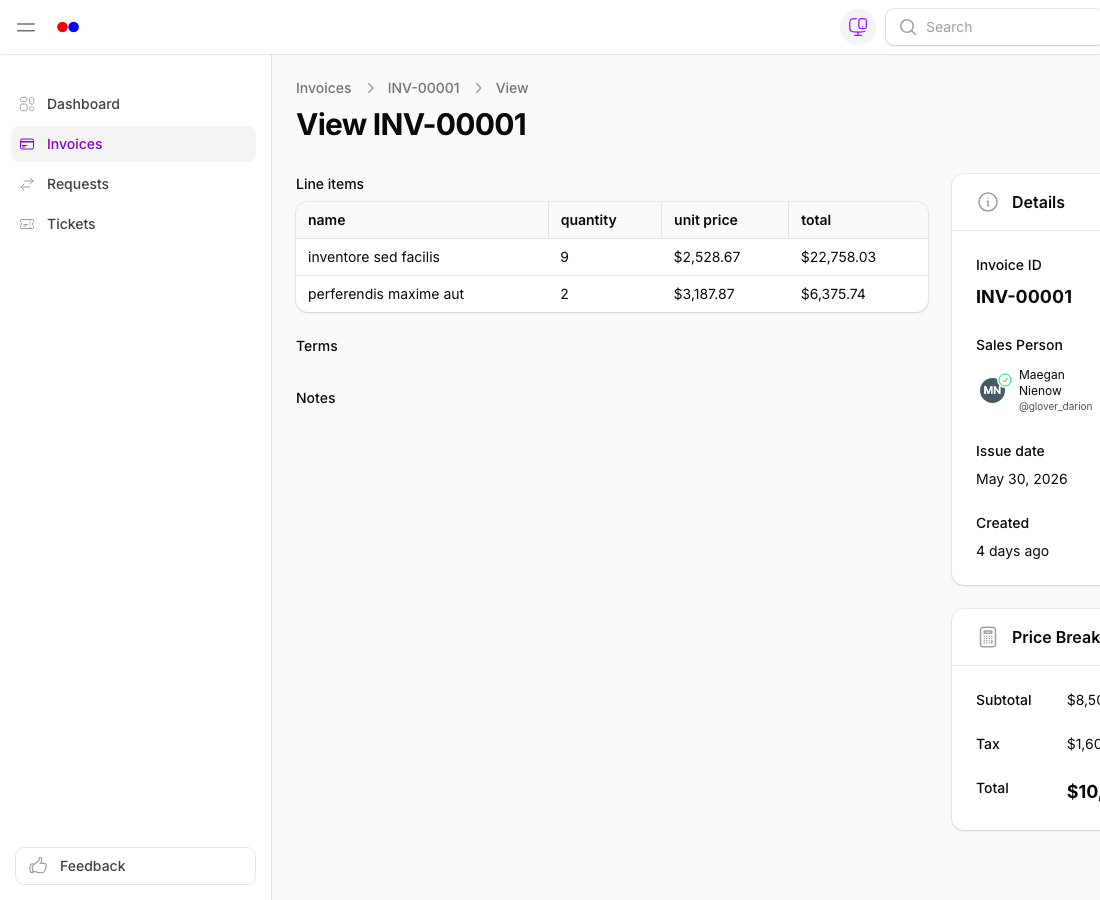
| Invoices | View invoices billed to them, see status, and (when configured) pay online |
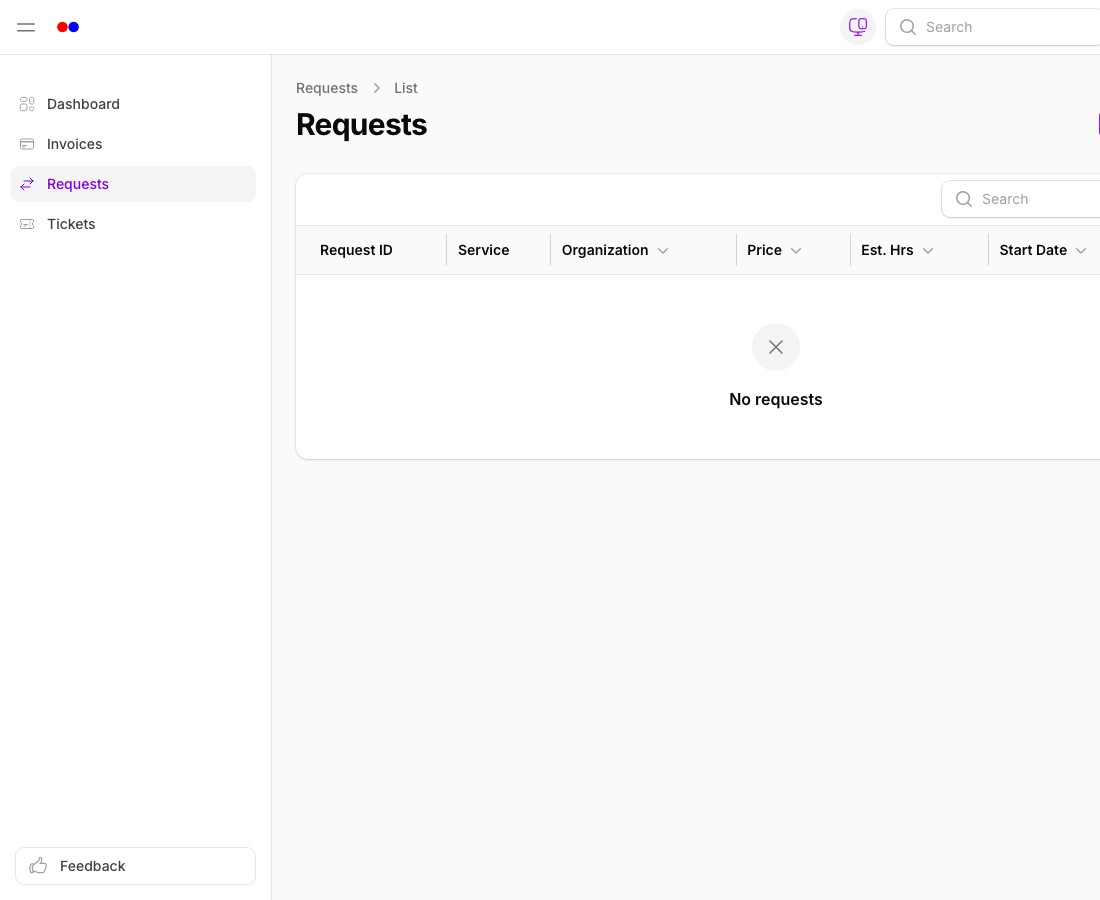
| Service Requests | View requests they've submitted; create new ones |
| Tickets | View support tickets they've opened; create, close, or reopen their own tickets |
Everything else — your finances, deals, leads, internal posts, and other clients' data — is hidden by tenancy and the portal's restricted resources.
Access Levels per Plan
The Client Portal is included on Starter, Pro, and Enterprise with unlimited clients. The Free plan does not include the Client Portal — see Plans & Billing.
Setting It Up
- Make sure your organization is on a paid plan
- Use Invite user and pick Client — limited portal access only
- The recipient gets a tailored email; on accepting, they land directly in the Client Portal
Tips
- Ask clients to enable two-factor authentication for added security on shared invoices.
- The Client Portal respects your organization's branding — logo and brand color from Organization Settings carry through.
- For large clients with multiple stakeholders, invite each contact individually so each one has their own login.