
Import & Export
Bulk import and export records using CSV files.
Exporting Records
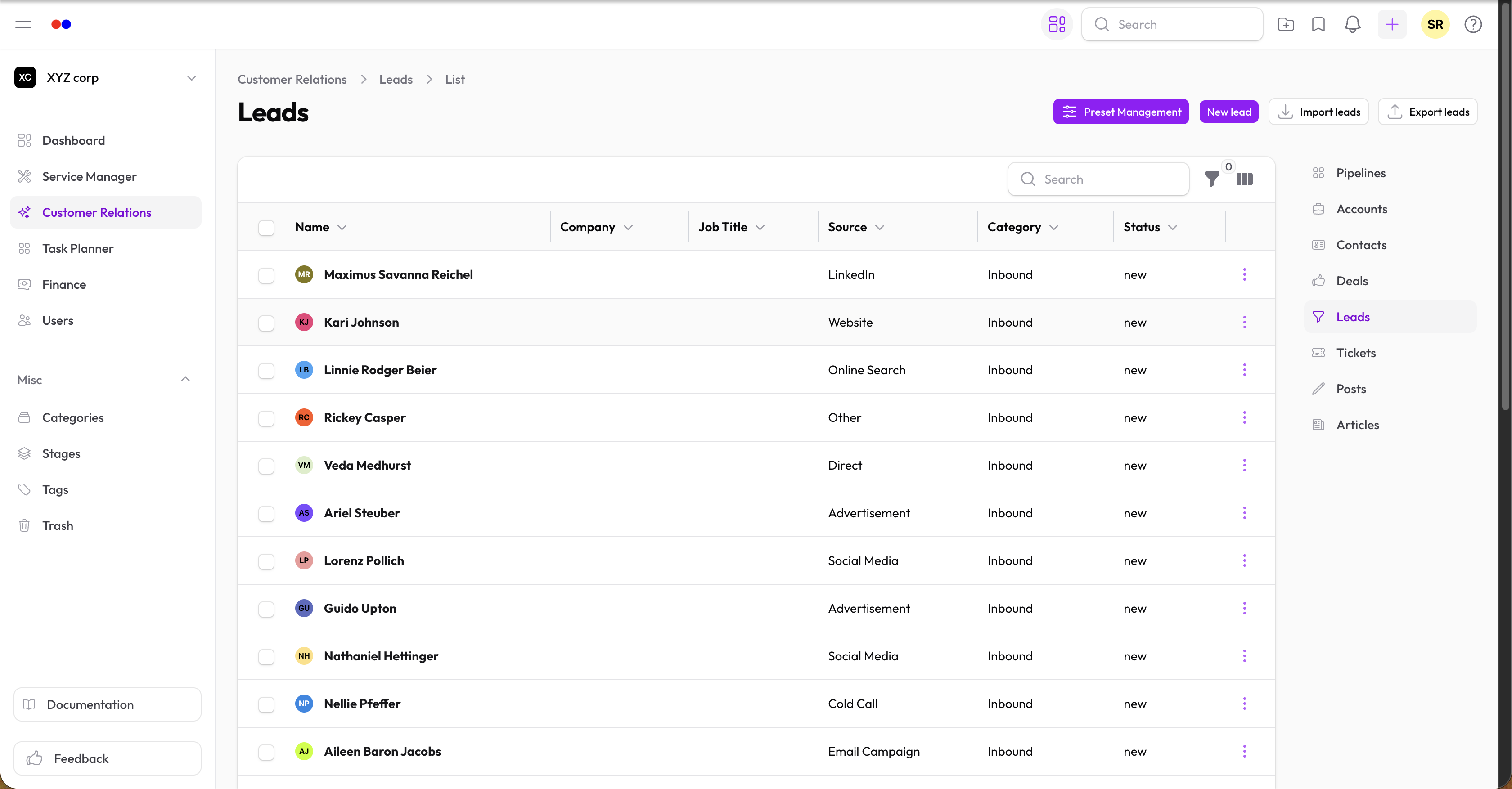
Single Export
- Go to any table (e.g., Services, Requests)
- Click the Export button in the header
- Choose your format (CSV)
- Download the file
Bulk Export
- Select multiple records using the checkboxes
- Click Bulk Actions → Export
- Download the file
Exports include all visible columns and can be used for:
- Backups
- Reporting
- Transferring data to other systems
Importing Records
-
Go to the resource you want to import (e.g., Services)
-
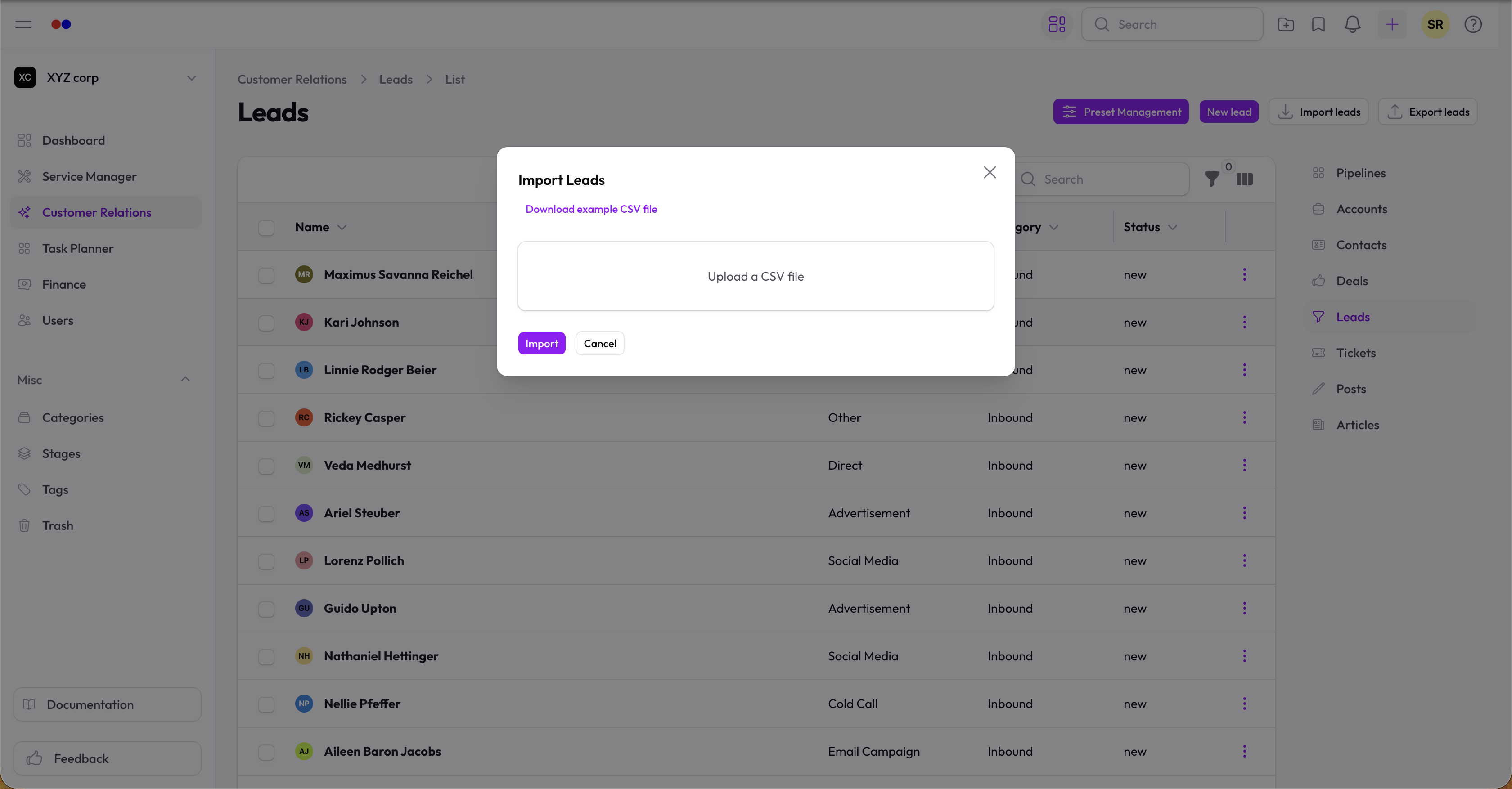
Click Import in the header
-
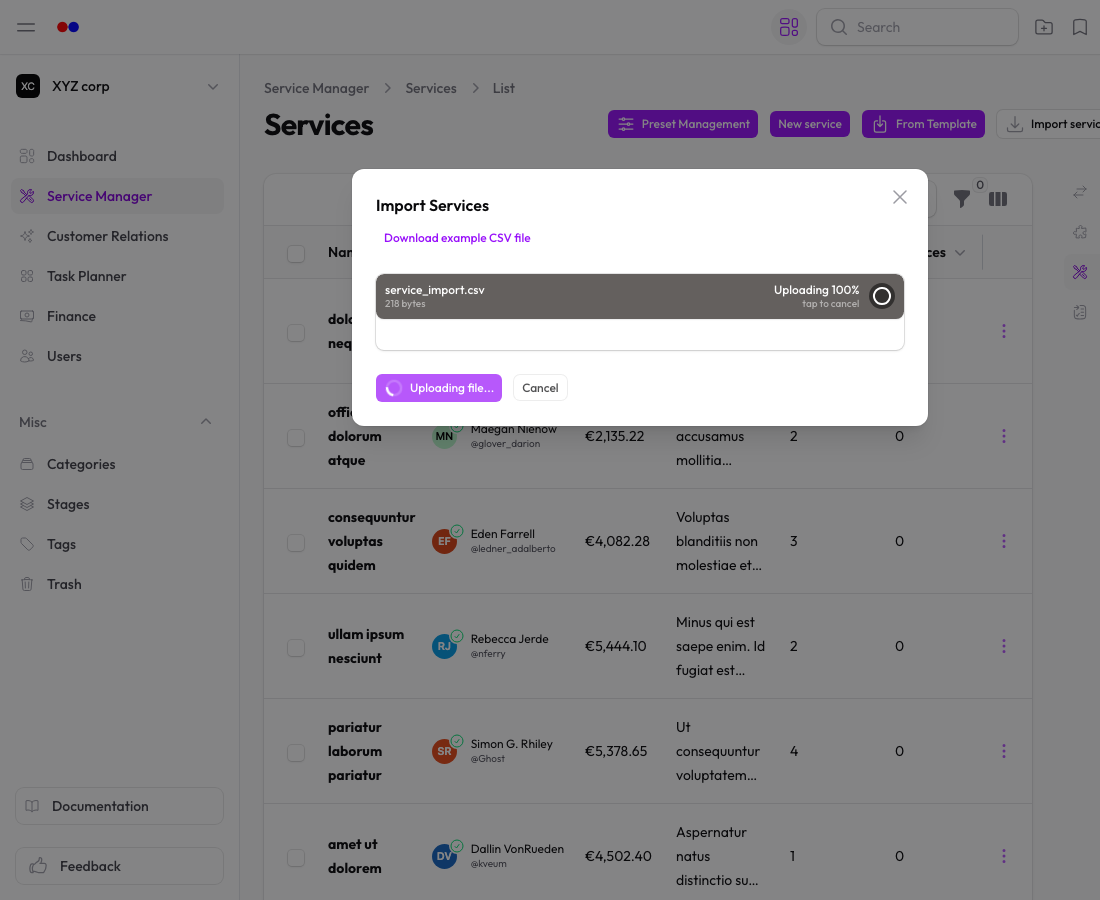
Upload your CSV file
-
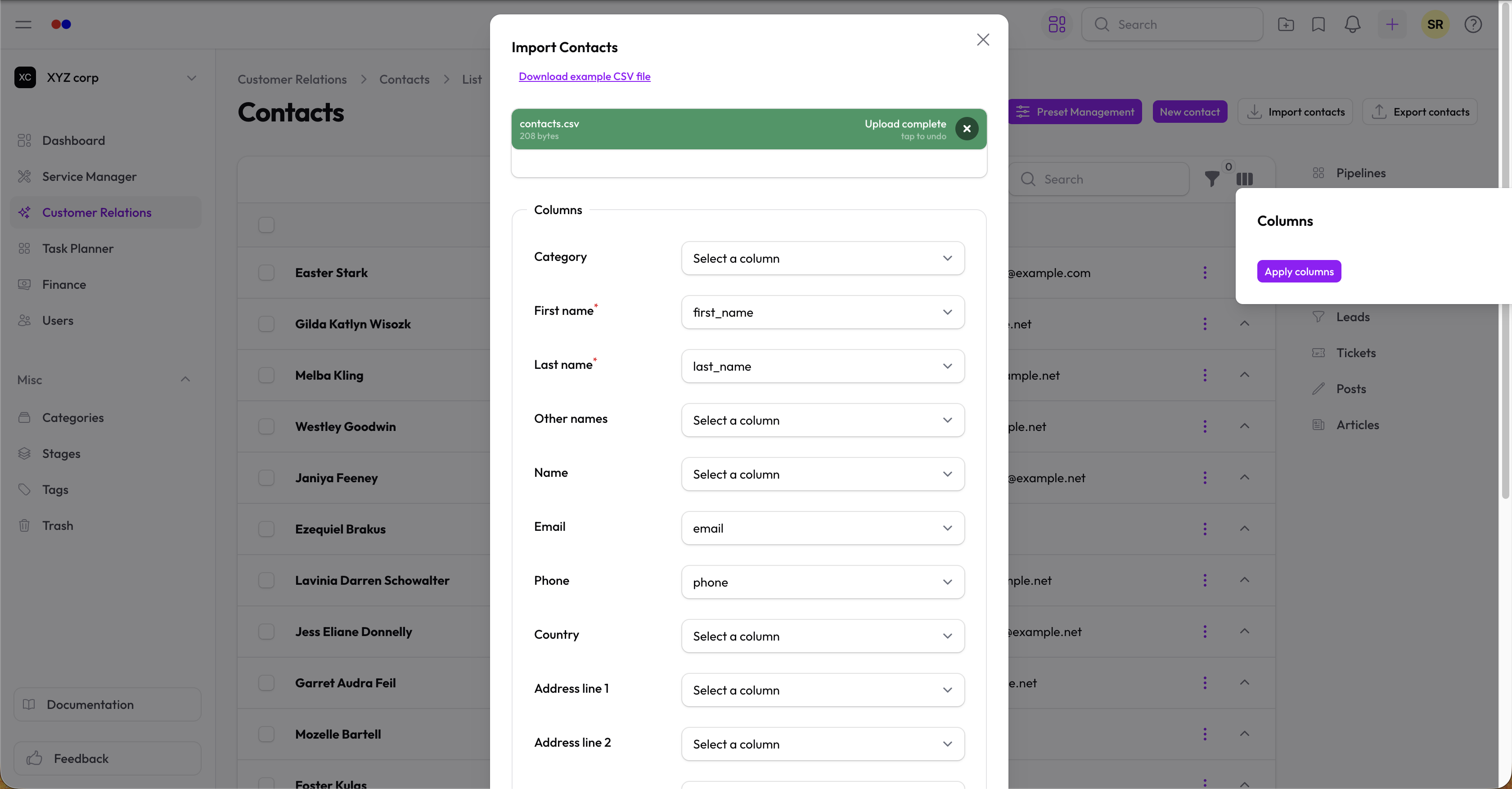
Map columns to fields
-
Review and confirm
Import Tips
- Use an export as a template for your import file
- Ensure required fields are filled
- Check for duplicate records before importing
- Review the preview before confirming
Supported Imports
Currently available for:
- Services
- (More coming soon)