
Table Presets
Save your table configurations as presets to quickly switch between different views.
What's Saved in a Preset
- Active filters
- Sort order
- Visible columns
- Column order
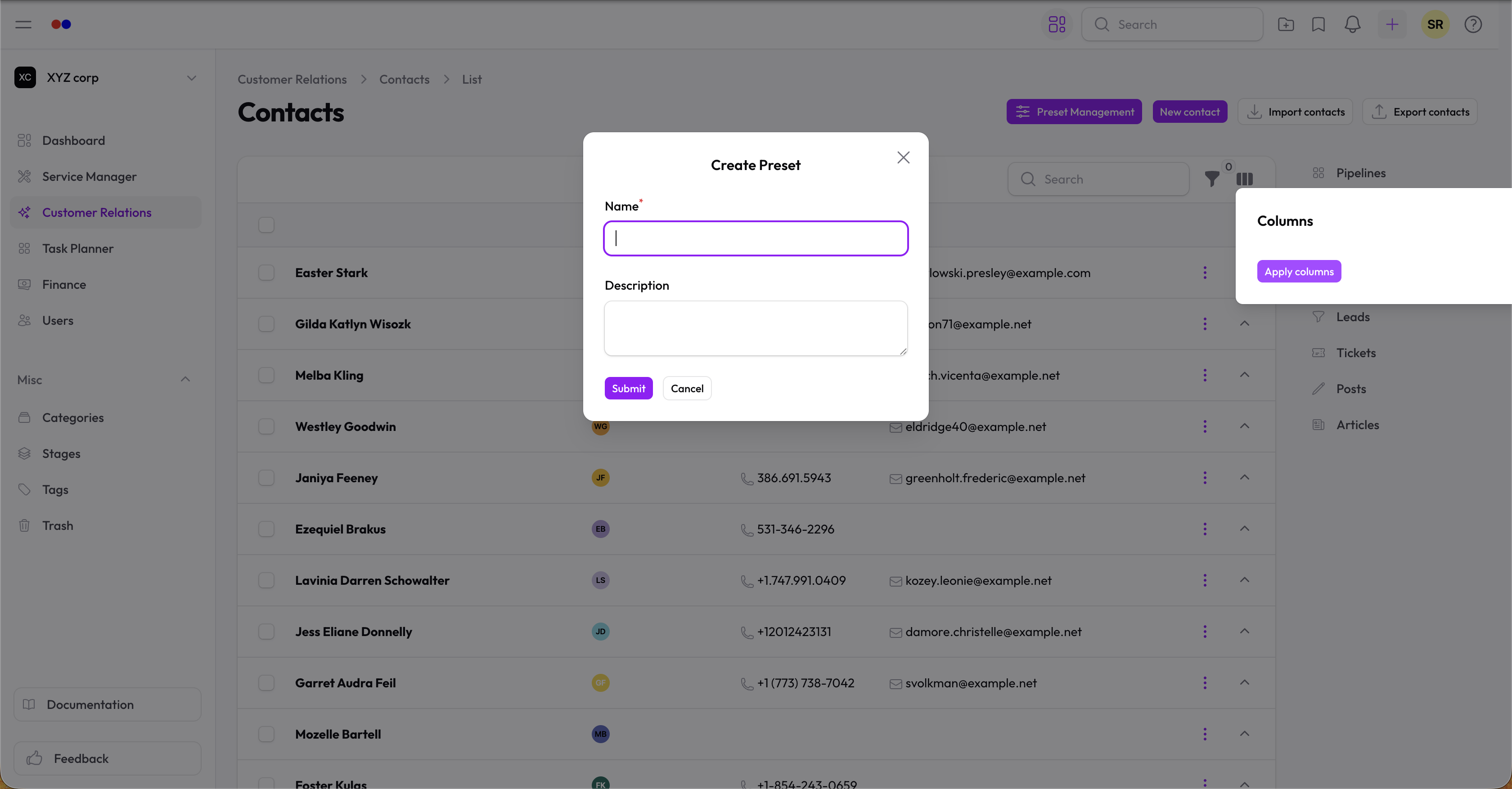
Creating a Preset
- Configure the table as desired (filters, sorting, columns)
- Click the Presets button (bookmark icon) in the table header
- Click Save Current View
- Give it a name
- Click Save
Using Presets
- Click the Presets button
- Select a saved preset
- The table updates instantly
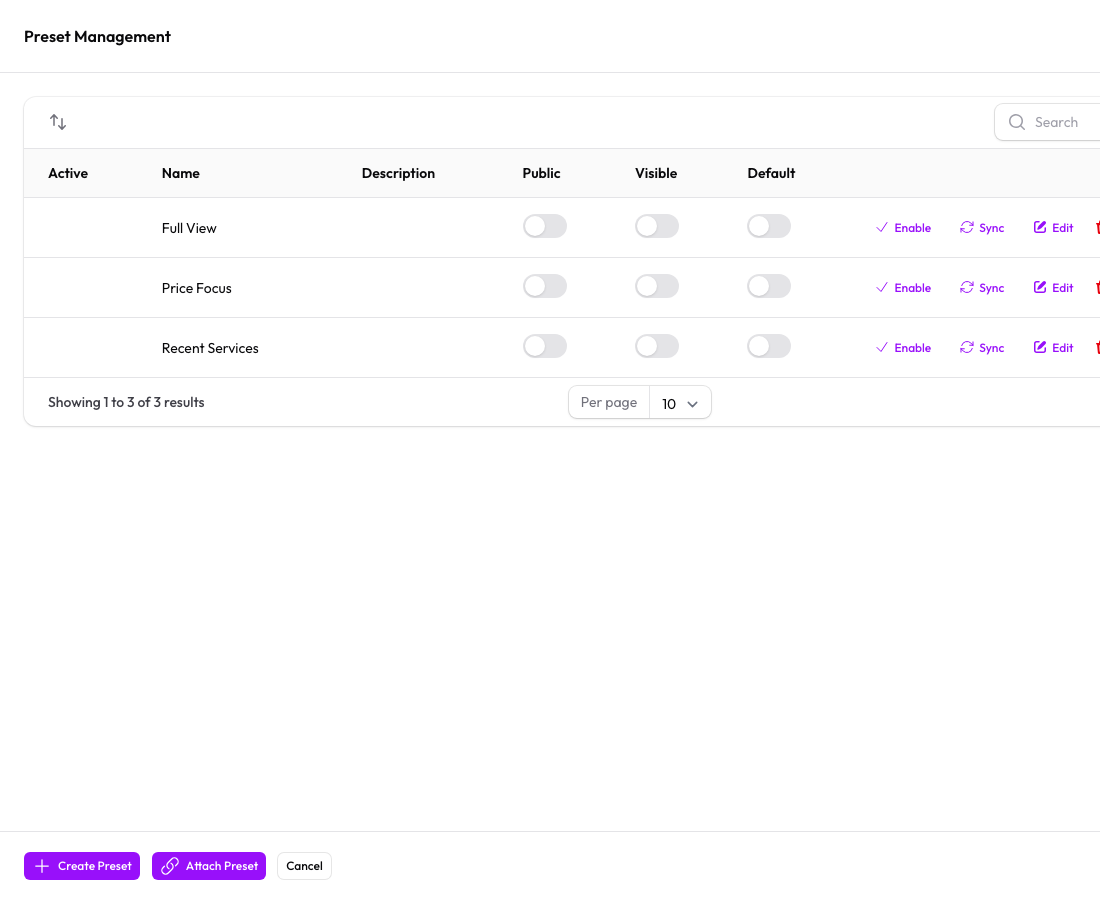
Managing Presets
Edit a Preset
- Apply the preset
- Make your changes
- Save as a new preset or update the existing one
Delete a Preset
- Click the Presets button
- Click the delete icon next to the preset
Use Cases
- "My Pending Requests" — Filter by assignee and pending status
- "High Value Services" — Sort by price, show only active
- "This Week's Activity" — Filter by date range