
Templates
Templates are reusable snapshots of records you can drop into any workspace. They let you start a service (or other supported record) from a known-good configuration instead of building it from scratch every time.
Where Templates Come From
| Source | Description |
|---|---|
| System | Curated by HollowPurple — always available to every tenant |
| Industry seed | Automatically loaded when you create an organization, based on the industry you pick during onboarding (Consulting, IT Services, Construction, Legal, Marketing, Design, etc.) |
| Your workspace | Templates you've saved from your own records (private to your org) |
| Community | Templates other organizations have explicitly shared with the community |
Currently, services are the supported template type. The same wizard pattern is being expanded to other resources in the platform.
Importing a Template
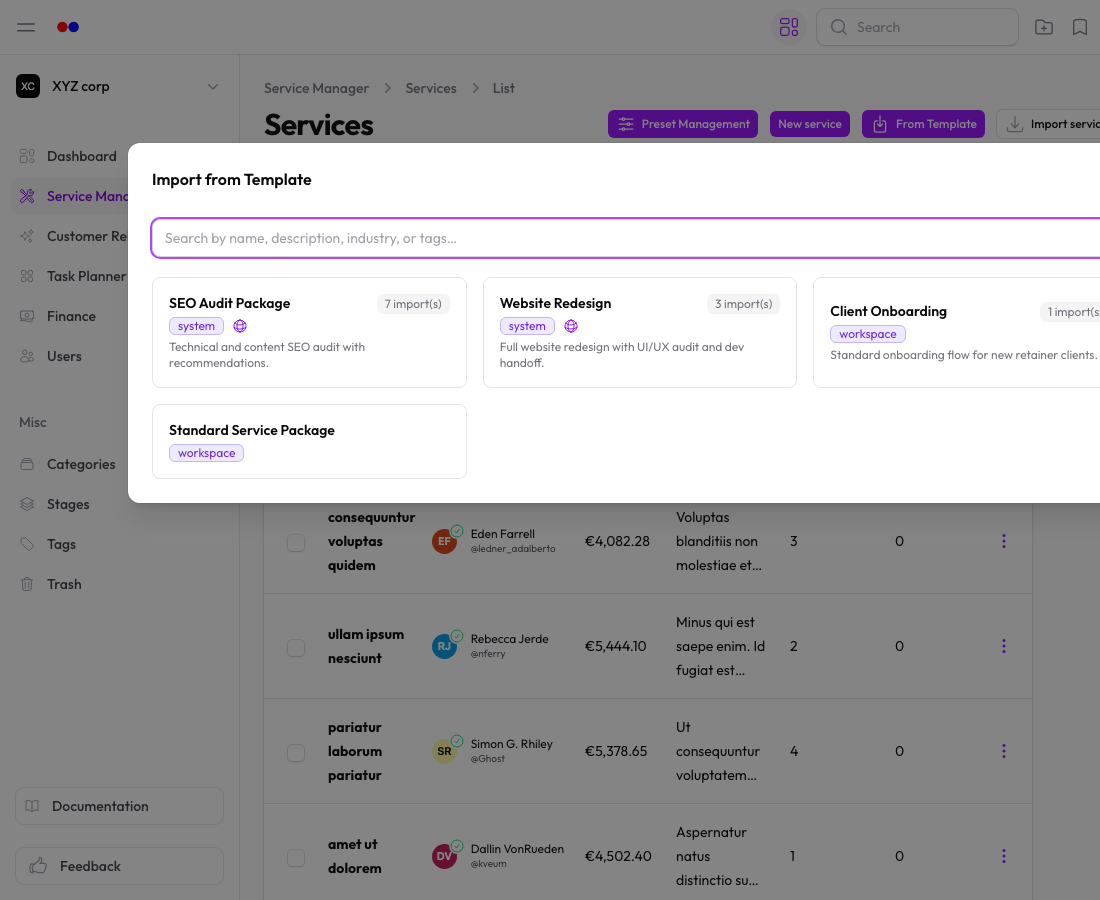
From the Services list page, click From Template.
Step 1 — Browse
Scroll the grid of templates available to you. Each card shows:
- Name and description
- A badge for system / your workspace / community
- The industry it targets
- Tags
- An import count (how many times others have used it)
Use the search box at the top to filter by name, description, industry, or tag.
Step 2 — Preview & Choose Import Mode
Click a template to preview it. You then pick:
- Quick import — Take everything as-is and create new line items, requirements, and stages in your workspace
- Map to existing records — Walk through each section and choose, for each item in the template, whether to create new or reuse an existing record from your workspace
Quick import is fastest. Mapping is recommended if you already have a mature catalog and want to avoid duplicating, say, a "Consulting Hour" line item you already have.
Step 3 — Mapping (optional)
For each section (stages, requirements, line items) the wizard shows a list with two options per item:
- Create new — adds a fresh record to your workspace
- Use existing → pick from a dropdown of your matching records
Step 4 — Finish
Click Import and the wizard creates the service plus all of its sub-records, then takes you straight to the new service.
Saving a Record as a Template
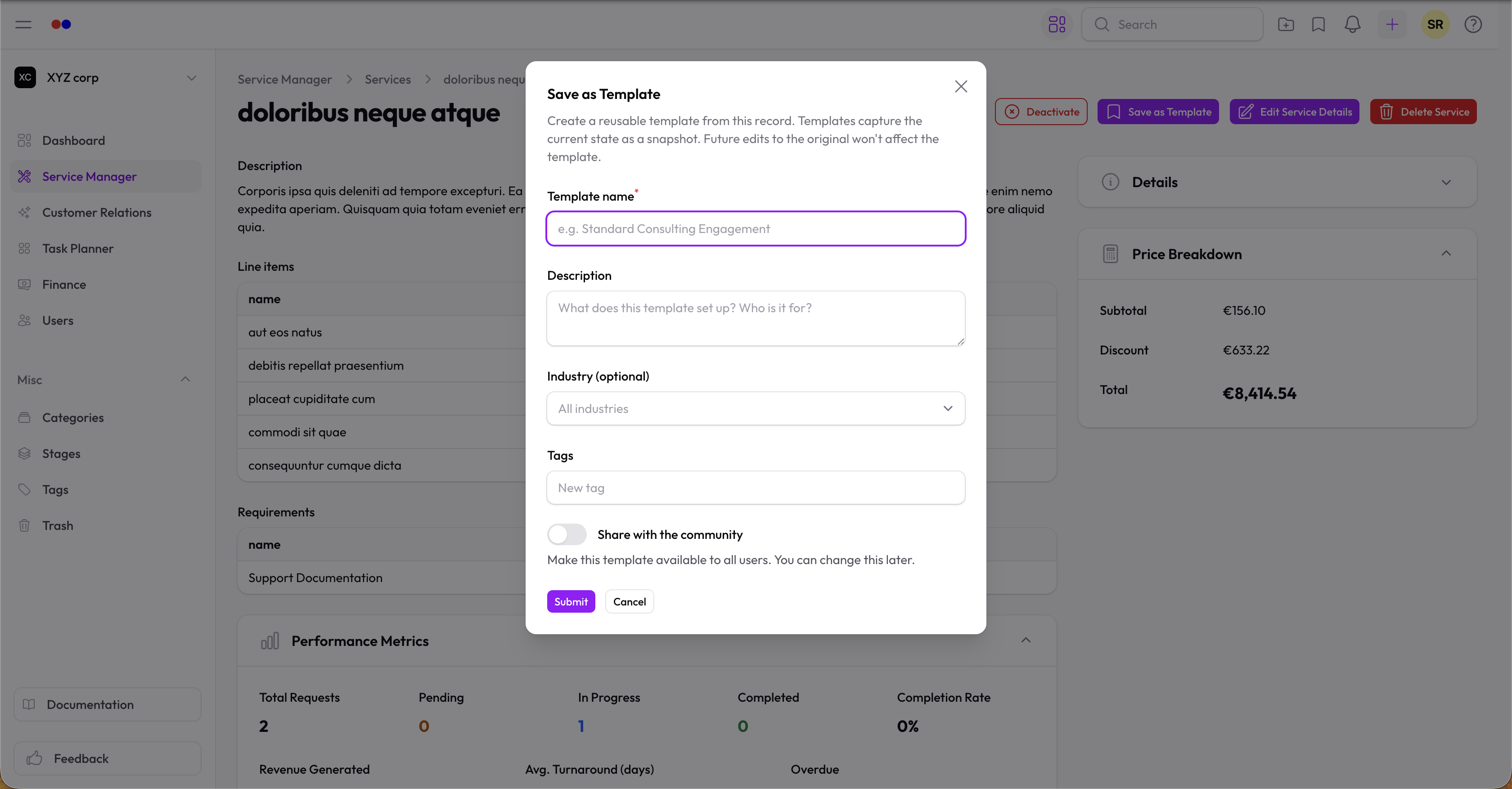
From any service's View page, click Save as Template.
You'll be prompted for:
- Template name (required, max 100 characters)
- Description — what does this template set up, who is it for?
- Industry — optional; helps people find it when filtered by industry
- Tags — optional categorisation
- Share with the community — toggle to publish to all HollowPurple users
Templates are snapshots. Editing the original service after you save the template doesn't update the template, and vice versa.
Visibility
- Private (default) — only your organization sees it
- Community — visible to every organization on the platform when active
You can change visibility later from the Templates list.
Tips
- Use Save as Template to preserve a service's exact mix of stages, requirements, and line items before experimenting on the live record.
- When sharing community templates, write a description that explains assumptions (currency, target client, what's included).
- The import count is a useful proxy for quality — popular templates are sorted to the top by default.
- Template imports are recorded in the activity log on the resulting service.