
Table Customization
Customize how tables display data to fit your workflow.
Column Resizing
Adjust column widths to see more or less of each field:
- Hover over the border between two column headers
- Click and drag to resize
- Release when satisfied
Column widths are remembered for your session.
Column Toggling
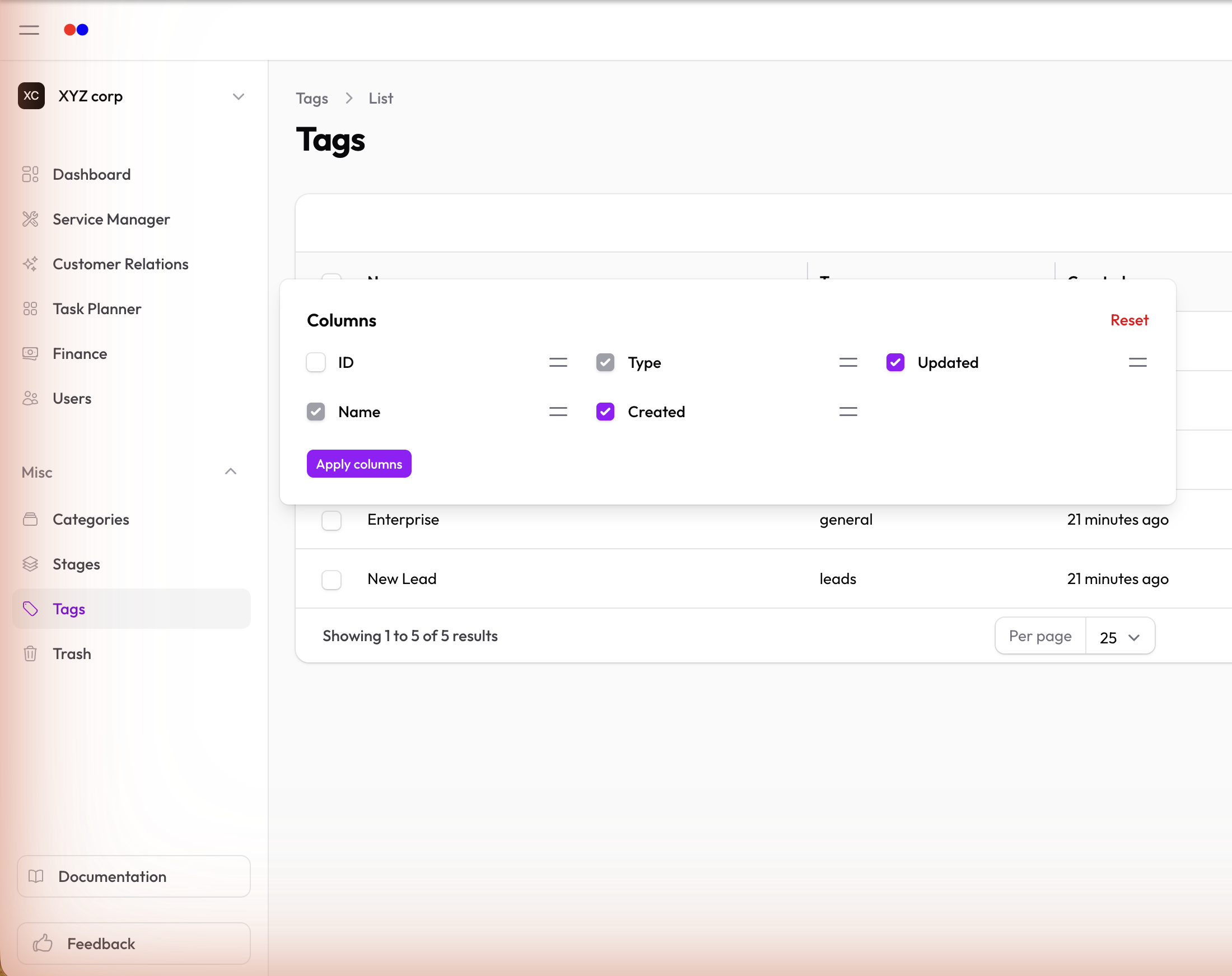
Show or hide columns to focus on what matters:
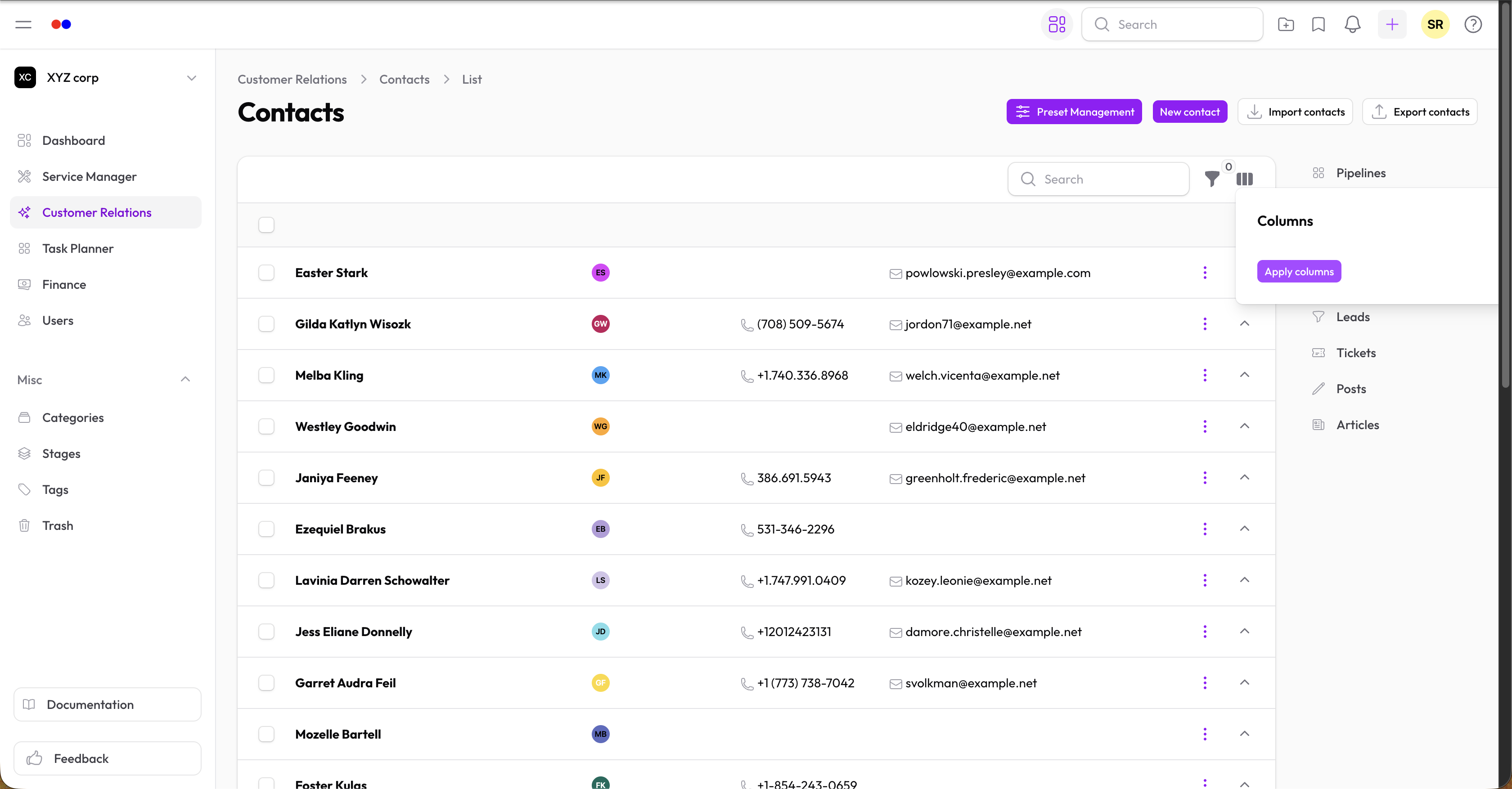
- Click the Columns button (grid icon) in the table header
- Toggle columns on/off
- Changes apply immediately
Tips
- Hide columns you rarely use
- Show additional columns when you need more detail
- Combine with presets to save your preferred layouts
Searching
Use the search bar to quickly find records:
- Type in the search box
- Results filter as you type
- Search typically covers name and ID fields
Filtering
Apply filters to narrow down records:
- Click Filters in the table header
- Configure your criteria
- Click Apply
Filters are deferred by default—set all your criteria, then apply once.
Sorting
Click any column header to sort by that column:
- First click: Ascending (A→Z, 1→9)
- Second click: Descending (Z→A, 9→1)
- Third click: Remove sort
Pagination
Control how many records display per page:
- Use the dropdown at the bottom of the table
- Choose your preferred page size